How to Add Email Me Widgets to Your iPhone
Add Email Me widgets to your Home Screen, Lock Screen, and StandBy so you can start a note or voice memo with one tap.
Tutorials
 July 25, 2026 by Manuel Escrig · 3 min read
July 25, 2026 by Manuel Escrig · 3 min read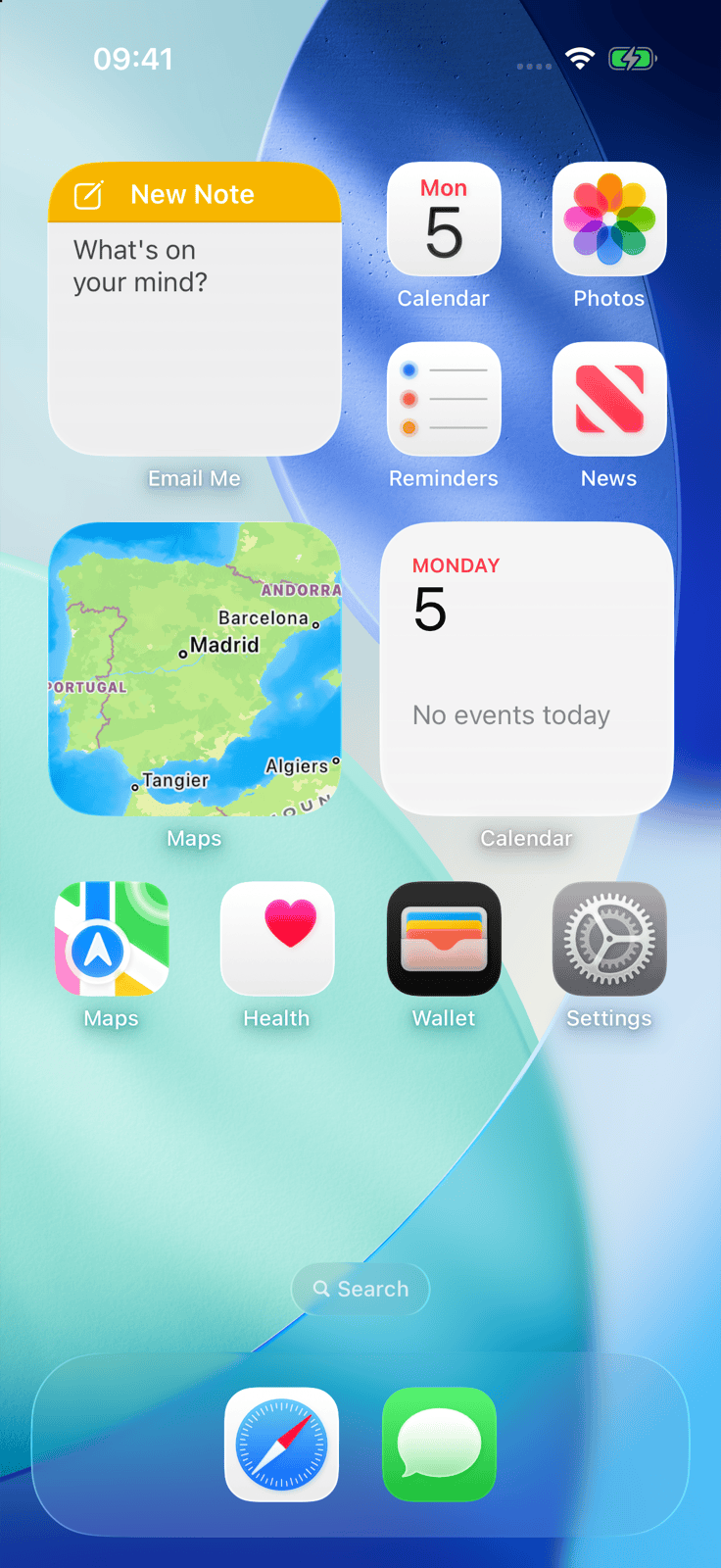
Why Widgets
The fewer taps between you and a note, the more notes actually get captured. Email Me widgets put a shortcut to your inbox everywhere you look:
- One tap from thought to inbox. Skip unlocking, searching, and opening — the widget starts a note or voice memo instantly.
- They live where you already are. Home Screen, Lock Screen, StandBy — pick your favorite spot or use them all.
- Capture in the right format. Jump straight into a text note or a voice memo, depending on the widget you choose.
Add the Home Screen Widget
Step 1: Enter Edit Mode
Touch and hold an empty area of your Home Screen until the apps start to jiggle, then tap Edit in the top-left corner and choose Add Widget. (On older iOS versions, tap the + button instead.)
Step 2: Search for Email Me
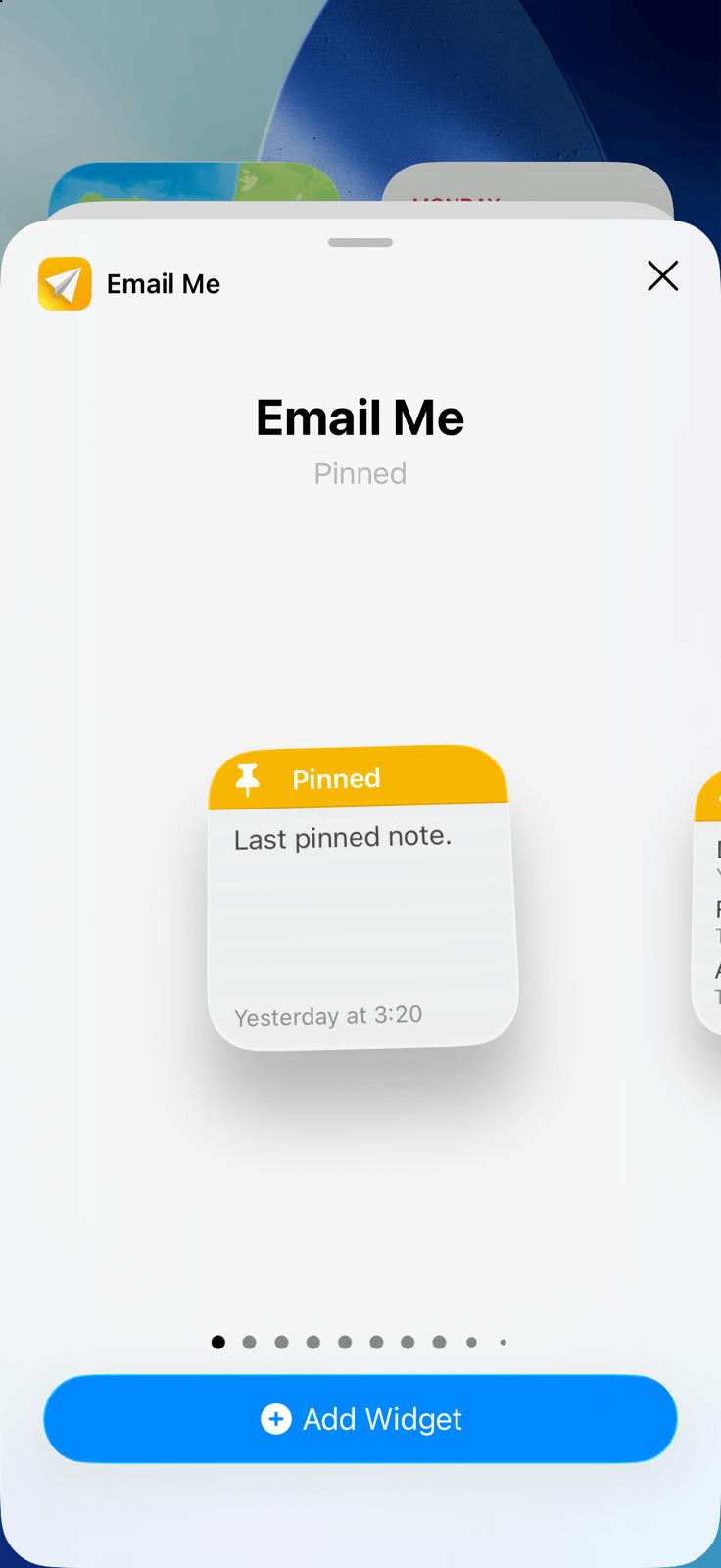
In the widget gallery, type Email Me in the search field and select it from the results.
Step 3: Choose a Size and Add It
Swipe through the available widget sizes, pick the one that fits your layout, and tap Add Widget. Drag it to the perfect spot and tap Done.
Add the Lock Screen Widget
Step 4: Customize Your Lock Screen
Touch and hold your Lock Screen, tap Customize, and choose Lock Screen.
Step 5: Add Email Me to the Widget Area
Tap the widget area below the clock, find Email Me in the list, and tap or drag the widget you want. Now a new note is one tap away before you even unlock your iPhone.

Step 6: Save Your Changes
Tap Done in the top-right corner, then tap your Lock Screen to set it.
StandBy and Spotlight
- StandBy. With your iPhone charging on its side, swipe to the widget view, then touch and hold a widget stack and press + to add Email Me. Your nightstand becomes a capture station.
- Spotlight. Swipe down on the Home Screen and type "Email Me" — the app and its quick actions show up right in the search results, no widget required.
Choose the Recipient
Want your widget notes to go to a specific address? Open Email Me and go to Settings > Widget > Select Recipient. Every note you start from a widget is addressed and ready — all that's left is to write or talk.
Every Screen Is a Shortcut Now
With Email Me widgets on your Home Screen, Lock Screen, and StandBy, capturing a thought stops being a chore and becomes a reflex. One tap, one note, one less thing to remember.
Keep on sending notes ✨
Did this guide make your life a tad easier? I'd love to hear about it! If you have any questions or just want to share your thoughts, don't hesitate to reach out. Thanks for stopping by. Here's to making note-sending a breeze and adding a dash of fun to your day 🚀 Keep on sending those notes and making the most of every moment! 💫
Cheers,
Manuel Escrig
 Share on Facebook
|
Share on Facebook
|
 Share on X