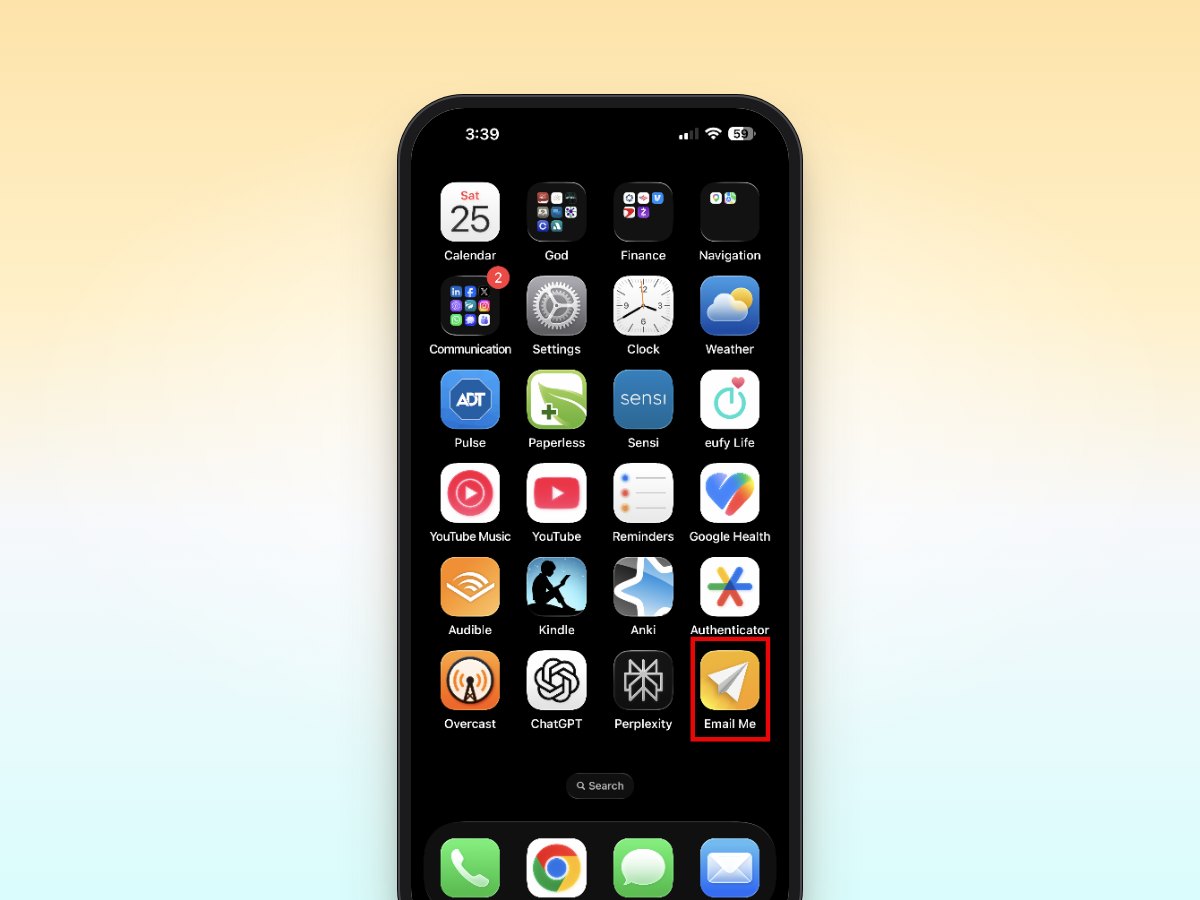
Ever wished you could capture that brilliant idea or important task without unlocking your phone and opening multiple apps? With Email Me's iOS widgets, your most-used features are just a tap away on your home screen. Let's explore how to transform your iPhone or iPad into a streamlined command center for quick note-taking and task capture.
Setting Up Your Widget Arsenal
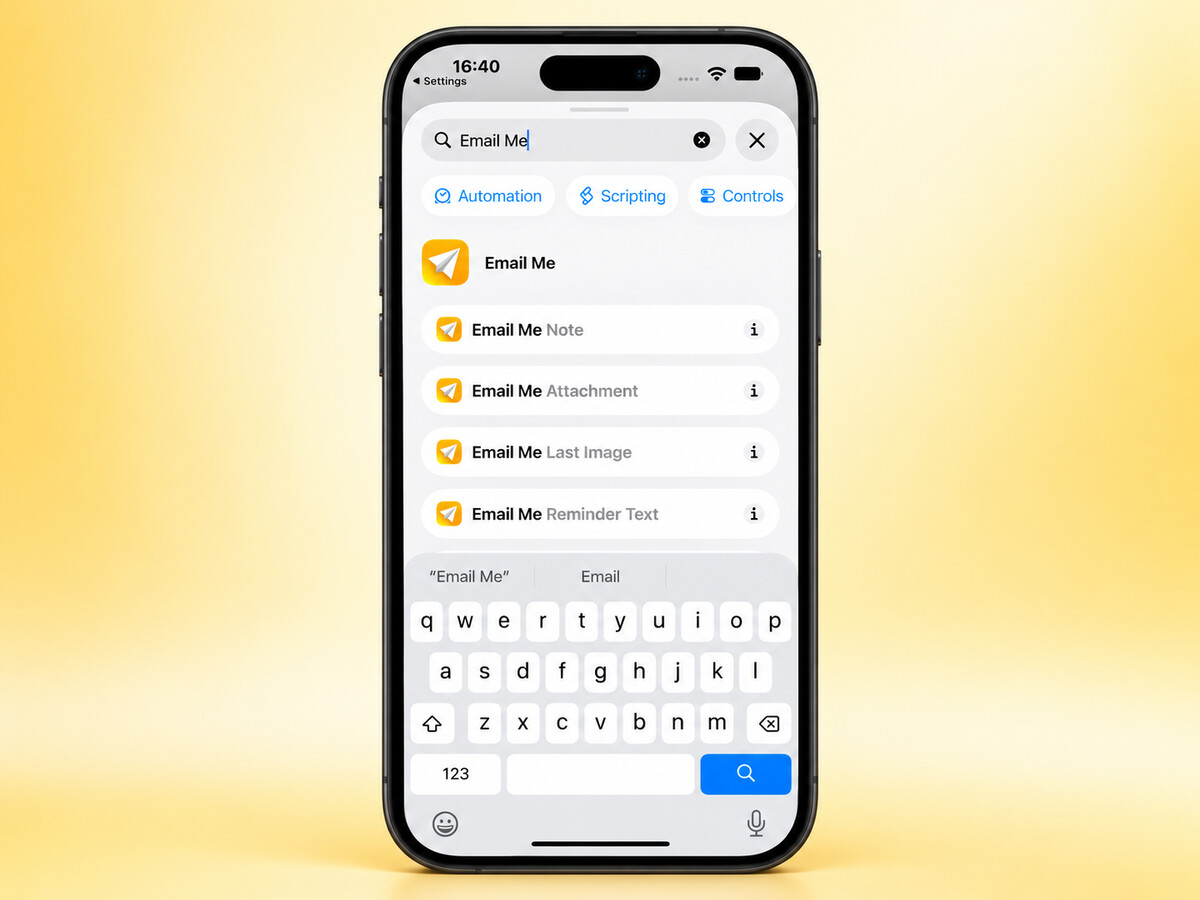
Getting started with Email Me widgets is refreshingly simple. Long-press any empty space on your home screen, tap the "+" button in the top-left corner, and search for "Email Me." You'll find three widget options designed for different needs:
1. Quick Send Widget
Perfect for those "can't forget this" moments, the Quick Send widget lets you fire off a note to your inbox instantly. Place it where your thumb naturally lands on your home screen for maximum efficiency.
2. Template Widget
Save time with pre-formatted emails for recurring tasks. Whether it's your daily workout log or weekly meeting notes, your favorite templates are always within reach.
3. Smart Actions Widget
Combine multiple actions into one tap. For example, set up a widget that both logs your expense and reminds you to file it later.
Why Widgets
The fewer taps between you and a note, the more notes actually get captured. Email Me widgets put a shortcut to your inbox everywhere you look:
- One tap from thought to inbox. Skip unlocking, searching, and opening: the widget starts a note or voice memo instantly.
- They live where you already are. Home Screen, Lock Screen, StandBy: pick your favorite spot or use them all.
- Capture in the right format. Jump straight into a text note or a voice memo, depending on the widget you choose.
Add the Home Screen Widget
Enter Edit Mode
Touch and hold an empty area of your Home Screen until the apps start to jiggle, then tap Edit in the top-left corner and choose Add Widget. (On older iOS versions, tap the + button instead.)
Search for Email Me
In the widget gallery, type Email Me in the search field and select it from the results.
Choose a Size and Add It
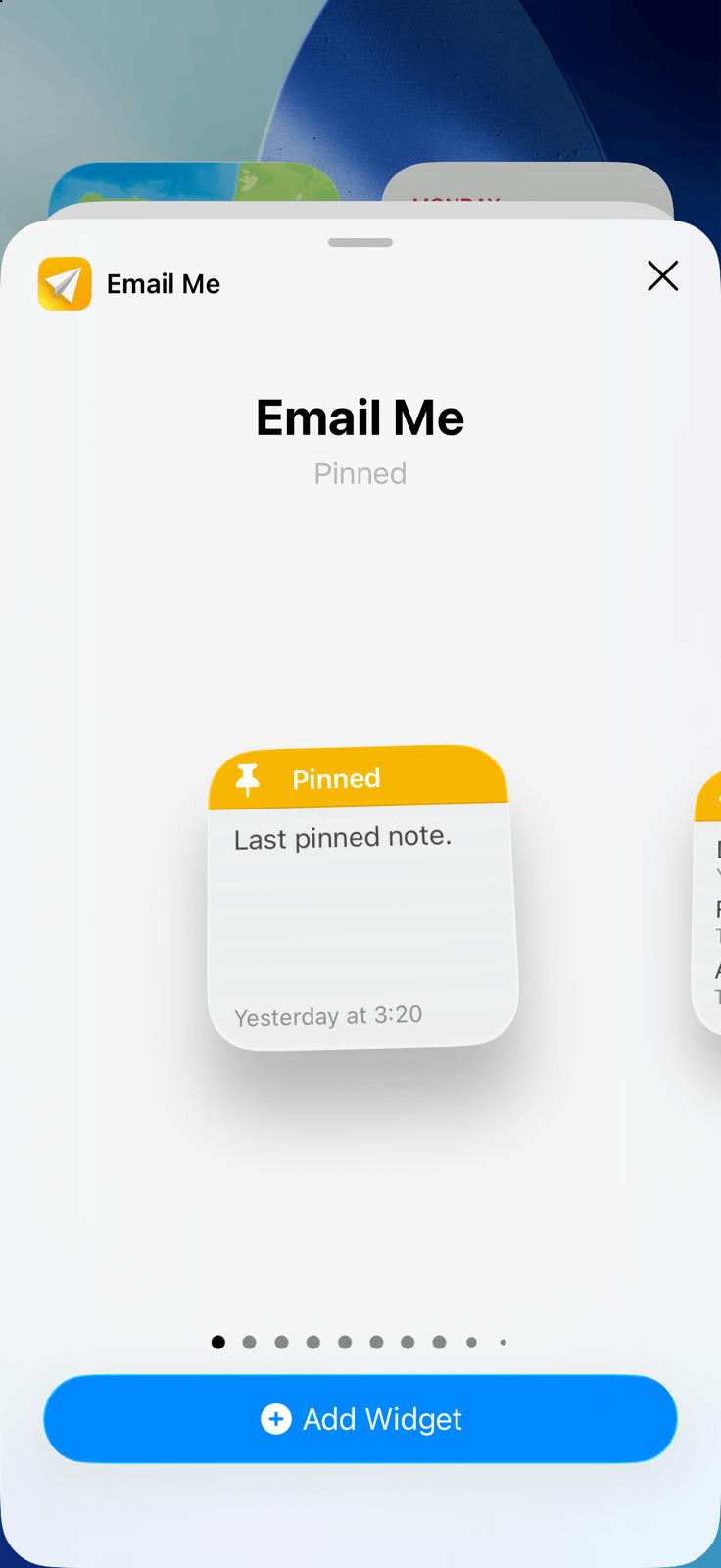
Swipe through the available widget sizes, pick the one that fits your layout, and tap Add Widget. Drag it to the perfect spot and tap Done.
Add the Lock Screen Widget
Customize Your Lock Screen
Touch and hold your Lock Screen, tap Customize, and choose Lock Screen.
Add Email Me to the Widget Area
Tap the widget area below the clock, find Email Me in the list, and tap or drag the widget you want. Now a new note is one tap away before you even unlock your iPhone.
Save Your Changes
Tap Done in the top-right corner, then tap your Lock Screen to set it.

StandBy and Spotlight
- StandBy. With your iPhone charging on its side, swipe to the widget view, then touch and hold a widget stack and press + to add Email Me. Your nightstand becomes a capture station.
- Spotlight. Swipe down on the Home Screen and type "Email Me": the app and its quick actions show up right in the search results, no widget required.
Real-World Applications
Let's look at how professionals are using Email Me widgets to stay productive:
- Writers capture story ideas on the go
- Project managers track action items during meetings
- Shoppers maintain running grocery lists
- Travelers save flight details and booking references
- Parents note down kids' activities and important dates
Pro Tips for Widget Warriors
1. Strategic Placement
Position your most-used widgets on your primary home screen. Consider creating a dedicated productivity page with multiple Email Me widgets for different purposes.
2. Custom Templates
Create templates for common scenarios:
- Meeting notes structure
- Daily task checklist
- Reading recommendations
- Gift ideas
- Project updates
3. Stack and Switch
Use widget stacks to combine multiple Email Me widgets without cluttering your screen. Swipe between them based on your current need.
Making the Most of Smart Actions
The real power of Email Me widgets comes from Smart Actions. Here's how to leverage them:
- Morning Routine Widget: One tap to send yourself your daily priorities
- Work Mode Widget: Quick access to project-specific templates
- Evening Review Widget: Trigger your end-of-day reflection template
Time-Saving Combinations
Create powerful workflows by combining widgets with iOS features:
- Place a Quick Send widget next to your calendar widget
- Stack an Email Me template with your reminder widget
- Add a Smart Action widget to your Focus Mode settings
Choose the Recipient
Want your widget notes to go to a specific address? Open Email Me and go to Settings > Widget > Select Recipient. Every note you start from a widget is addressed and ready: all that's left is to write or talk.
Every Screen Is a Shortcut Now
With Email Me widgets on your Home Screen, Lock Screen, and StandBy, capturing a thought stops being a chore and becomes a reflex. One tap, one note, one less thing to remember.
The Beauty of Simplicity
What makes Email Me widgets truly special is their simplicity. There's no need to remember complex shortcuts or navigate through multiple screens. Just tap and capture: your future self will thank you.
Customization is Key
Take advantage of Email Me's widget customization options:
- Choose different colors for different types of notes
- Set default subjects for quick identification
- Configure custom shortcuts for frequently used phrases
- Adjust text size for better readability
More ways to send things to your inbox: the complete guide to emailing yourself.
Download Email Me
Email Me is built by a solo developer, and I really care about the product and about its users. It also supports Family Sharing, and you can get access with Weekly, Monthly, Yearly, or lifetime plans. Email Me is available natively on iOS, macOS, watchOS, and visionOS.
Download Email Me from the App Store
Whether you're a busy professional, a creative mind, or someone who appreciates efficient organization, Email Me widgets are your gateway to seamless productivity. Try them today and watch your workflow transform.
Happy note-taking! 📝
Manuel