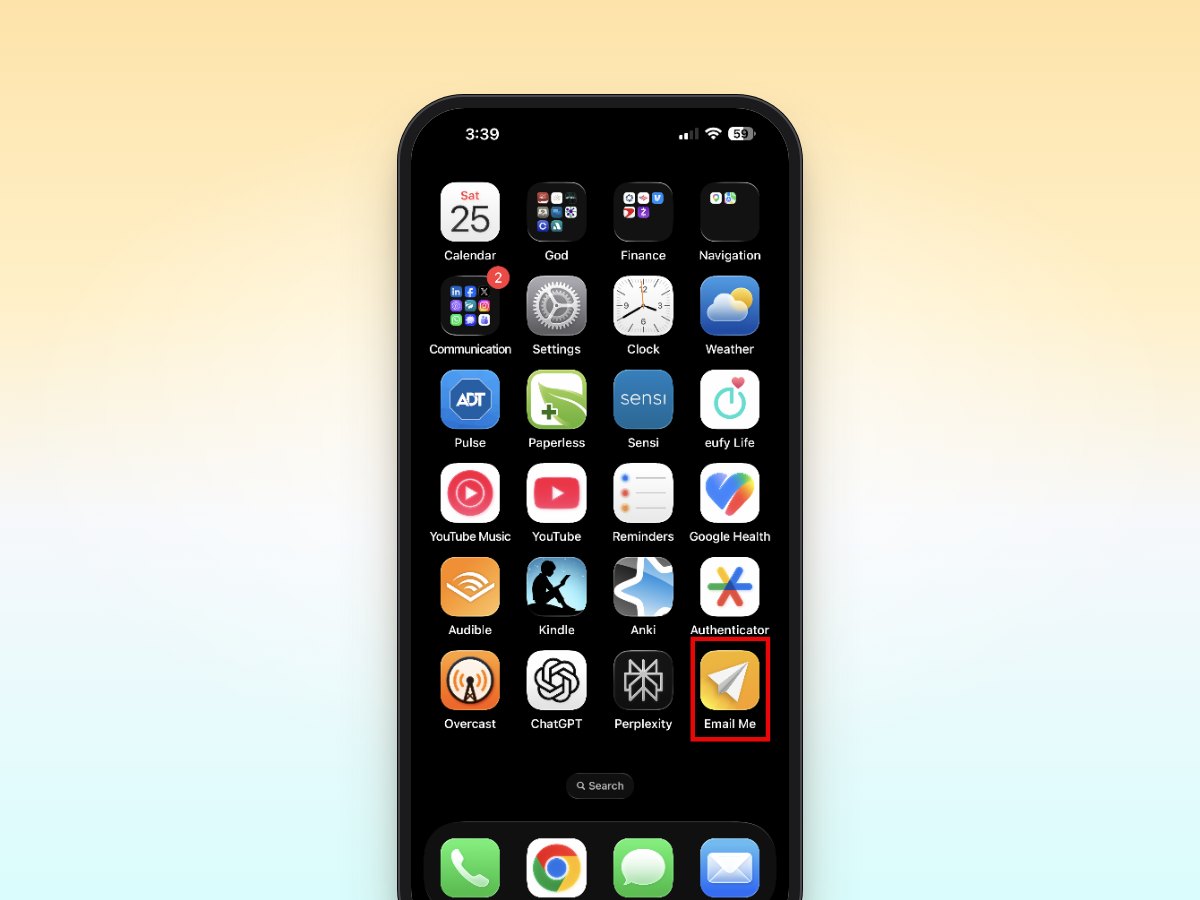
Email Me provides a streamlined way to send notes, reminders, and content to your own email address. This guide explains how to effectively use Email Me for self-emailing across Apple devices, helping you maintain an organized digital workflow.
Get Email Me on the App Store to send yourself a note, link or photo in one tap.
Getting Started with Self-Emailing
The Email Me app simplifies the process of sending emails to yourself. After installing the app from the App Store, users can quickly set up their preferred email address and start sending themselves notes, links, and files with just a few taps.
Initial Setup Steps
- Download Email Me from the App Store
- Open the app and enter your primary email address
- Verify your email through the confirmation link
- Enable notifications for optimal usage (recommended)
Key Features for Self-Emailing
Quick Capture Methods
- Widget support for instant access
- Share extension for sending content from other apps
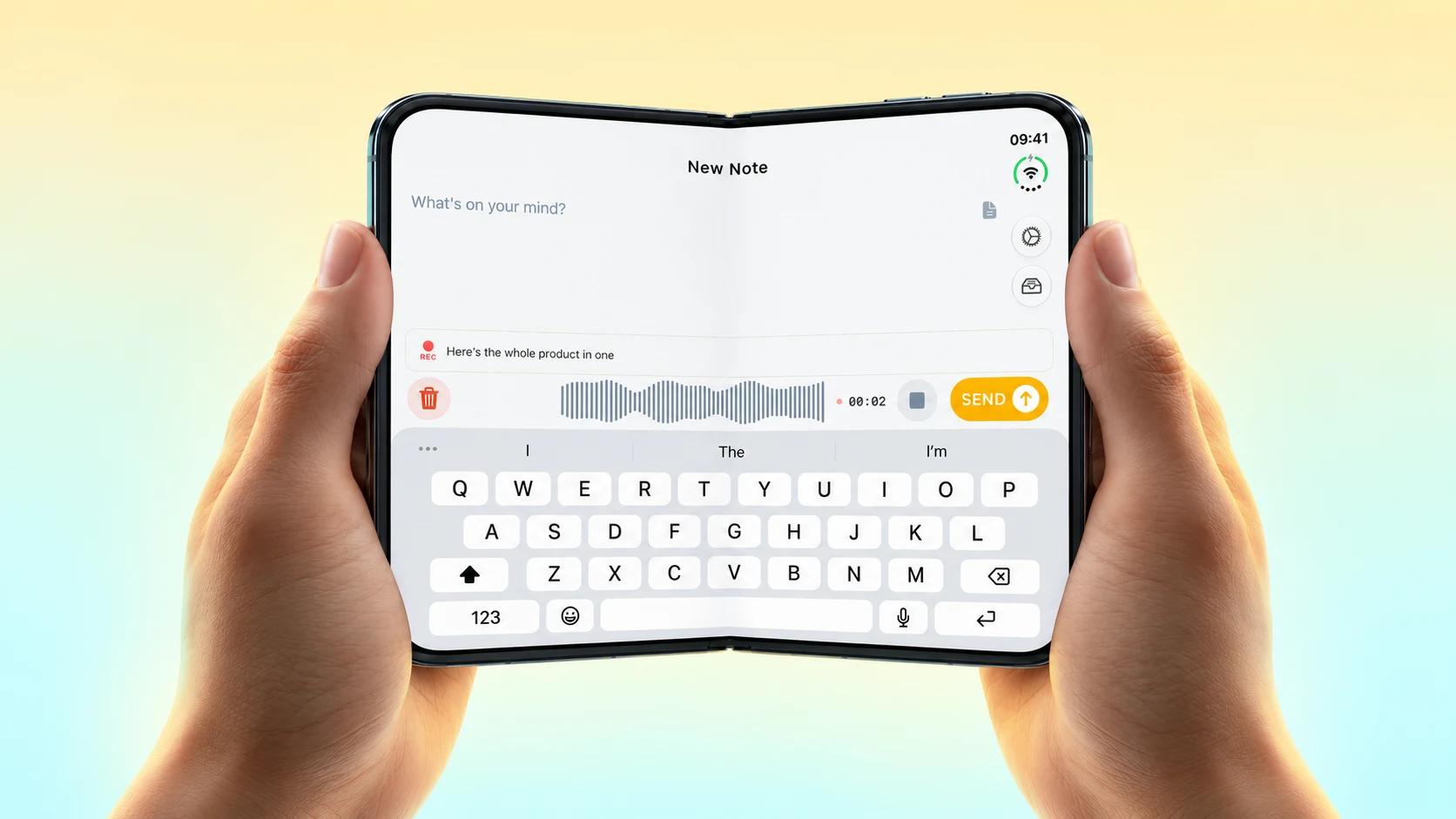
- Voice notes with automatic transcription
- Apple Watch compatibility for on-the-go capture
Smart Organization
Users can organize self-emails by:
- Adding custom subjects
- Including timestamps
- Setting priorities
- Using templates for recurring content
Best Practices for Self-Emailing
When to Mail Yourself
- Save articles for later reading
- Forward important information across devices
- Create quick reminders
- Archive screenshots and images
- Send voice memos with transcriptions
Organizing Tips
- Use consistent subject lines
- Create email filters in your inbox
- Set up dedicated folders
- Review and process regularly
Advanced Features
Voice Notes
- Tap the microphone icon
- Record your message
- Review the automatic transcription
- Send both audio and text
Share Extension
- Find content to share in any app
- Tap the Share button
- Select Email Me from the options
- Add any additional notes
- Send to your inbox
Tips for Maximum Productivity
Time-Saving Shortcuts
- Configure widgets for single-tap access
- Set up Siri shortcuts for voice commands
- Use templates for common self-emails
- Enable auto-send for basic notes
Cross-Device Syncing
- Access notes across iPhone, iPad, and Mac
- Use iCloud sync for seamless integration
- Enable offline support for continuous access
Troubleshooting Common Issues
Email Not Received
- Check spam folder
- Verify email address
- Ensure internet connectivity
App Performance
- Keep app updated
- Clear cache regularly
- Check device storage
- Restart if necessary
Next Steps
To make the most of Email Me for self-emailing:
- Organize email filters in your inbox
- Create Siri shortcuts for common actions
- Explore advanced features like voice notes
- Configure widgets for quick access
Remember to regularly review and organize your self-emails to maintain an efficient system. With these tools and practices, Email Me can become an integral part of your productivity workflow.
Thank you for reading!
All the best,
Frequently Asked Questions
Can I send an email to myself?
Yes. Start a new message in any email app, put your own address in the To field and send it.
How do I send an email to myself on iPhone?
In the Mail app, tap the compose button, type your own address in To, write your note and tap Send. With Email Me you set your address once, and every note goes to your inbox with one tap.
What can I email myself?
Notes, links, photos, screenshots, files and voice memos. Email Me can also transcribe a voice memo and send you the text with the recording.
Guides for emailing yourself anything
- Photos and videos
- PDFs and documents
- Screenshots
- Links and bookmarks
- Reminders, without typing
- Voice notes
- A one-tap shortcut
- From a Home Screen widget
- From the share sheet
- With Siri
- From Apple Watch
Manuel