Why Talk to Email Me
Typing is great: until your hands are busy. With Siri and Email Me working together, your voice becomes the fastest route to your inbox:
- Completely hands-free. Cooking, driving, out for a walk: say your phrase and the note is on its way.
- Faster than any app. No unlocking, no tapping. From thought to sent note in a few seconds.
- It ends up where you'll see it. Every note lands in your inbox, ready to be acted on.
Ask Siri What's Possible
Not sure where to start? Just ask: "Hey Siri, what can you do with Email Me?" Siri will show you the actions available, from sending quick notes to starting an audio recording.
Step-by-Step Guide to Setting Up Siri with Email Me
Enable Siri on Your iPhone
Go to Settings > Siri (called Apple Intelligence & Siri on newer versions of iOS) and make sure Siri is turned on, including the option to listen for "Hey Siri" so you can trigger it without touching your iPhone.
Pick Your Recipient in Email Me
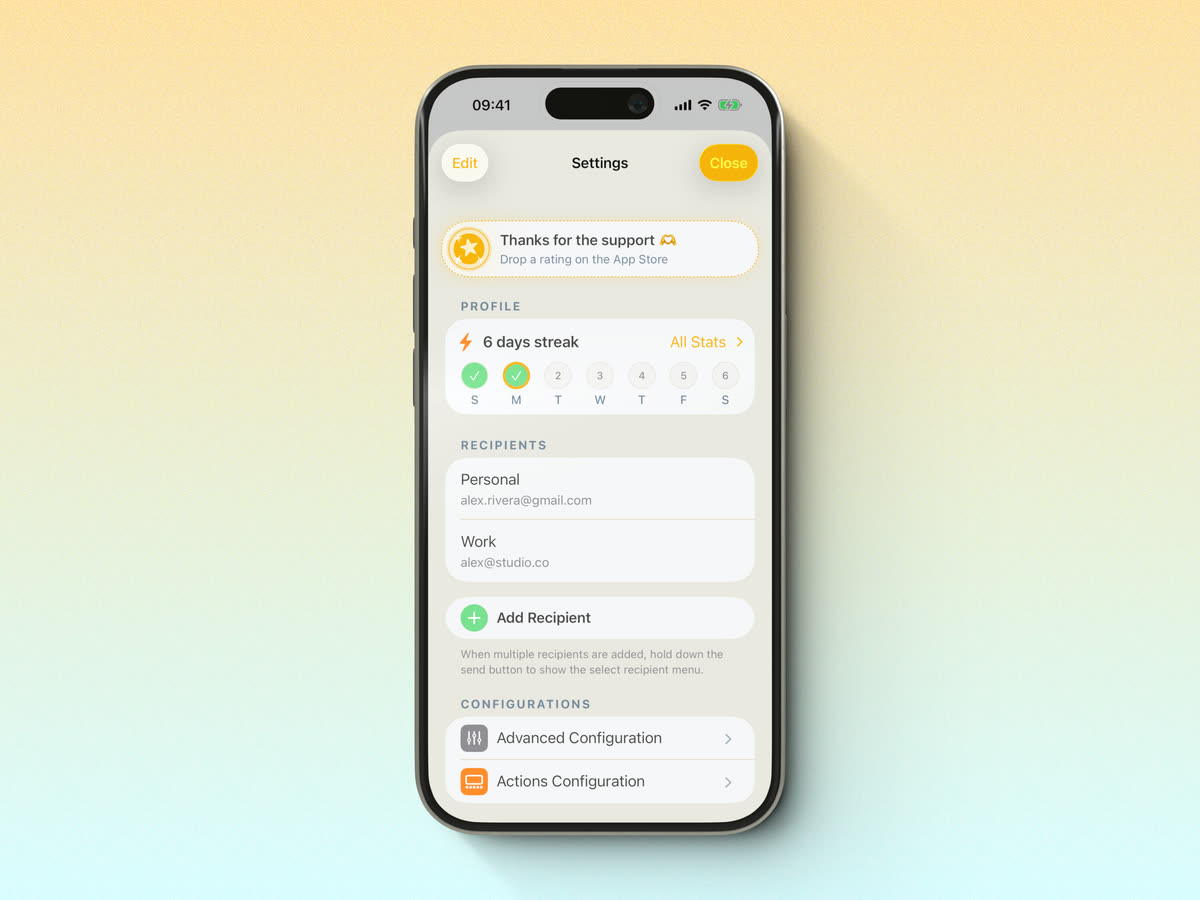
Open Email Me and go to Settings > Siri > Select Recipient. This tells Siri which email address your voice notes should be sent to: set it once and forget it.
Find the Audio Note Action in Shortcuts
In Email Me, open Settings > Siri, then tap Email Me Shortcuts. The Shortcuts app shows Create Audio Note alongside Email Me's other actions. Add it to a shortcut and give the shortcut a short, natural name you can say to Siri.

Siri Shortcuts for Email Me: Voice Commands That Fit Your Day
Getting started with Siri shortcuts for Email Me is simple. Open the app, go to Settings > Siri, then tap Email Me Shortcuts. Choose an Email Me action in Shortcuts and name your shortcut with a phrase that feels natural to say.
A few phrases people tend to like are:
- Email myself
- Note to self
- Remember this
The best part is that you can make the command fit the kind of note you want to send. For example:
- Quick ideas: "Hey Siri, email myself: Schedule dentist appointment for next month"
- Shopping lists: "Hey Siri, email myself: Pick up milk, bread, and coffee filters"
- Work tasks: "Hey Siri, email myself: Follow up with client about project timeline"
Make Your Voice Commands Work Better
A few small habits can make Siri shortcuts even smoother:
- Speak clearly and naturally
- Use consistent phrases for similar types of notes
- Test your shortcuts in different environments
- Keep commands short but specific
If something is not working as expected, try these basics:
- Check if Siri is enabled in your device settings
- Ensure Email Me has necessary permissions
- Check the shortcut's name and try saying it to Siri again
- Update both iOS and Email Me to the latest versions
A Few Extra Ways to Use Siri Shortcuts
If you want to go further, you can also use Siri Shortcuts in more advanced ways:
- Custom templates: create shortcuts for frequently used email formats. For example, "Hey Siri, work idea" could automatically add "#work" to your email subject line.
- Time-saving combinations: chain multiple actions together, so you can send yourself a note and add it to your calendar with a single command.
- Multiple email addresses: set up different shortcuts for different email addresses if you use Email Me with multiple accounts.
Works Everywhere
The best part: your Siri phrase travels with you. It works on your iPhone, iPad, Apple Watch, and Mac: anywhere Siri listens, Email Me answers. And in the car it truly shines: pair it with CarPlay and capture ideas without taking your hands off the wheel. Here's our guide on how to add Email Me to CarPlay.
Your Voice, Straight to Your Inbox
Once Siri and Email Me are connected, note-taking disappears into the background of your day. No screens, no typing, no friction: just say it, and it's saved where you'll actually see it.
Keep on sending notes ✨
Did this guide make your life a tad easier? I'd love to hear about it! If you have any questions or just want to share your thoughts, don't hesitate to reach out. Thanks for stopping by. Here's to making note-sending a breeze and adding a dash of fun to your day 🚀 Keep on sending those notes and making the most of every moment! 💫
More ways to send things to your inbox: the complete guide to emailing yourself. Cheers,