Ever found yourself juggling multiple PDFs and documents, wondering how to keep them organized and easily accessible? Whether it's work contracts, recipes, or travel itineraries, emailing PDFs to yourself can be a quick way to save and organize important files. Let's explore the most efficient ways to email documents to yourself, including a game-changing solution that'll make the process virtually effortless.
The Traditional Method
The standard way to email a PDF to yourself involves several steps:
- Open the PDF
- Tap the share button
- Select your email app
- Enter your email address
- Add a subject line
- Hit send
While this works, it's rather time-consuming: especially when you're doing it multiple times a day. Plus, you'll need to manually organize these emails in your inbox later.
A Smarter Approach with Email Me
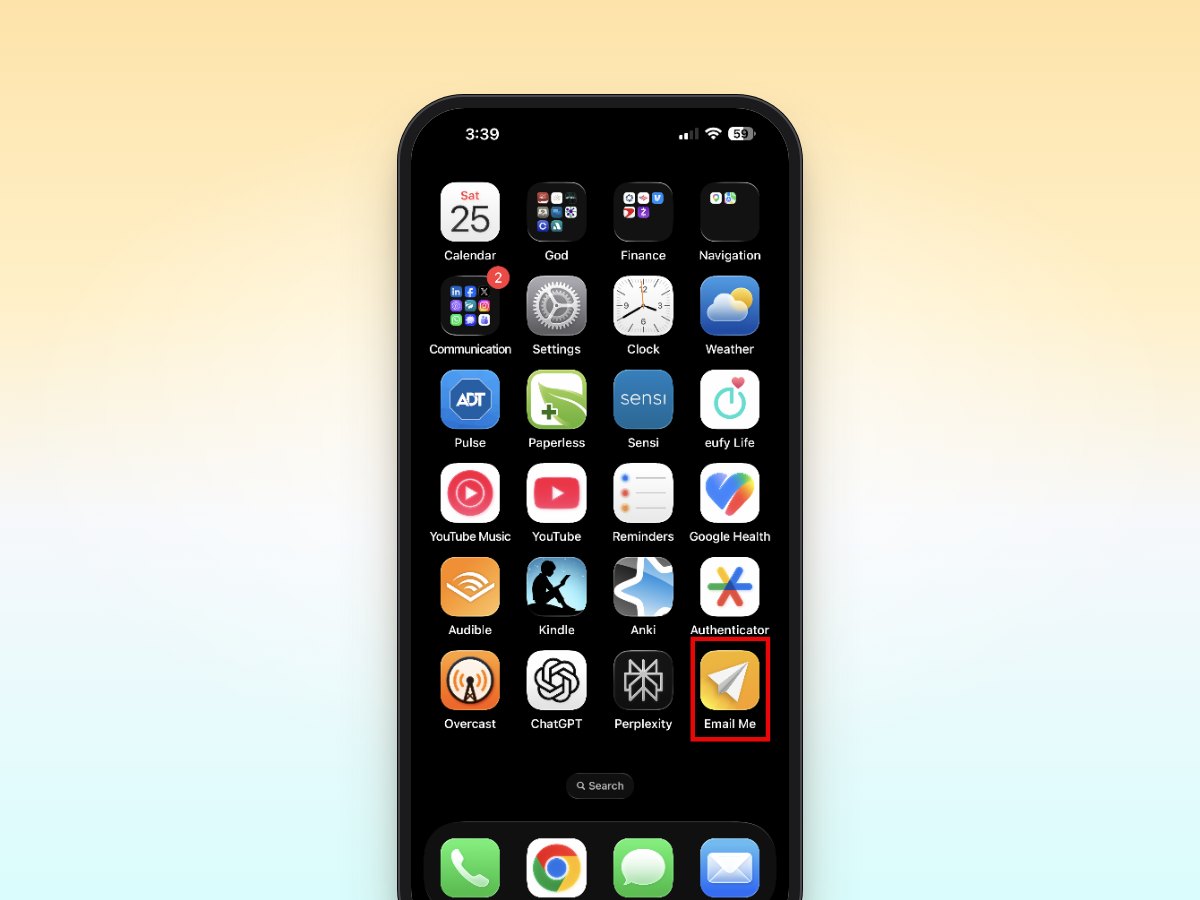
Here's where Email Me comes in handy. This lightweight iOS app streamlines the entire process of emailing PDFs to yourself. Here's how:
1. One-Time Setup
- Install Email Me from the App Store
- Enter your email address once
- Configure your preferred subject line format
2. Quick PDF Sharing
- Open any PDF
- Tap the share button
- Select Email Me
- Done! Your PDF is instantly sent to your inbox
The beauty of this method is that it takes just two taps to send any document to yourself. No more typing email addresses or subject lines repeatedly.
Pro Tips for Document Management
1. Use Smart Subject Lines
When emailing PDFs to yourself, clear subject lines are crucial for future searching. Email Me automatically adds timestamps to your emails, but you can also:
- Add custom prefixes (e.g., "PDF-" or "Doc-")
- Include categories (e.g., "Work-" or "Personal-")
- Use descriptive titles
2. Batch Processing
Need to email multiple PDFs at once? Email Me supports batch sharing:
- Select multiple documents
- Share them all at once
- Receive them as separate, organized emails
3. Organization Strategies
To keep your emailed documents organized:
- Create email filters for PDFs
- Use consistent naming conventions
- Set up folders in your email client
Real-World Use Cases
Business Professionals
Keep contracts, proposals, and reports readily available by quickly emailing them to yourself between meetings.
Students
Email yourself study materials, research papers, and course materials for easy access across devices.
Creative Professionals
Save inspiration, mockups, and client files without interrupting your creative flow.
Troubleshooting Common Issues
Can't see the PDF attachment?
- Ensure your PDF isn't password-protected
- Check file size limits
- Verify your email settings
PDF appears corrupted?
- Try re-downloading the original file
- Use the "Open in" option first
- Check for file compatibility
Making the Most of Email Me
Beyond PDFs, Email Me can handle various file types and text notes. Some helpful features include:
- Custom templates for frequent sends
- Keyboard shortcuts for power users
- Integration with iOS Share Sheet
- Support for multiple email addresses
The app's clean interface and thoughtful design make it an essential tool for anyone who regularly needs to email documents to themselves.
Ready to Streamline Your Document Management?
Stop wasting time with manual email composition and complicated sharing processes. Email Me transforms the way you handle PDFs and other documents on your iOS devices. With just two taps, your files are safely in your inbox, organized and ready when you need them.
Download Email Me from the App Store and experience the fastest way to email PDFs to yourself. Your future self will thank you for the time saved and the improved organization.
Remember: The best productivity system is the one you'll actually use. Make Email Me part of your daily workflow, and you'll wonder how you ever managed without it.
Thank you for reading!
Frequently Asked Questions
How do I send a PDF to email from iPhone?
Open the PDF, tap Share, choose your email app, enter your address and a subject, and tap Send.
How do I email a document to myself?
Share it from the Files app, or wherever it is, to your email app and send it to your own address. Email Me does this without typing your address each time.
Can I email other kinds of files to myself?
Yes. Email Me works with PDFs and the other file types you can share from an app.
More ways to send things to your inbox: the complete guide to emailing yourself.
All the best,
Manuel