To transcribe a voice memo on iPhone, open it in Voice Memos and use the transcript option. Apple added transcripts to Voice Memos in recent iOS versions, so on a supported iPhone there is nothing to install. That is the quickest way from voice memo to text. The catch is that the text stays inside Voice Memos. If you need it in your email, your notes, or a task list, you still have to copy it out by hand, and that is the step most guides skip.
- Built in and free: open the recording in Apple's Voice Memos app and view the transcript (iPhone 12 or later, supported languages).
- Text in your inbox: share the memo to Email Me, or record in Email Me from the start, and you get the transcript plus the audio by email.
- Heavy editing or summaries: upload the file to a general AI tool, if your plan supports audio.
This guide covers three ways, a quick comparison, and fixes for the usual problems: a missing transcript button, the wrong language, and long recordings.
Way 1: View the transcript in Voice Memos
This is the fastest route if you only want to read or copy the words.
- Open Voice Memos and tap the recording.
- Tap the More button (three dots) and choose View Transcript.
- Read along while it plays, or scroll to find the part you need.
- To use the text elsewhere, choose Copy Transcript from the same menu, or select part of it in the transcript view and tap Copy.
You can also see the transcript live while you record: start a new recording, swipe up from the top of the waveform, and tap the transcript button. Recordings made before your iPhone supported transcripts get transcribed when you open them.
Apple currently lists transcription for iPhone 12 and later in English, Spanish, Portuguese, Italian, French, German, Japanese, Korean and Chinese, and it is not available in every country or region. Check Apple's Voice Memos transcription guide for the current list rather than assuming every iPhone has it.
Good for: reading a memo you just made, finding one sentence in a long recording.
Not so good for: getting the text anywhere else. Every memo is a copy, switch apps, paste job.
Way 2: Send the voice memo to your inbox with Email Me
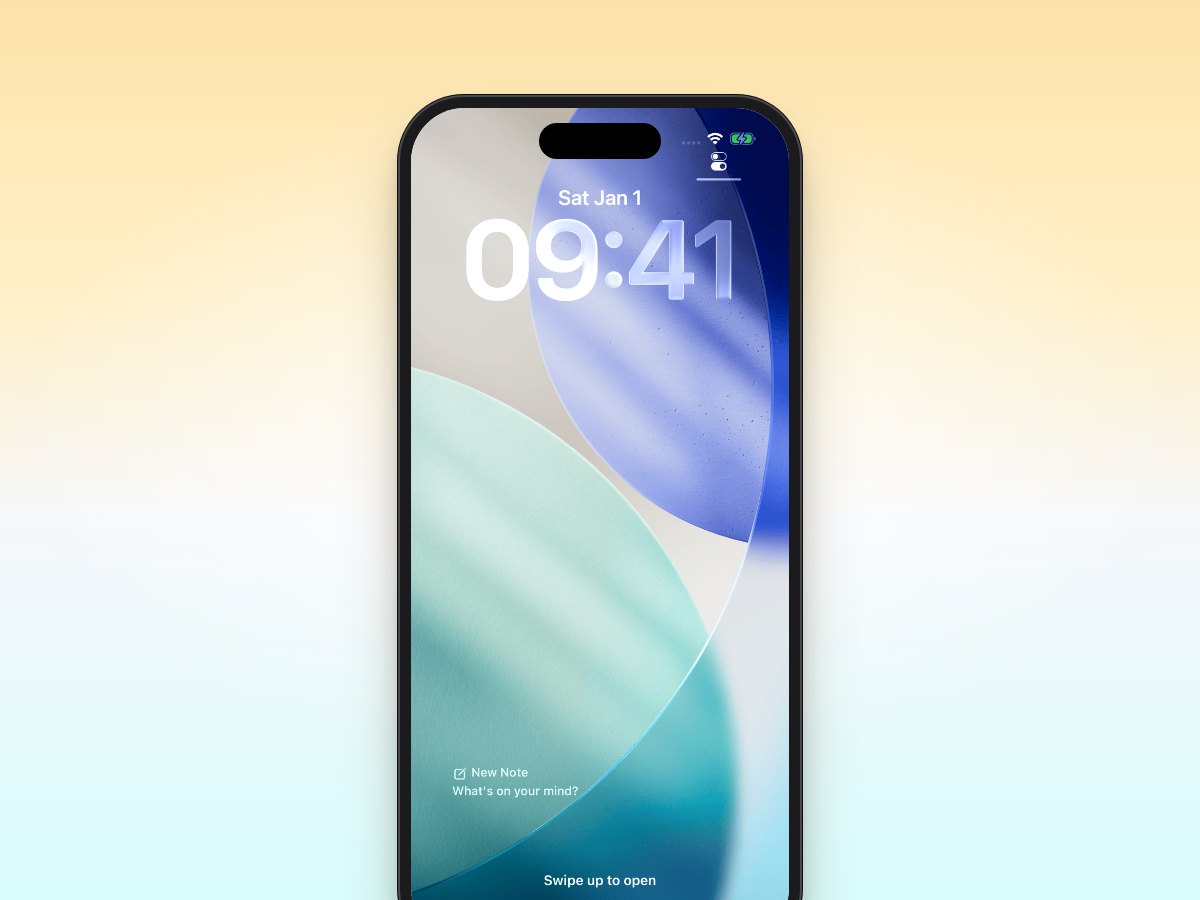
Email Me is a note-to-self app. Its job is to put what you capture in your email inbox, and voice notes get a written transcript on the way. There are two ways to use it here.
Transcribe a voice memo you already recorded
- In Voice Memos, tap the recording, tap More (three dots), then tap Share.
- Pick Email Me in the share sheet. If you don't see it, add Email Me to the share sheet first.
- Email Me opens a Transcript screen and transcribes the audio.
- Tap Copy to grab the text, or tap Send Note to email it. You can set Email Me to save notes instead of sending them right away, in which case the button reads Save Note.

The note lands at the address set for the share extension, with the transcript in the email and the recording attached as an m4a file. It works with other audio files too, such as a WhatsApp voice message, because Email Me converts the file before transcribing it.
Or record in Email Me from the start
If you know the words need to end up in your inbox, skip Voice Memos:
- Open Email Me and tap the microphone.
- Talk. The transcript appears live as you speak.
- Tap Send. The email arrives with the full transcript and the audio.
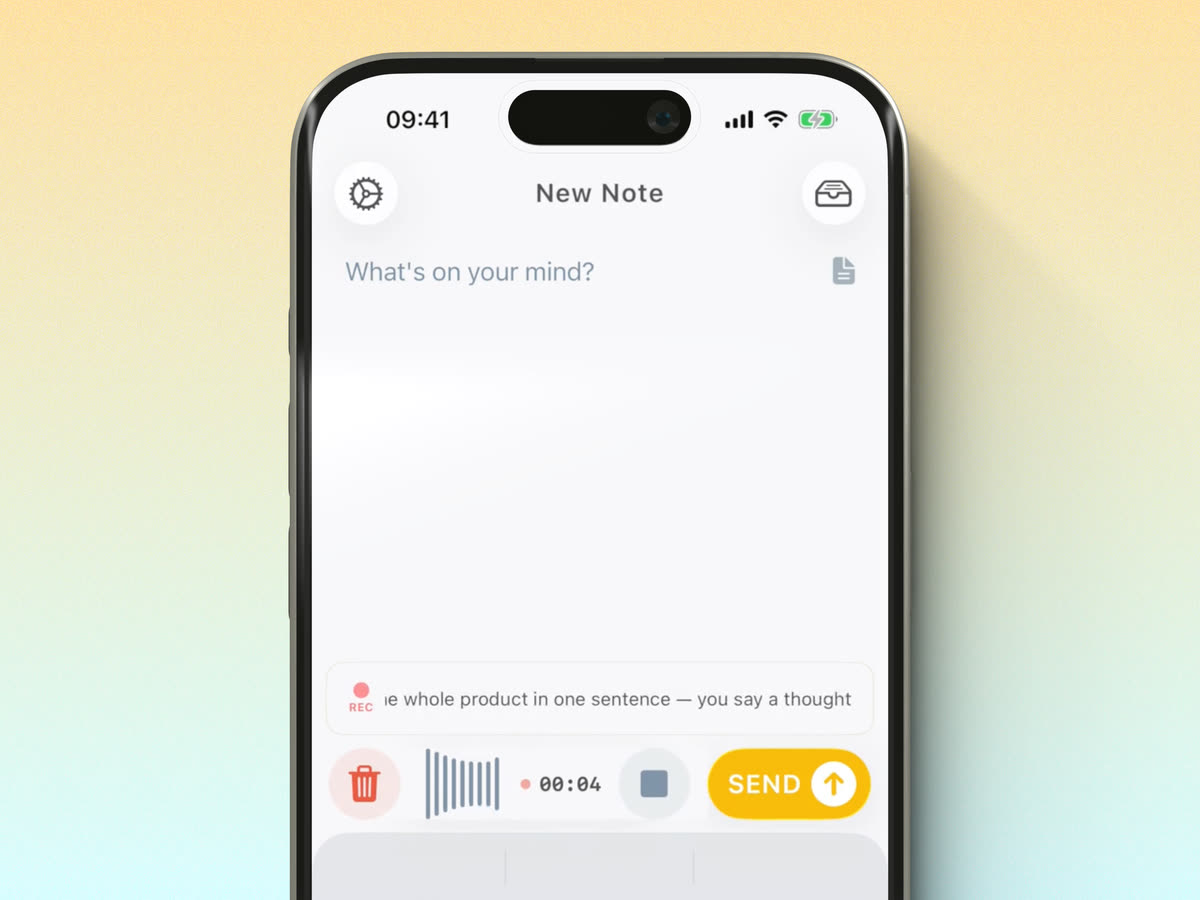
You can record up to 60 minutes on iPhone and iPad and up to 15 minutes on Apple Watch, and long recordings still get a full transcript. Inside the app, each line of the transcript shows when it was spoken, so you can tap a line to jump to that part of the audio.
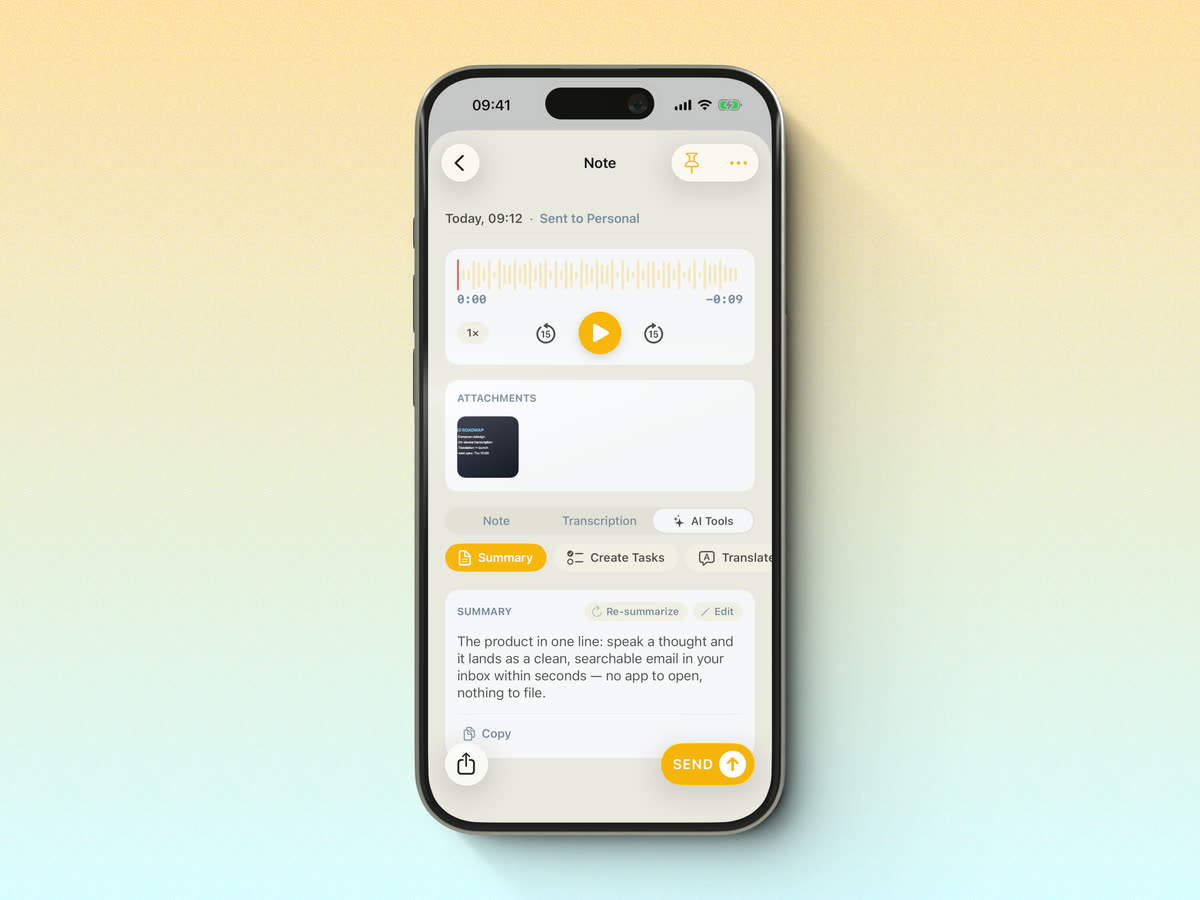
The subject line follows your recipient settings. With First Line Subject turned on, for example, the first words you said become the subject, which makes memos easy to search later. Recording step by step, with more detail, is in the guide to recording voice notes on iPhone.
Good for: ideas, reminders, meeting follow-ups, anything you act on from email.
Not so good for: private recordings you don't want leaving the phone. Online transcription sends the audio to Email Me's server, and recordings are stored there so playback and note links keep working (details on the help page). Email Me is a free download with in-app purchases, and Premium features unlock with a subscription or a one-time lifetime purchase.
Way 3: Upload the audio to a general AI tool
Some AI assistants accept audio files or have their own voice recording features, and they can rewrite a transcript into a summary, bullet points, or a draft. Support changes often and depends on the app and your plan, so check what yours accepts before you rely on it.
If your iPhone has Apple Intelligence, you may not need another app for this: Writing Tools can summarize a Voice Memos transcript in place.
An outside AI tool makes sense when you want heavy editing. It is slower for everyday memos: export the file, upload it, wait, then copy the result somewhere useful. You are also sending the recording to another company, so read its privacy terms first.
Comparison: which way should you use?
| Voice Memos transcript | Email Me | General AI tool | |
|---|---|---|---|
| Cost | Free, built in | Free download, Premium in-app purchases | Depends on the service and plan |
| Works on | iPhone 12 and later, supported languages and regions | iPhone, iPad, Apple Watch, Mac | Depends on the app |
| Transcribe an existing memo | Yes | Yes, through the share sheet | If it accepts audio uploads |
| Live transcript while recording | Yes, on supported devices | Yes | Varies |
| Where the text ends up | Inside Voice Memos | Your email inbox, with the audio attached | Inside the AI app |
| Choose the language | Follows Apple's supported languages | Auto-detect or pick one in settings | Varies |
| Best for | Reading or copying one memo | Getting memos out of the phone and into your workflow | Summaries and rewriting |
My take: Voice Memos is fine when the text can stay put. Once you find yourself copying transcripts into email every day, let Email Me do that part.
Troubleshooting
There's no transcript button in Voice Memos
Check three things: your iPhone model (iPhone 12 or later), that iOS is up to date, and that your language and region are on Apple's supported list. If one doesn't match, the button won't appear. Email Me uses its own transcription service with a long list of languages, so sharing the memo there is a workaround.
The transcript is in the wrong language
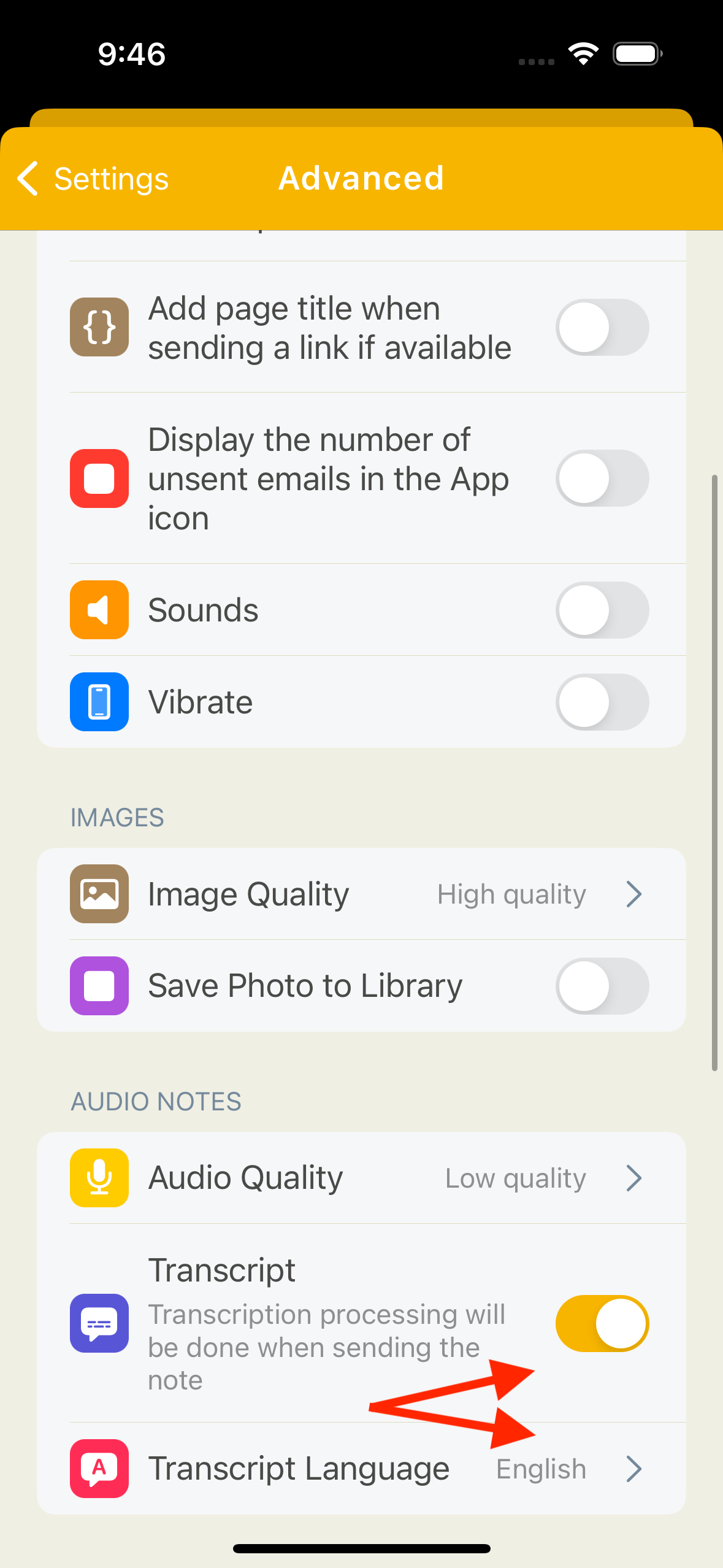
In Email Me, go to Settings > Advanced Configuration and look under Recordings (called Audio Notes in older versions, as in the screenshot below). Set Transcript Language to the language you speak, or leave it on Auto-detect to let it work out the language from the audio. The setting carries over to Apple Watch too.
In Voice Memos, transcription follows Apple's supported languages, so a memo in an unsupported language may show no transcript at all.
The recording is long
Long memos take longer to process, so give it a moment before assuming it failed. Email Me records up to 60 minutes on iPhone and still transcribes the whole thing. For a full class or talk, the lecture recording guide covers mic placement and how to turn a long transcript into notes you'll actually reread.
The transcript has mistakes
Names, jargon, and noisy rooms trip up every transcription tool. Keep the audio until you've checked anything important, and hold the phone closer to whoever is speaking next time. Email Me attaches the recording to every voice note, so the original is always one tap away.
You're offline
Voice Memos keeps working. Email Me can fall back to transcribing on the device when there's no connection, and notes that can't be sent wait in the outbox until you're back online.
Frequently asked questions
Does Voice Memos transcribe automatically?
Yes, on iPhone 12 and later with a recent iOS version, in supported languages such as English, Spanish, French, German and Japanese. Open the recording and tap the More button to view or copy the transcript. If you do not see it, your device, language, or region is not supported yet.
How do I turn a voice memo into text for free?
Use the transcript built into Apple's Voice Memos app if your iPhone supports it, then copy the text from the More menu. It costs nothing and stays in Apple's app.
Can ChatGPT transcribe a voice memo?
Sometimes, but it depends on the ChatGPT app version and your plan, and audio file support changes often. It is not built around voice memos, so check what your version accepts before relying on it. Remember you are uploading the recording to another service.
How can I transfer voice memos from my iPhone to my Mac?
Turn on Voice Memos in iCloud settings on both devices and the recordings sync to the Voice Memos app on your Mac. You can also AirDrop a memo, or share it to Email Me to get the audio and transcript in your inbox.
Can Email Me transcribe a voice memo I already recorded?
Yes. Share the recording from Voice Memos and pick Email Me. It transcribes the audio and lets you copy the text or send the note, with the recording attached, to your inbox.
Does Email Me record phone calls?
No. Email Me records voice notes you make in the app, on Apple Watch, or with Siri, and transcribes audio files you share to it. It does not record calls.
The short version
Read the transcript in Voice Memos when the text can stay there. When it needs to be somewhere you'll act on it, get Email Me and either share the memo to it or record there in the first place. Want to do it without touching the phone? Siri can start an Email Me voice note for you.
Manuel Escrig