An audio transcript is useful because it makes a lecture searchable, but it is not a perfect set of notes. Names, formulas, accents, and specialist terms still need a human check. The best workflow keeps the recording, the transcript, and your own short list of key points together.
Before you record
- Ask the teacher, presenter, and anyone else required by your school or local rules for permission.
- Charge the iPhone and make sure it has enough storage and battery for the session.
- Turn on Do Not Disturb or a Focus mode so calls do not interrupt the recording.
- Put the phone on a stable surface with its microphone clear of cases, paper, and clothing.
- Record 20 seconds, play it back, and move closer if voices sound distant.
Do not hide the phone at the back of a large room and expect a clean transcript. Distance, echo, side conversations, and tapping on the same table all reduce clarity.
Option 1: Record and transcribe with Voice Memos
Open Voice Memos, tap Record, and swipe up on the waveform. On a supported iPhone and language, tap the transcription button to follow the words live. When the lecture ends, tap Done. Open the More menu later to view or copy the transcript.
Apple currently documents transcription for iPhone 12 and later in supported languages, with regional availability limits. See Apple's Voice Memos transcription instructions for the current requirements.
This route is a good fit when you want the original recording in Voice Memos and plan to decide later where the text belongs.
Option 2: Send the lecture note to your inbox
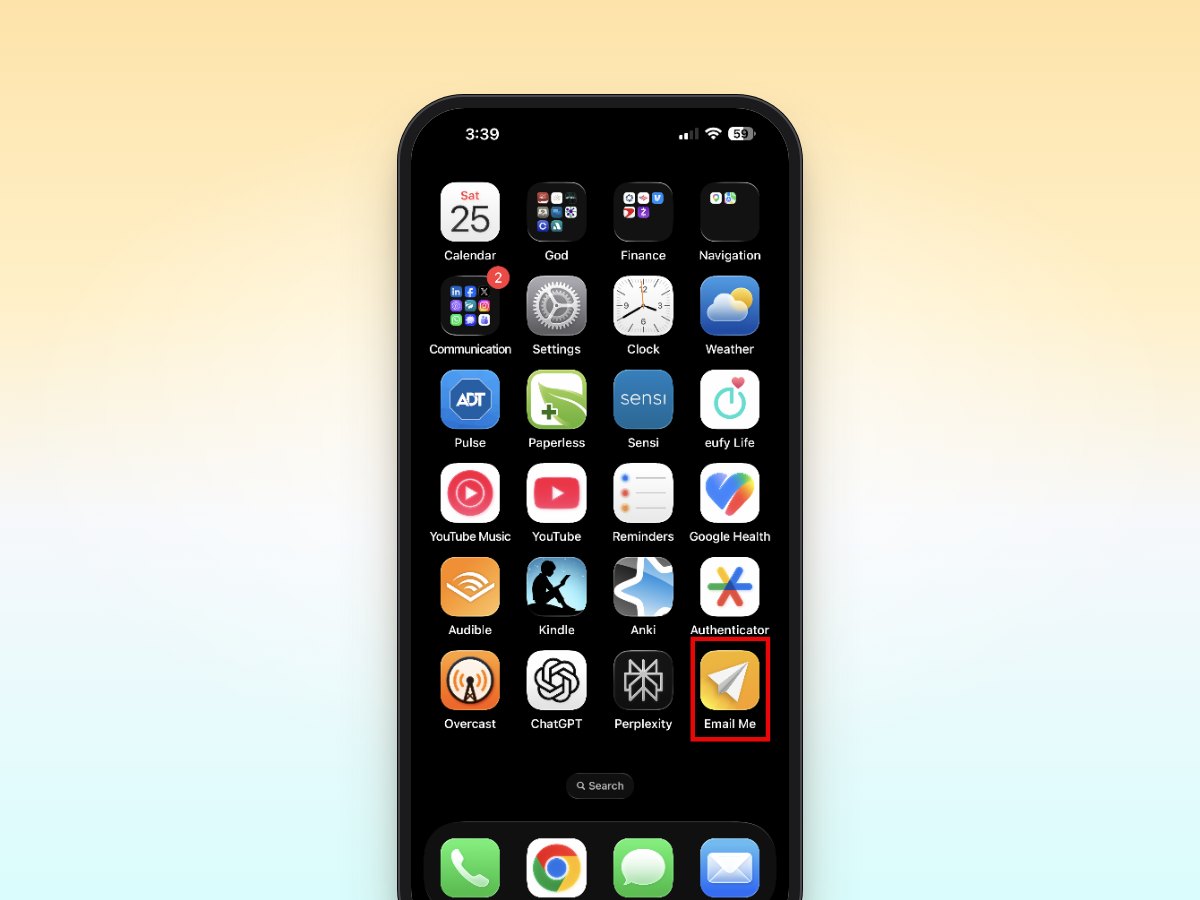
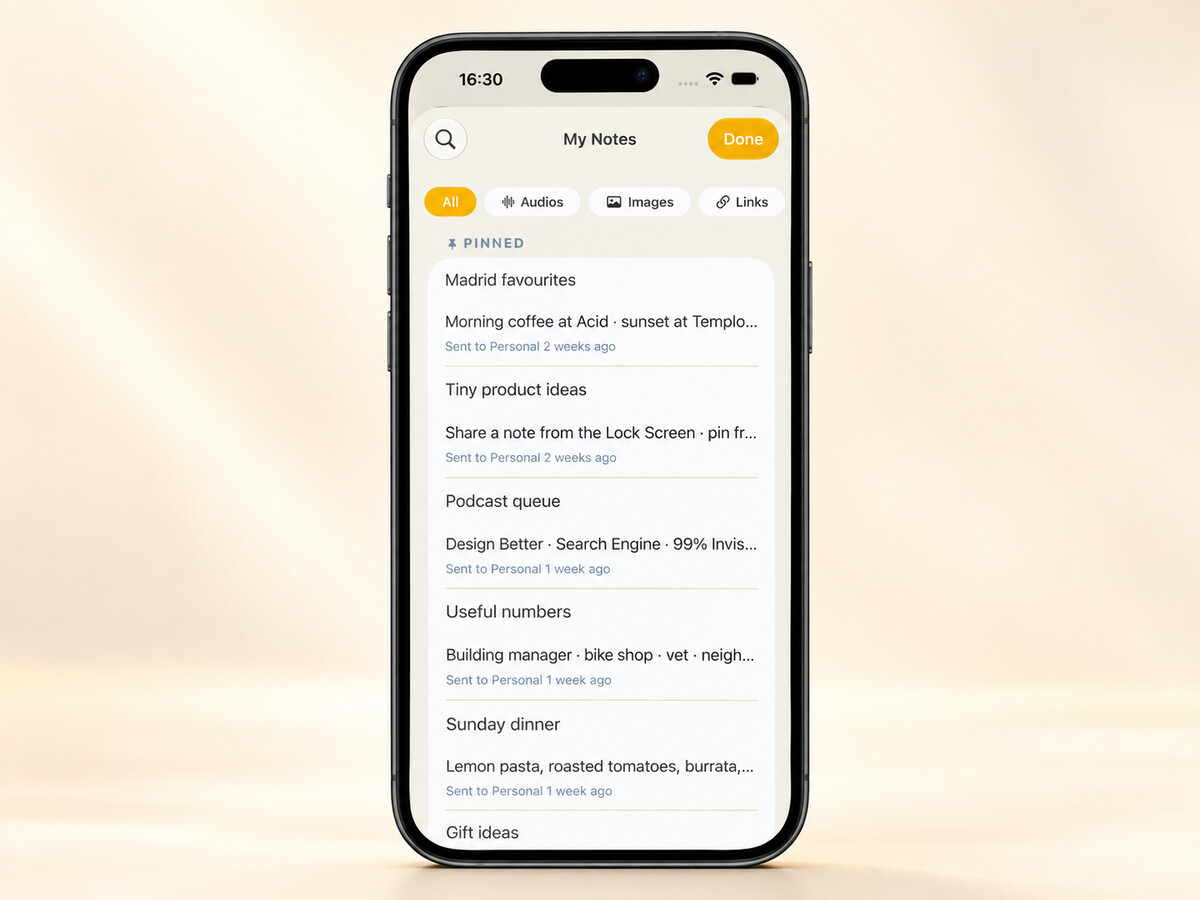
Email Me is useful when email is already where you collect work and study tasks:
- Open Email Me and choose the recipient or folder you use for class notes.
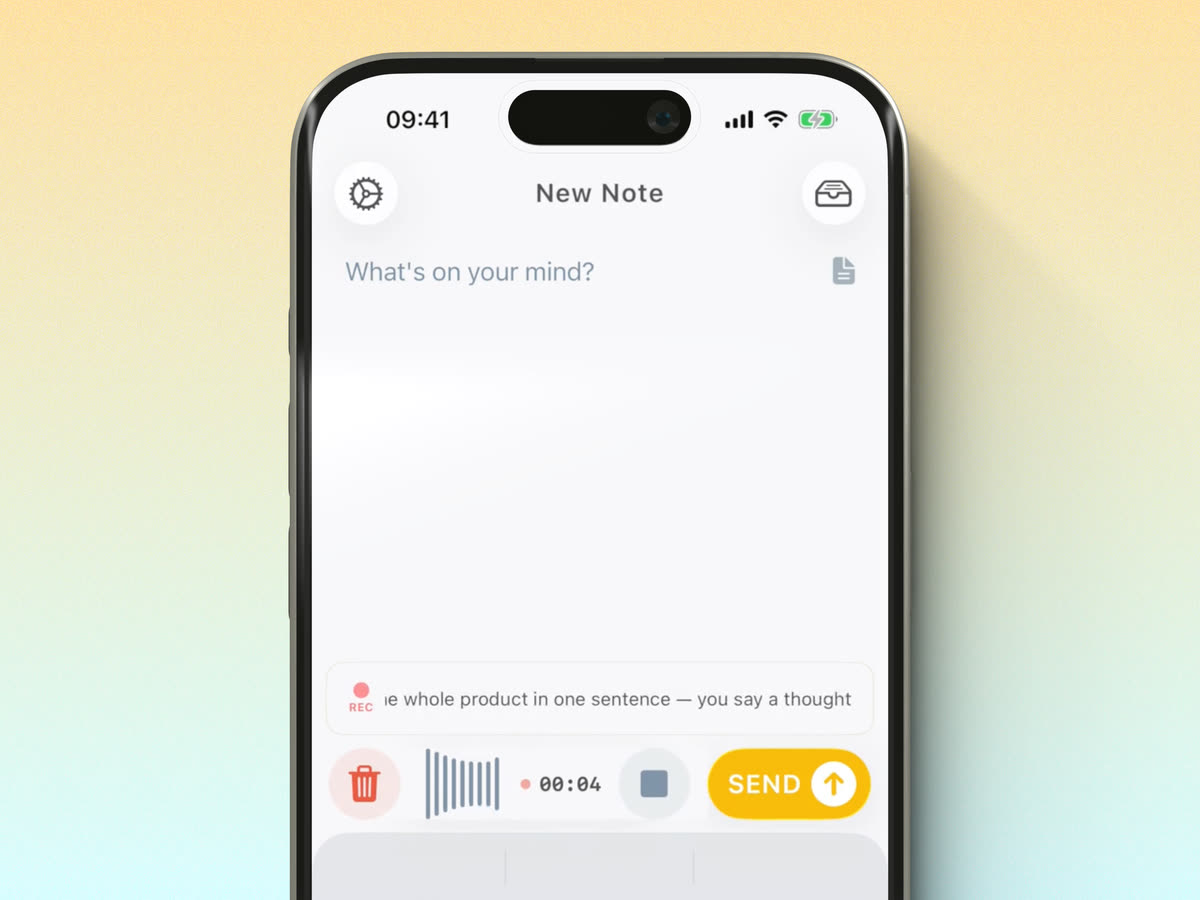
- Tap the microphone and start recording.
- Watch the live transcript for obvious problems, but keep listening to the lecture.
- When the session ends, review the note and tap Send.
- In your inbox, add the course, date, topic, and next action to the subject or your filing system.
The aim is not to read every transcribed line during class. The transcript is a safety net. Write down the ideas that matter, examples the speaker emphasizes, and questions you want to ask.
Turn the transcript into useful notes
A raw transcript is too long to revise from. Process it while the lecture is still fresh:
- Write a three-sentence summary in your own words.
- Pull out definitions, dates, formulas, and assigned reading.
- Turn deadlines and follow-ups into a short action list.
- Mark any passage that needs checking against the slides or source material.
- Add your own question beside anything you did not understand.
Use the transcript to find a moment, then listen to that part of the audio. Do not treat automatically transcribed wording as a verified quotation.
Organize lecture emails so you can find them
Choose one subject format, such as BIO 201 | 2026-10-26 | Cell division, and keep it consistent. An email rule can move messages with that prefix into a course folder automatically. Add a star or task flag only when the note contains something you must do.
If you send every transcript without processing it, the inbox becomes another recording archive. The value comes from adding a summary and the next action.
Common recording problems
The transcript misses technical terms
Add a short correction list beneath the transcript. For recurring names or vocabulary, keep a course glossary that you can reference each week.
The recording is quiet or echoing
Move closer, keep the microphone unobstructed, and avoid the same table as someone typing. A seat near the front normally helps more than trying to repair bad audio later.
The lecture includes private discussion
Stop the recording when asked. Follow the course's recording and sharing rules, and never forward a lecture recording or transcript without permission.
The transcript is too long
Do not edit every sentence. Start with the session's question, the three main ideas, and the work due next. Keep the original only as a reference.
Frequently asked questions
Can an iPhone transcribe a lecture recording?
Yes. Voice Memos can show transcripts on supported iPhones and languages. Email Me can show a live transcript while recording and send the note to your inbox.
Where should I place my iPhone while recording a lecture?
Place it on a stable surface with the microphone unobstructed and as close to the speaker as permission and the room allow. Keep it away from keyboards, bags, and vibrating surfaces.
Should I keep the audio after making a transcript?
Keep the original until you have checked names, dates, quotations, and technical terms. A transcript is a working aid and can contain mistakes.
Is recording a lecture always allowed?
No. Rules vary by instructor, school, event, and location. Ask first and follow any restrictions on storage or sharing.
For shorter ideas and reminders, use the simpler guide to recording a voice note on iPhone.
Manuel Escrig