How to text yourself on iPhone: open Messages, tap the compose button, type your own phone number (or your name, then pick your own contact card) in To, write your message and tap Send. It shows up in a conversation with yourself that you can come back to any time.
That is all it takes. Below are the steps in detail, two other ways that often work better, and fixes for the usual problems: texts that show up twice, green bubbles and a second conversation.
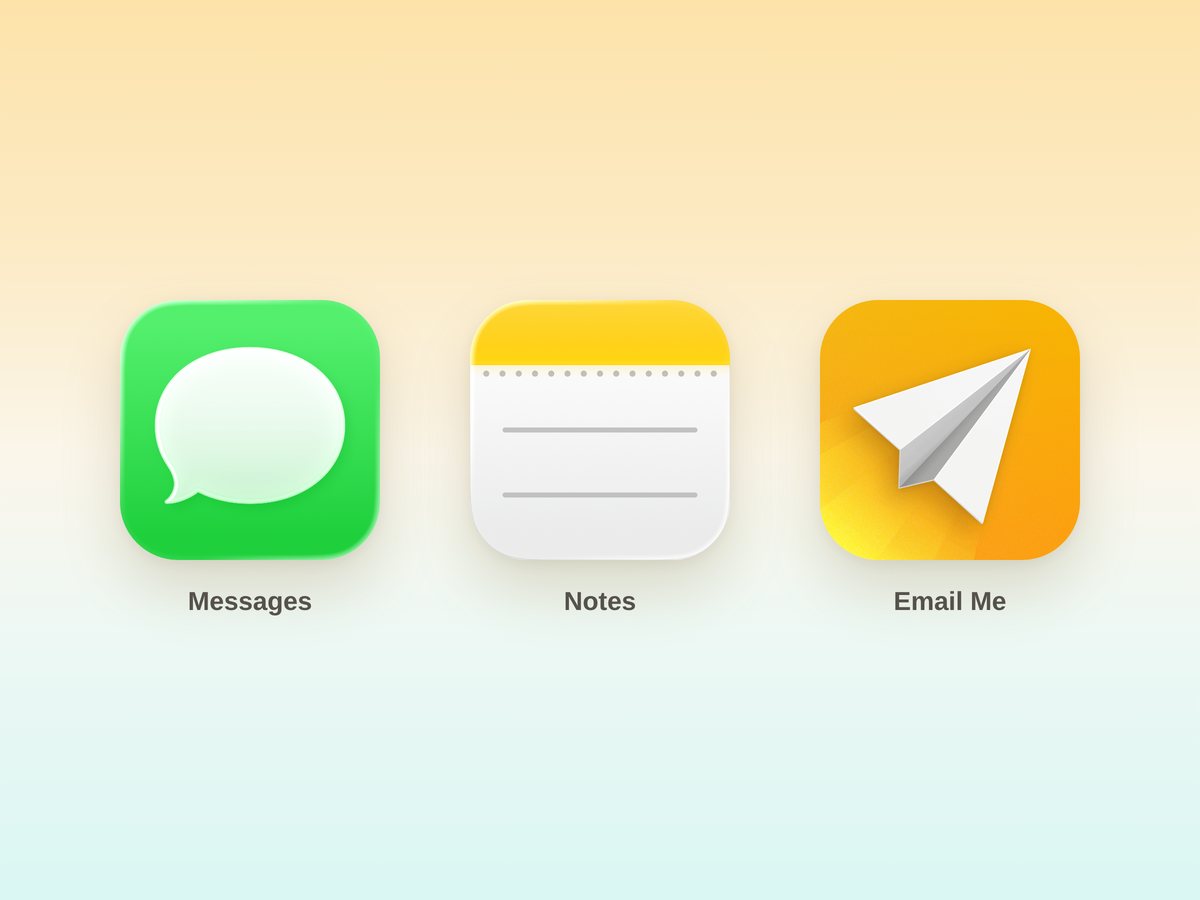
- Messages: quick and built in. Good for a reminder that buzzes your phone.
- Notes: better if you want to keep and edit what you write, with no doubled messages.
- Email Me: one tap sends the note to your email inbox, so you can find it on any device, including a work computer.
 Way 1: Text yourself in Messages
- Open the Messages app and tap the compose button (the square with a pencil).
- In To, type your own phone number. You can also type your name and tap your contact card, or use the email address you use with iMessage.
- Write your message, add a photo or link if you like, and tap Send.
With iMessage on, each message appears twice: a blue bubble for the one you sent and a gray bubble for the one you received. That is normal. You also get a notification, which is the point if you want a reminder.
To find the conversation quickly next time, swipe right on it in the conversation list and tap Pin. It stays at the top.
Schedule a text to yourself
With iMessage you can have a text arrive later, like a reminder:
- Open the conversation with yourself.
- Tap the plus button next to the text field, then Send Later. On some iOS versions it is under More.
- Tap the time to choose when it goes out (up to 14 days ahead), write the message and tap Send.
Until then the message shows with a dashed outline. Touch and hold it to edit or delete it.
If texting yourself doesn't work
- The bubbles are green: the message went as SMS, MMS or RCS, not iMessage. Go to Settings, Apps, Messages and turn on iMessage (on older iOS versions it is Settings, Messages). Green texts also can't be scheduled.
- You get two separate conversations: your phone number and your Apple Account email are being treated as different people. Open your own contact card and add every phone number and email address listed under Send & Receive in the Messages settings.
- It doesn't appear on your Mac or iPad: turn on Messages in iCloud on each device (Settings, your name, iCloud, Messages).
 Way 2: Write it in Notes instead
If what you want is a note to keep, rather than a ping, Apple's Notes app is the tidier choice: no doubled messages, and you can edit, check off and organize what you wrote. With iCloud turned on, notes sync to your iPad and Mac, and you can open them at icloud.com on any computer.
The catch is that a note doesn't notify you, so it is easy to forget. To send a note to yourself as a text or email anyway, open it, tap the Share button, tap the menu under the note title, choose Send a Copy, then pick Messages or Mail.
 Way 3: Email it to yourself with Email Me (the faster way)
A text to yourself stays inside Messages. An email to yourself lands in the inbox you already check on every device, with a subject you can search, room for attachments, and the option to forward it or turn it into a task. It is often what people actually want when they text themselves a link, a list or an idea.
Email Me is an app built for exactly that. You set your email address once, then:
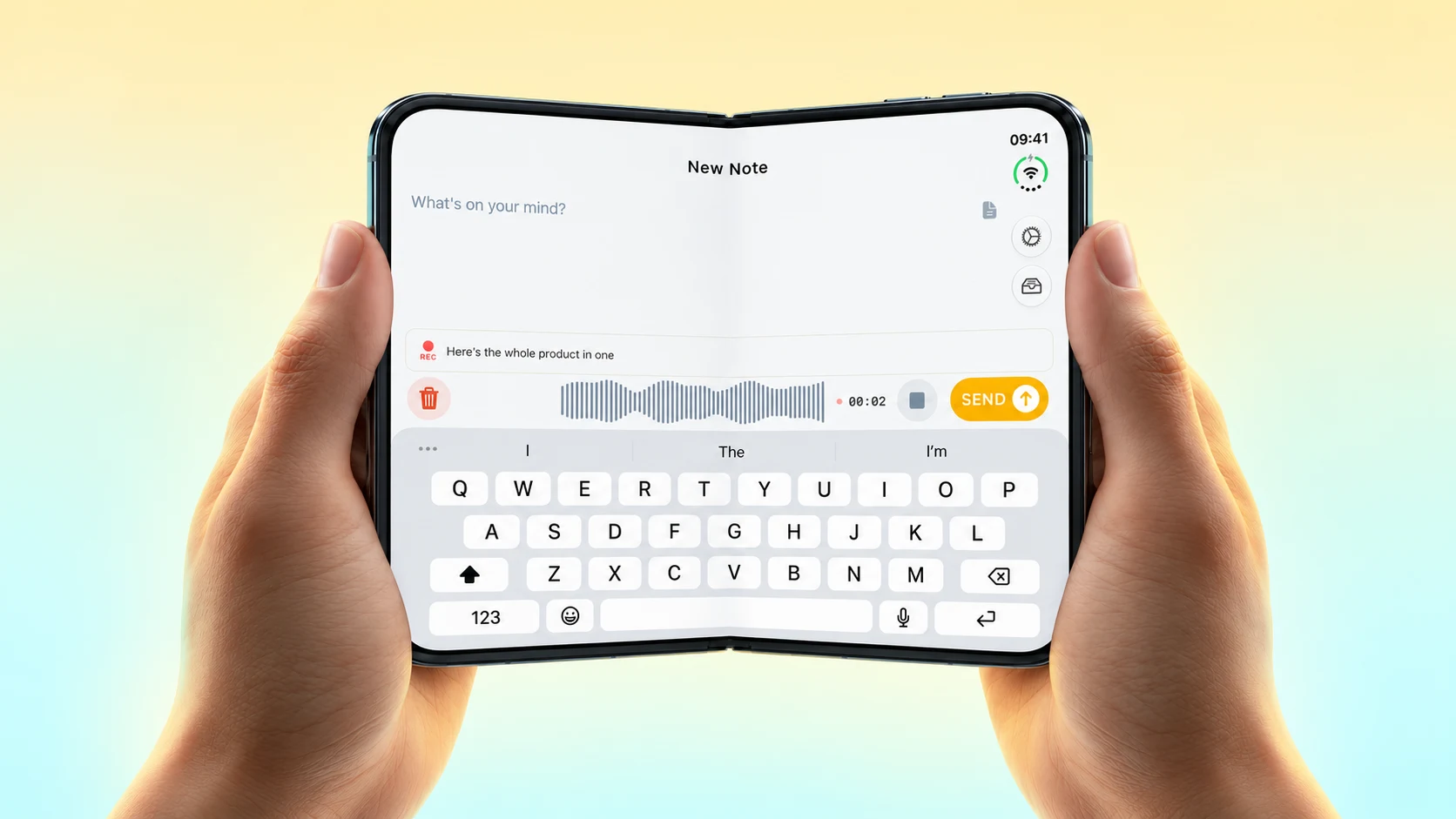
- Open Email Me. It opens ready to type.
- Type, dictate or record a voice note.
- Tap Send. It arrives in your inbox.
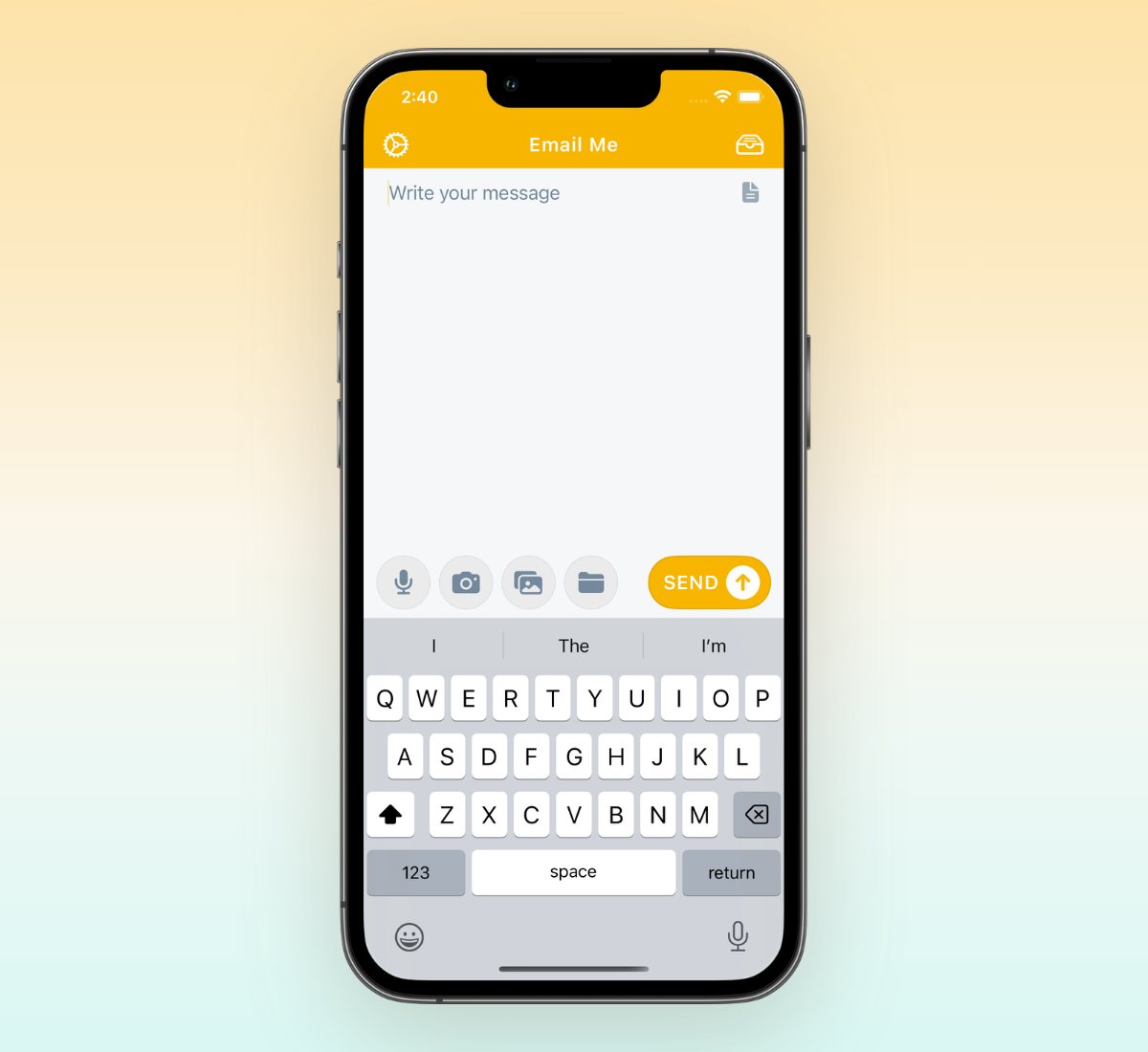
There is no address to type and no conversation to scroll through. A few things that make it quicker than texting yourself:
- Widgets: start a note from your Home Screen or Lock Screen.
- Siri: say "Email Me a note" and dictate it.
- Share sheet: send a link, photo or file from Safari, Photos or Files. Pick Email Me in the share menu.
- Apple Watch: dictate a note from your wrist.
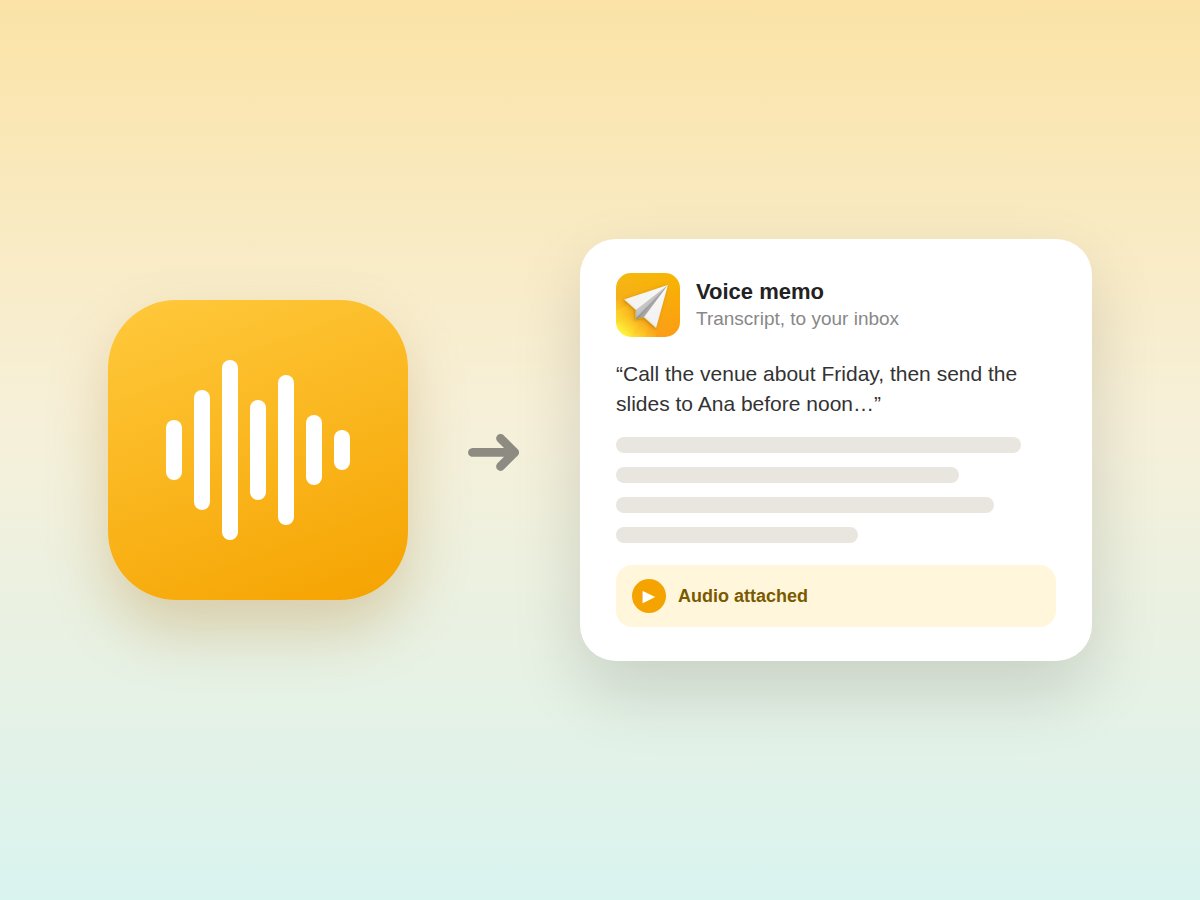
- Voice notes: record, and get the recording plus a written transcript by email.
- Two inboxes: add a work and a personal address, then press and hold Send to choose.
Email Me is a free download with in-app purchases, and Premium features unlock with a subscription or a one-time lifetime purchase.
Download Email Me on the App Store
Which way should you use?
| Messages | Notes | Email Me | |
|---|---|---|---|
| Where it ends up | A conversation with yourself | The Notes app | Your email inbox |
| Notifies you | Yes | No | Yes, through your email app |
| Read it on a Windows or work computer | Not easily | At icloud.com | Yes, in any email app |
| Photos, files and voice notes | Yes | Yes | Yes, with a transcript for voice notes |
| Schedule it for later | Yes, with iMessage | No | No |
| Cost | Free (SMS may count toward your plan) | Free | Free download, Premium in-app purchases |
Use Messages for a quick ping or a timed reminder, Notes for something you will keep editing, and Email Me for anything you want to act on later or open on another computer. For more on the email side, see how to email yourself.
14 minutes a day. 84 hours a year. That's the average time lost to slow, repetitive steps just to write a note to yourself. I built Email Me to fix that: open it, write, tap Send, done.
Manuel
Related guides
- How to email yourself
- Email yourself reminders without typing
- A one-tap email yourself shortcut
- Send notes from a Home Screen widget
- Use Siri with Email Me
Frequently Asked Questions
How do I send myself a text?
Open Messages, tap the compose button, type your own phone number or your name in To and pick your contact card, write the message and tap Send. It shows up in a conversation with yourself.
Why does my text to myself show up twice?
With iMessage you see each message twice: once as the blue message you sent and once as the gray message you received. That is normal. If you also see a second conversation, add every phone number and email you use with iMessage to your own contact card.
Why is my text to myself green?
Green means it went as SMS, MMS or RCS instead of iMessage. Go to Settings, Apps, Messages and turn on iMessage to get blue messages, which also unlocks Send Later.
Can I schedule a text to myself?
Yes, with iMessage. In the conversation with yourself tap the plus button, choose Send Later, pick a time up to 14 days ahead and send. It arrives at that time like a reminder.
Can I text myself without a phone number?
Yes. If you use iMessage with an email address, put that address in the To field. On an iPad or Mac without a phone number, that is how you text yourself.
What is the fastest way to send myself a note on iPhone?
An app made for it. Email Me opens ready to type, already addressed to you, and one tap on Send puts the note in your email inbox, where you can read it on any device.