Why Email Me on CarPlay
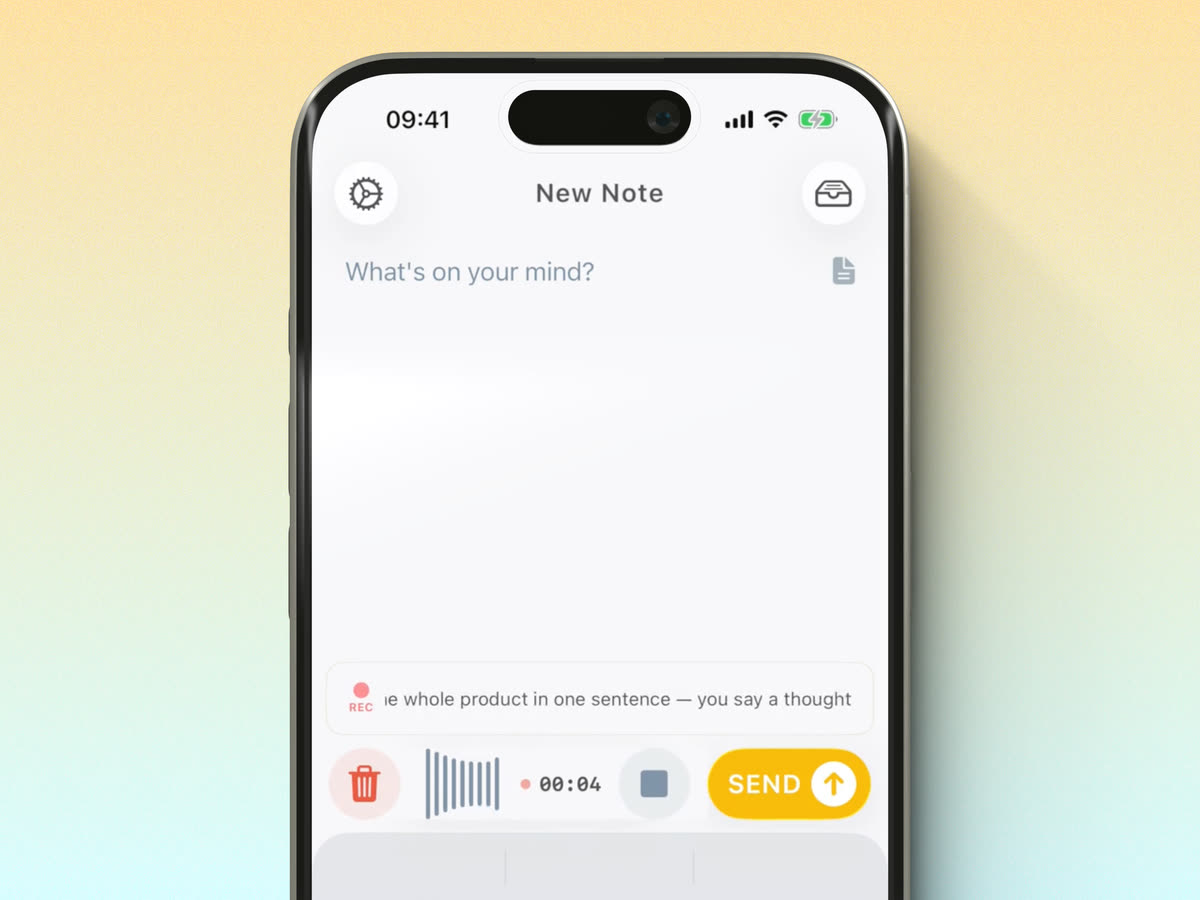
Some of the best ideas arrive while you're behind the wheel, and that's exactly the worst moment to reach for your phone. With Email Me on your CarPlay Home Screen, your car becomes a capture device:
- Capture ideas hands-free while driving. Tap once on your car's display, speak your mind, and get right back to the road.
- Your notes land in your inbox. Every voice note is sent straight to your own email, so it's waiting for you the moment you park.
- Safer than typing. No fiddling with your iPhone at a red light: CarPlay keeps everything big, simple, and glanceable.
What You Need
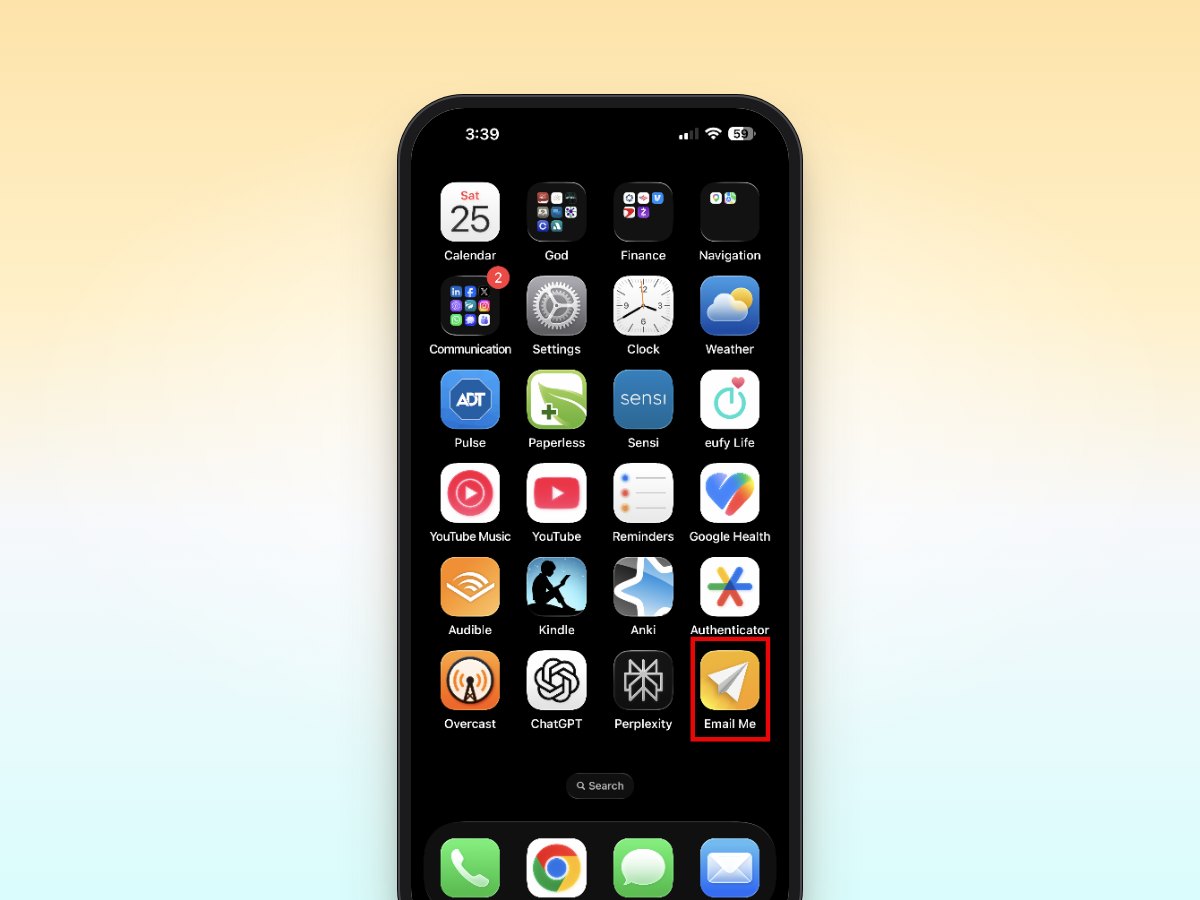
- An iPhone with the Email Me app installed and a recipient already set up.
- A car or aftermarket stereo that supports Apple CarPlay.
- A cable or a wireless CarPlay connection, depending on your car.
Step-by-Step Guide to Adding Email Me to CarPlay
Connect Your iPhone to CarPlay
Plug your iPhone into your car's USB port, or connect wirelessly if your car supports it. Once connected, the CarPlay Home Screen appears on your car's built-in display.
Open the CarPlay Settings on Your iPhone
On your iPhone, go to and select your car from the list of paired vehicles.
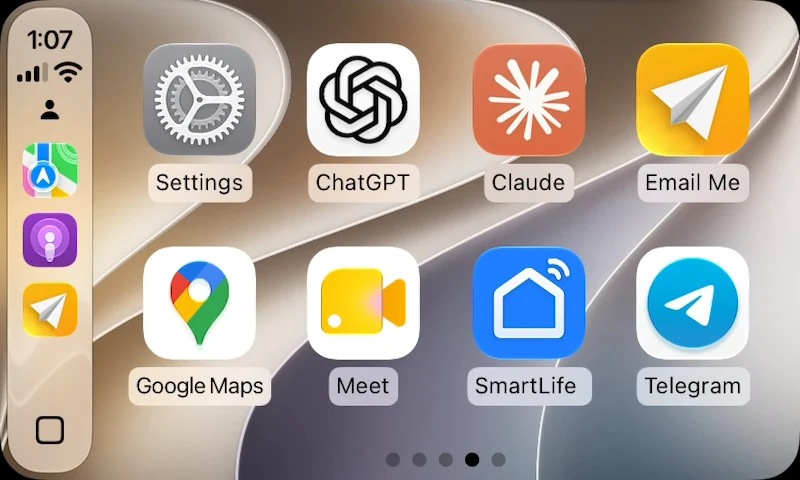
Tap Customize and Add Email Me
Tap Customize to see the list of apps available for CarPlay. Press the plus (+) button next to Email Me to add it to your CarPlay Home Screen.
Arrange the Icon on the CarPlay Home Screen
Still in the Customize screen, drag Email Me up or down the list to decide where it appears on your CarPlay Home Screen. Placing it on the first page means it's always a single tap away while you drive.
Tap Email Me in CarPlay and Start a Voice Note
Back in your car, tap the Email Me icon on the CarPlay display and start a voice note. Say what's on your mind, and Email Me sends it straight to your inbox.
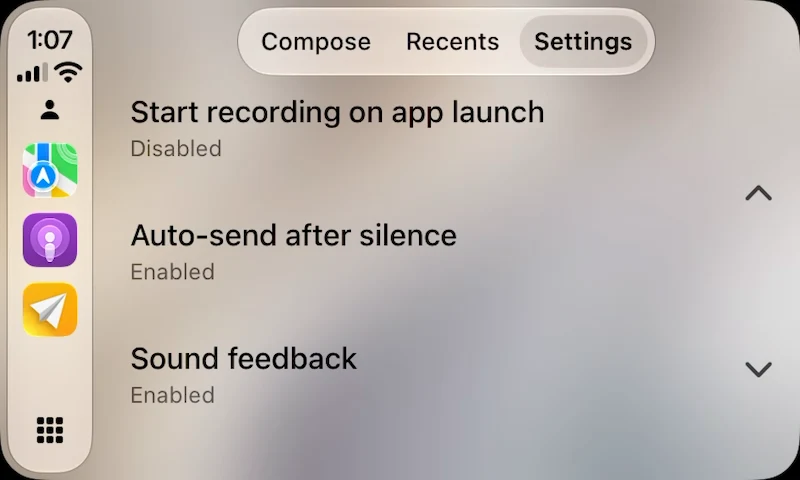
Email Me on the CarPlay Screen
Open Email Me from the CarPlay Home Screen, follow the live recording, or adjust your hands-free settings.
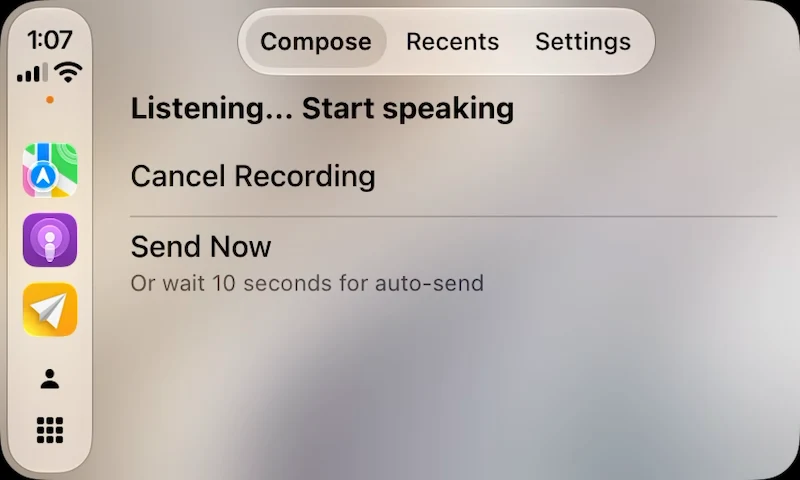
Want to skip the screen? Say your Siri phrase and dictate a note while keeping your hands on the wheel. See how to use Siri with Email Me.
Your Car, Your Second Brain
With Email Me on CarPlay, that brilliant idea from the highway doesn't evaporate at the next exit. It arrives in your inbox, ready for you when the drive is over. Set it up once, and every trip becomes a chance to capture, not lose, your best thinking.
When you're ready, download Email Me and set up your CarPlay shortcut before your next drive.
Frequently Asked Questions
How do I add Email Me to CarPlay?
On your iPhone, open , choose your car, tap Customize and tap the + next to Email Me.
Can I use Email Me hands-free in the car?
Yes. Tap Email Me on the CarPlay screen to start a voice note, or use Siri to dictate without touching the screen.
What do I need before adding Email Me to CarPlay?
An iPhone with Email Me installed and a recipient set up, and a car or stereo that supports CarPlay, connected by cable or wirelessly.