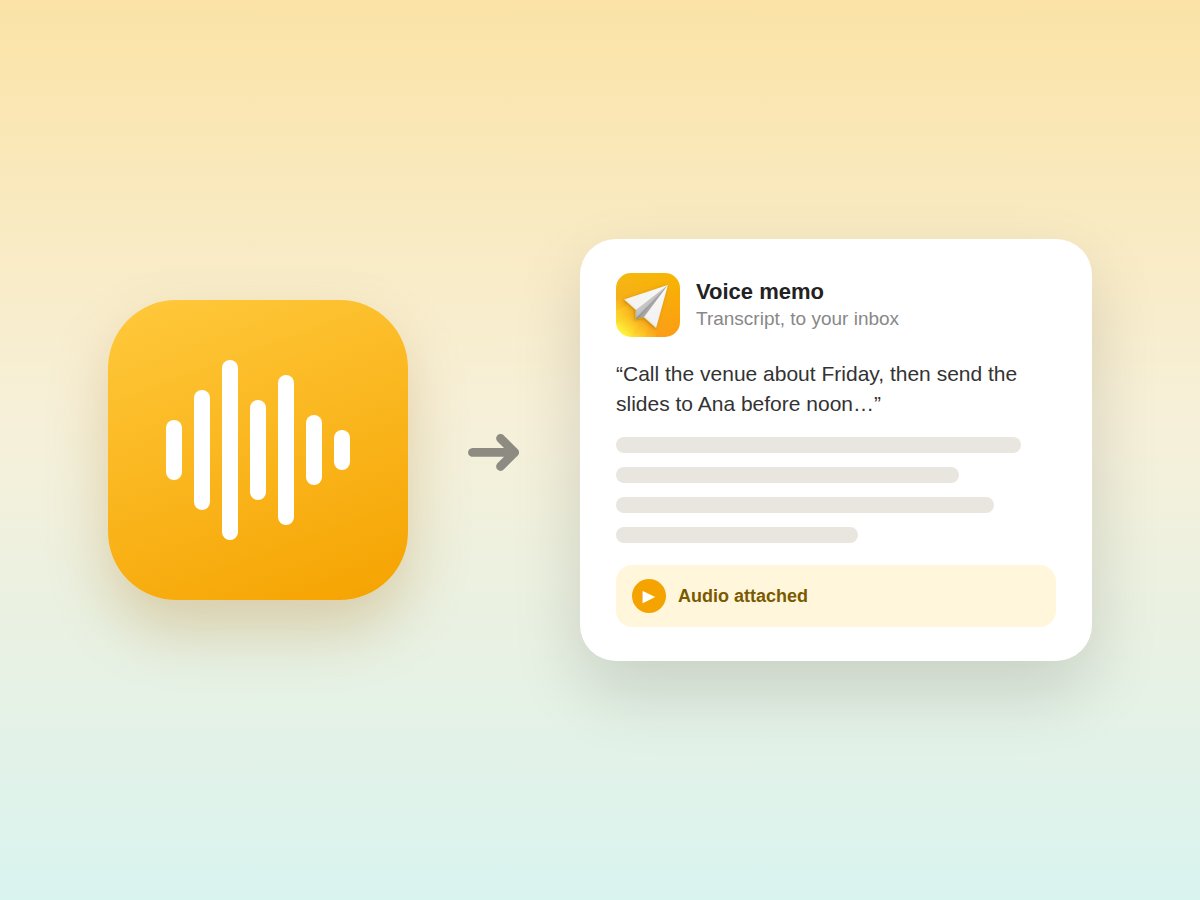
Ever had a brilliant idea while walking your dog or thought of an important task during your morning commute? Your Apple Watch is the perfect companion for capturing those fleeting thoughts, and Email Me makes it incredibly simple to do just that.
Turn Your Watch Into a Note-Taking Powerhouse
The beauty of taking notes on Apple Watch lies in its accessibility: it's always right there on your wrist. With Email Me, you can transform those quick thoughts into actionable items in your inbox with just a few taps. No need to pull out your phone or wait until you're back at your desk.
Why Email Me on Your Wrist
Your Apple Watch is the fastest capture device you own: it's already on you, always awake, and just a raise of the wrist away. With Email Me installed, it gets even better:
- Capture ideas in seconds. Raise your wrist, tap, and dictate: no need to dig your iPhone out of your pocket.
- Your notes land in your inbox. Audio and text notes are emailed straight to you, so they're waiting on the device where you actually work.
- Perfect for on-the-go moments. Out on a run, in the kitchen, walking the dog: your wrist is always available.
Setting Up Email Me on Your Apple Watch
Getting started is straightforward:
- Install Email Me on your iPhone
- The watch app automatically installs on your paired Apple Watch
- Open Email Me on your watch and verify your email address
- You're ready to capture notes!
Pro tip: Add Email Me to your watch face complications for one-tap access to note creation.
Step-by-Step Guide to Setting Up Email Me on Apple Watch
Install Email Me via the Watch App on Your iPhone
Open the Watch app on your iPhone and stay on the My Watch tab. Scroll down to Available Apps, find Email Me, and tap Install. After a few moments, the app icon appears on your watch.
Open Email Me on Your Watch
Press the Digital Crown, find Email Me, and open it. The main menu offers Audio Note, Text Note, My Notes, and Settings. Scroll down to reach Settings.

Sync Your Recipients from Your iPhone
With the watch app open, grab your iPhone and open Email Me. Go to Settings > Watch > Sync Now to send your recipients over to the watch. Keep the watch app open while the sync runs: it only takes a moment.
Record Your First Audio Note
Back on the watch, tap Audio Note, speak your thought, and send it. A few seconds later it lands in your inbox: captured, done, and out of your head.
Optional: Set an On Open Action
If you always use the same note type, open Settings in the watch app and choose an On Open Action. From then on, Email Me jumps straight into recording the moment you open it: one less tap between you and your idea.
Real-World Uses That Make Sense
Here's how Email Me on Apple Watch becomes your personal assistant:
- During Meetings: Quickly capture action items without the distraction of pulling out your phone
- While Exercising: Record that podcast recommendation or workout achievement
- Shopping Ideas: Spot something interesting? Send yourself a quick reminder
- Random Thoughts: Don't let those creative ideas slip away during your daily activities
The Magic of Quick Capture
Email Me's watch app is designed for speed and simplicity. You can:
- Use voice dictation for hands-free note-taking
- Choose from customizable preset messages
- Access your recent notes history
- Send follow-up reminders to yourself
Tips for a Faster Wrist Workflow
- Add a complication. Put Email Me on your watch face so a single tap opens the app: combined with an On Open Action, you're recording in under two seconds.
- Re-sync after changes. If you add or edit recipients on your iPhone, run Sync Now again so your watch stays up to date.
- Speak, don't type. Dictation on the watch is remarkably good: trust it for quick notes and let your inbox catch the results.
Smart Features That Save Time
One of Email Me's standout features is its intelligent processing. Your notes arrive in your inbox properly formatted and ready for action. Plus, you can:
- Add custom tags for better organization
- Set priority levels for important notes
- Use smart shortcuts for common phrases
- Access your notes across all your devices
Your Watch, Your Inbox, Zero Friction
Setting up Email Me on your Apple Watch takes two minutes, and from then on every stray idea has a home. No unlocking, no app hunting: just raise your wrist, talk, and move on with your day.
Making It Work for You
Here are some practical tips to maximize your Email Me experience on Apple Watch:
- Create custom presets for common notes you send
- Use the complication for instant access
- Practice voice dictation for faster input
- Review and organize notes during your daily email processing
Privacy and Security
Your notes are sent directly to your email address using secure protocols. There's no third-party storage or complex cloud systems: just simple, direct communication from your watch to your inbox.
More ways to send things to your inbox: the complete guide to emailing yourself.
Manuel