How to share a note on iPhone: open the note in Notes, tap the Share button (the square with an arrow), tap the menu under the note's title, then choose:
- Send a Copy to send it once by Messages, Mail, AirDrop or another app, or
- Share a Link to invite people to read and edit the same note with you.
On iOS 26 and earlier the two options are called Send Copy and Collaborate, and they work the same way. Below are the steps for both, how to share with someone who doesn't have an iPhone, how to stop sharing, and what to check when the share options are missing.
- A copy: they just need to read it. Works with anyone, on any phone.
- A shared note: you want to edit it together, like a shopping list or a trip plan. They need an Apple Account.
- A PDF or Markdown file: they need a file to keep, print or open in another app.
- A web link from Email Me: they should open it in any browser, with an optional password.
 Send a copy of a note (works with anyone)
- Open the Notes app and open the note.
- Tap the Share button at the top.
- Tap the menu under the note's title and choose Send a Copy (on iOS 26 and earlier: tap Collaborate, then Send Copy).
- Pick Messages, Mail, AirDrop or another app, choose who gets it and tap Send.
The other person gets the note as it is right now. If you edit it later, their copy doesn't change. This is the way to send a note to an Android phone or a Windows computer: Mail works everywhere.
Share a note to edit together (Share a Link)
With a shared note, everyone sees the same note and every change appears for everyone in real time.
On iOS 27
- Open the note, tap Share, tap the menu under the note's title and choose Share a Link.
- Tap People you choose can edit to set:
- Who can access: People you choose, or Anyone with the link. With People you choose you can turn on Access Requests. - Permissions: Edit, or View and Download Only. 3. Choose how to send the invitation, for example Messages or Mail.
On iOS 26 and earlier
- Open the note, tap Share and choose Collaborate.
- Tap Only invited people can edit to set who can access it (Only invited people, or Anyone with the link), the permissions (Can make changes, or View only) and whether others can invite more people.
- Send the invitation with Messages or Mail. AirDrop doesn't work for invitations.
If you send the invitation in Messages, you also get updates in that conversation when someone changes the note.
What a shared note needs
- The note has to be in iCloud (the All iCloud folder), not in On My iPhone or a Gmail or Outlook account.
- It can't be locked, and a shared folder can't contain locked notes.
- Everyone needs to be signed in to an Apple Account with Notes turned on in iCloud settings (Settings, your name, iCloud, Notes). On iOS 26 and earlier, Apple says collaboration only works with people who also use an Apple device.
- Up to 100 people can share one note.
Share a whole folder
Open the folder in Notes and tap Share. Everything in it is shared, and new notes you add to the folder are shared too. It is handy for a family folder of recipes or a team folder of meeting notes.
Change or stop sharing a note
- Open the shared note and tap the Collaborate button (the icon with people at the top).
- Tap Manage Shared Note (for a folder: tap the Folder Actions button, then Manage Shared Folder).
- Then:
- Tap a person to change their permissions or tap Remove Participant. - Tap Sharing Options to change the settings for everyone. - Tap Stop Sharing to end it. The note is removed from the other people's devices; yours stays.
To see who changed what, swipe right on the note, or swipe up on the Activity card.
Share a note as a PDF or another file
Sometimes the other person needs a file rather than a note:
- PDF: open the note, tap Share, then Markup (tap View More if you don't see it). Notes turns the note into a PDF. Tap Done to save it, then send it like any other file.
- Markdown (iOS 26 and later): tap Share, then Export as Markdown, and choose where to send or save it.
- Pages: tap Share, then Open in Pages to keep working on it as a document.
- Paper: tap Share, then Print.
 Share a note as a web page with Email Me
Apple's Notes is great when everyone has an iPhone. When they don't, or when you want a password on it, a link that opens in any browser is simpler. That is what Email Me does with every note you make in it:
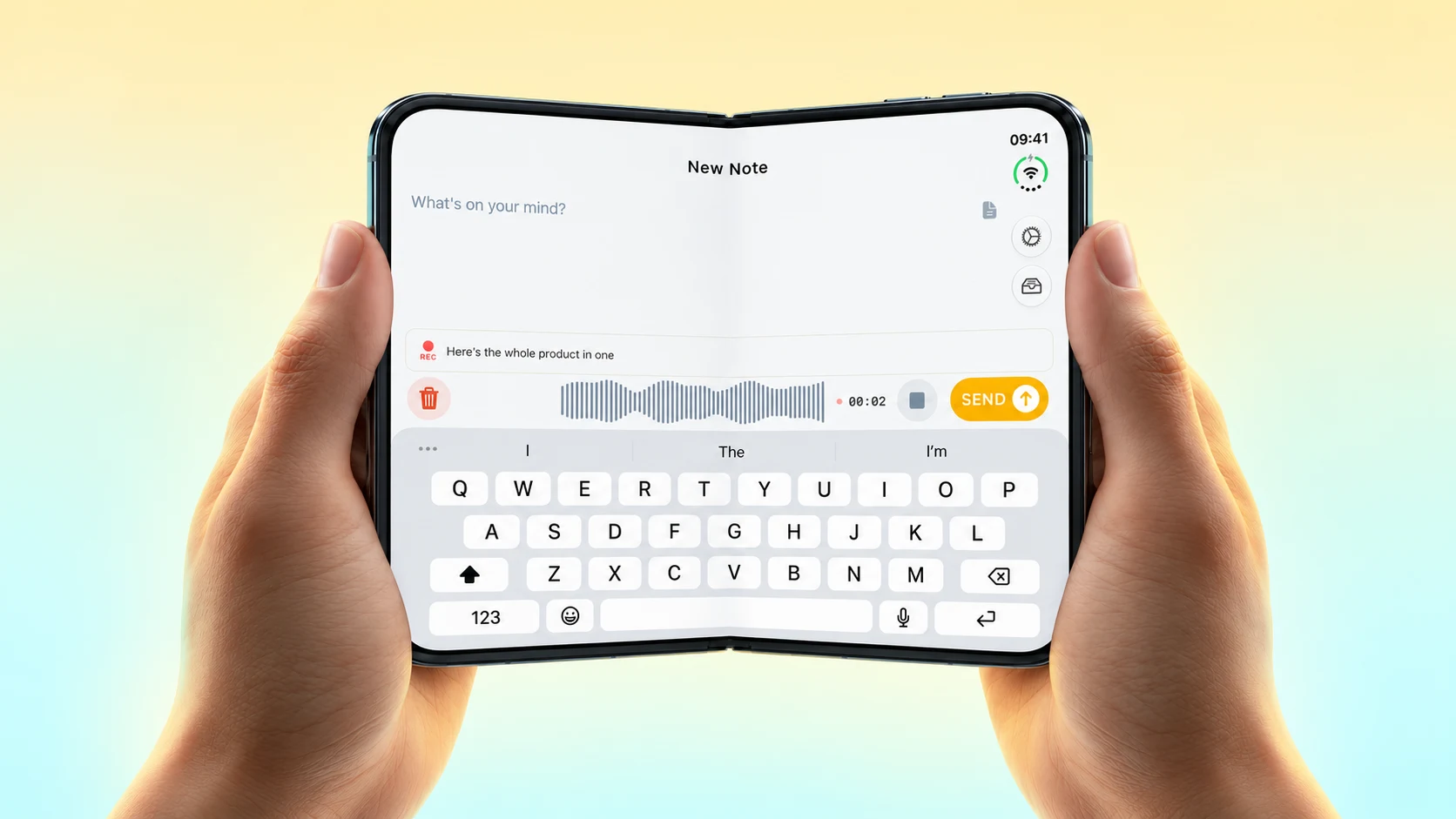
- Write, dictate or record your note in Email Me and tap Send. It also lands in your email inbox.
- Open the note from your notes list and tap the Share button.
- Choose who can open it: Anyone with link (view only) or Password protected.
- Tap Copy, or More sharing options to send the link by Messages, Mail or WhatsApp.
The link opens a clean page with the note's text, photos in a gallery, files to download, and voice recordings with a player and their transcript. Nobody needs an app or an account to read it. From the same screen, Share as file saves the note as a PDF, Text, Markdown or Zip file.
Because every note is also an email, you can forward it from your inbox too. And if you share notes with the same person often, add their address as a second recipient in Email Me, then press and hold Send to choose them.
Email Me is a free download with in-app purchases, and Premium features unlock with a subscription or a one-time lifetime purchase.
Download Email Me on the App Store
Which way should you use?
| Send a Copy | Share a Link (Collaborate) | Email Me link | |
|---|---|---|---|
| The other person can edit | No | Yes, if you allow it | No |
| They see your later changes | No | Yes, in real time | No, it shows the note as you shared it |
| Works for Android and Windows | Yes, by email | No (Apple Account needed) | Yes, in any browser |
| Password | No | No | Optional |
| Voice recordings | As attachments | In the note | With a player and transcript |
| Cost | Free | Free | Free download, Premium in-app purchases |
Use Send a Copy to pass something on once, Share a Link for lists and plans you keep editing together, and Email Me when the note should open for anyone, anywhere.
If you can't share a note
- There is no Share a Link or Collaborate option: the note is in On My iPhone or in another account (Gmail, Outlook). Move it to an iCloud folder, or send a copy instead.
- The note is locked: remove the lock (open the note, tap the Note Actions button, then Remove), then share it.
- The other person can't open it: they need to be signed in to their Apple Account with Notes on in iCloud, and an up to date iPhone, iPad or Mac. If they don't have one, send a copy by email.
- They asked for access: on iOS 27, tap the Collaborate button in the note to see and approve requests.
14 minutes a day. 84 hours a year. That's the average time lost to slow, repetitive steps just to write a note to yourself. I built Email Me to fix that: open it, write, tap Send, done.
Manuel
Related guides
- How to text yourself on iPhone
- How to email yourself
- Meeting notes in seconds
- Add Email Me to the share sheet
Frequently Asked Questions
How do I share a note on my iPhone?
Open the note in Notes and tap the Share button. Tap the menu under the note title and choose Send a Copy to send it once by Messages, Mail or AirDrop, or Share a Link to invite people to edit it with you. On iOS 26 and earlier the options are called Send Copy and Collaborate.
How do I send notes from my iPhone to another phone?
Use Send a Copy: open the note, tap Share, tap the menu under the title, choose Send a Copy and pick Messages, Mail or AirDrop. A copy by email works on any phone, including Android.
Can I share a note without letting people edit it?
Yes. When you share a link, change the permissions to View and Download Only (View only on iOS 26 and earlier). You can also just send a copy, which nobody else can change on your iPhone.
Why can't I share a note on my iPhone?
Collaboration only works for notes stored in iCloud that are not locked. Notes in On My iPhone or in a Gmail or other account can only be sent as a copy. Also check that Notes is turned on in iCloud settings and that everyone has an up to date iPhone, iPad or Mac.
How do I stop sharing a note on iPhone?
Open the shared note, tap the Collaborate button, tap Manage Shared Note, then tap Stop Sharing. The note is removed from the other people's devices. To remove just one person, tap their name and choose Remove Participant.
Can I share a locked note?
Not while it is locked. Apple's Notes doesn't let you collaborate on a locked note or on a folder with locked notes. Remove the lock first, then share it.
How do I share a note as a PDF on iPhone?
Open the note, tap Share, then tap Markup (under View More if you don't see it). Notes makes a PDF of the note; tap Done to save it, then send the PDF like any other file.