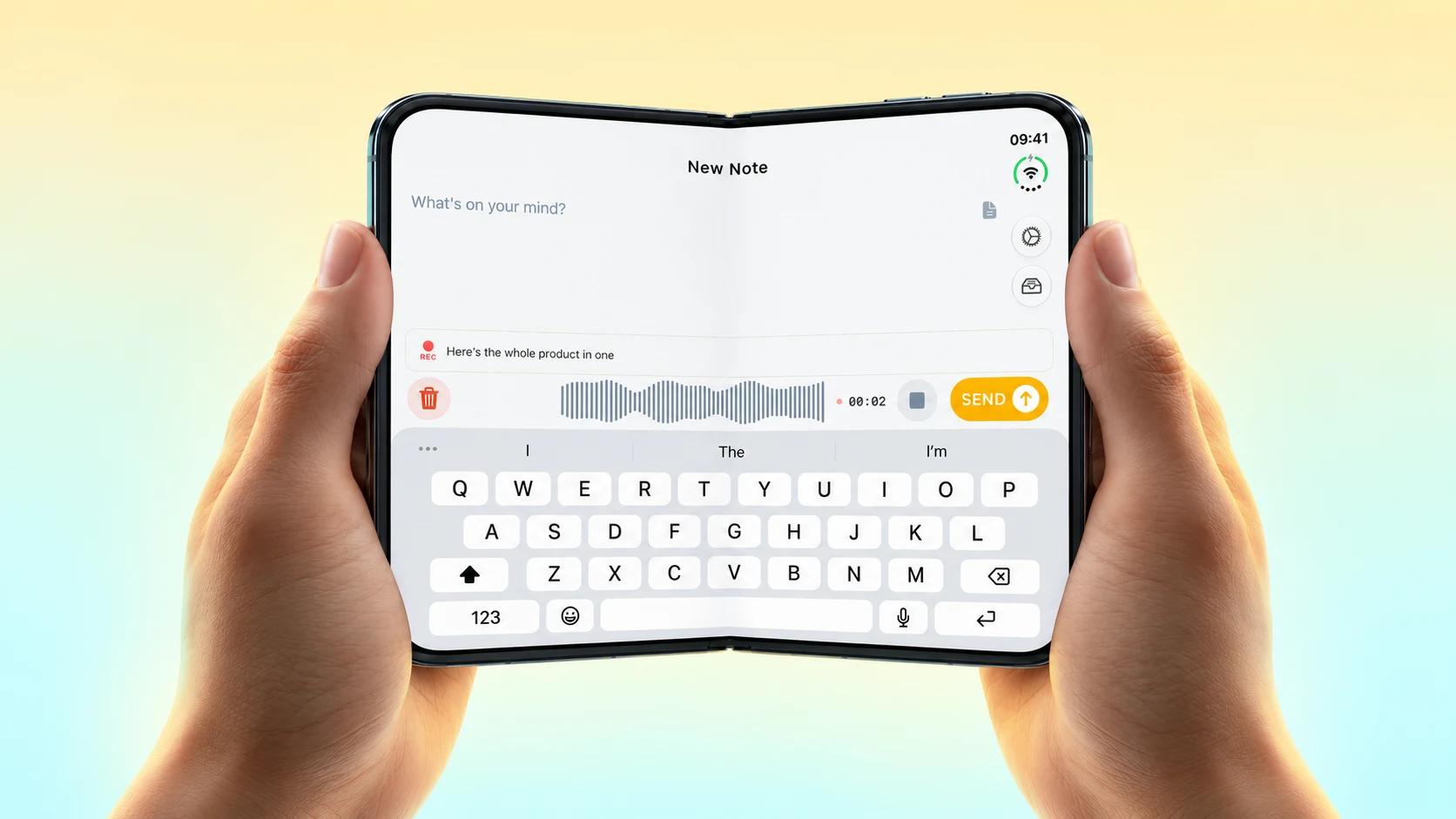
Email Me started with a simple idea: sending something to yourself should take as little time as possible. Sometimes that something is a note. Sometimes it is the screen you are looking at.
The new Email Me Attachment action makes the second one easier. It accepts images and files from Shortcuts, so you can send a screenshot without finding it in Photos and opening the share sheet each time. Thanks Joe for suggesting it!
A shortcut with two actions
Open Shortcuts and create a new shortcut. Add these actions in this order:
1. Take Screenshot. 2. Email Me Attachment.
Make sure the second action receives the screenshot from the first. You can also choose a recipient in the Email Me action if you want it to go to a particular address.
Run it once with something useful on screen. The screenshot becomes an attachment to your note and is sent to your inbox. If sending has to wait for a connection, Email Me tells you the note is queued.

Put it somewhere easy to reach
On an iPhone with an Action button, you can assign the shortcut to that button. That gives you a quick way to keep a receipt, a booking confirmation or a screen you want to discuss later.
It is also a normal shortcut, so you can run it from the Shortcuts app. The Action button is just one way to reach it.

Files work too
The action is called Attachment for a reason. You can pass it a file from another step in a shortcut, or an image taken from the clipboard. The important part is to pass the actual file or image into the action.
Email Me Last Image is a different action: it uses the latest image in your photo library. Use Attachment when you want to choose exactly what gets sent.
Small improvements like this help keep the app quick and useful. If you have a shortcut you would like Email Me to work with, please write to me.
Thank you for reading ❤️
More ways to send things to your inbox: the complete guide to emailing yourself.
Manuel Escrig