Gmail SMTP Settings for Email Me App
Gmail SMTP settings for Email Me App: the exact server, port, and app password steps to send notes from your own Gmail address in minutes.
Tutorials
 September 22, 2022 by Manuel Escrig · 2 min read
September 22, 2022 by Manuel Escrig · 2 min read
Combining Gmail with Email Me App
Gmail is a great alternative for sending emails via SMTP. If you have your own Gmail account I completely recommend following these steps to configure it in Email Me App. This guide details the necessary Gmail SMTP settings and how to generate an App Password for secure authentication.
1. Google Account
Go to your Google Account Privacy Screen.
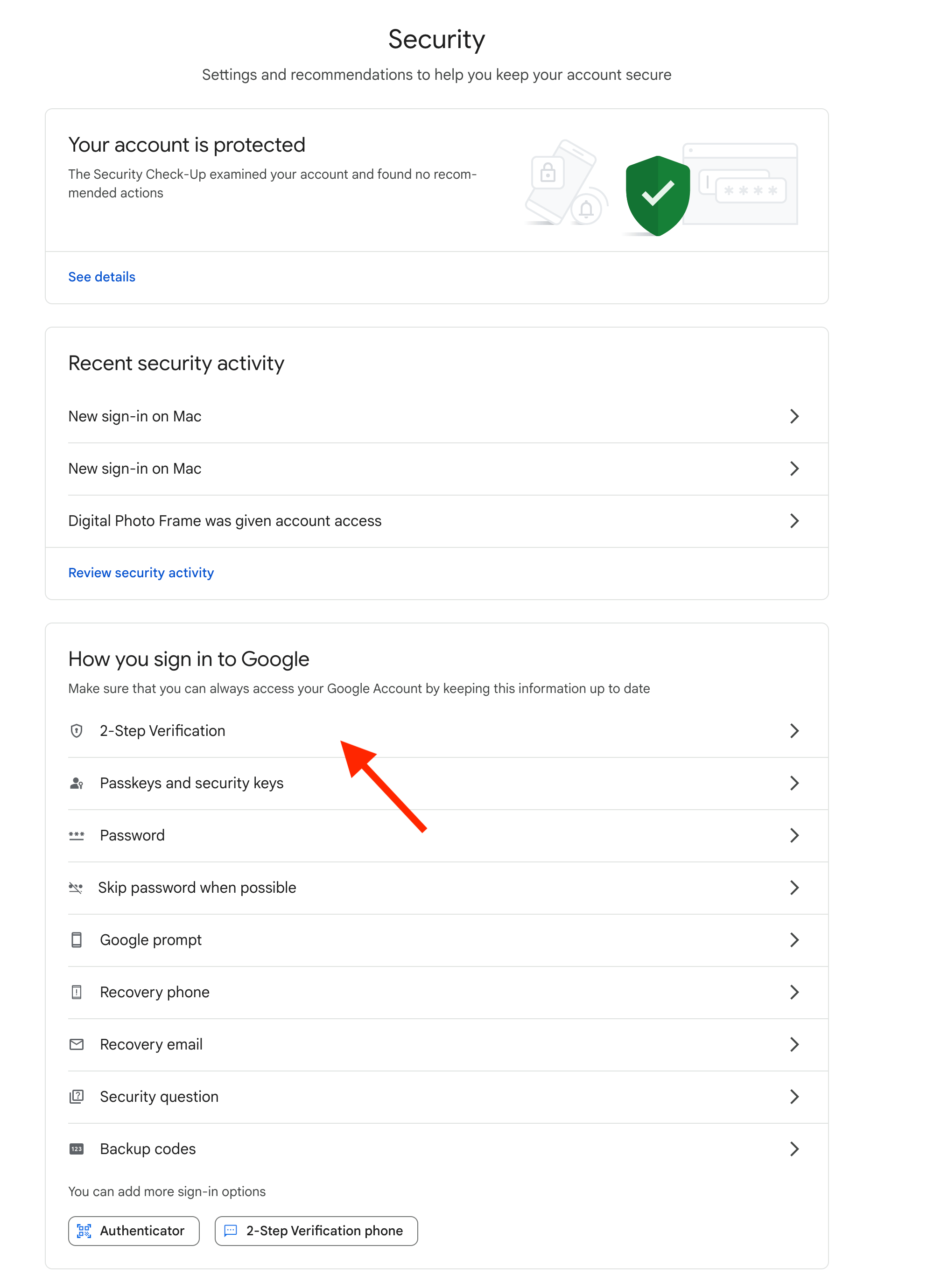
2. Enable 2-Step-Verification
Google now requires that you have 2-Step-Verification enabled before you can set up an application password so you'll need to enable 2-step-verification in case you don't have it.
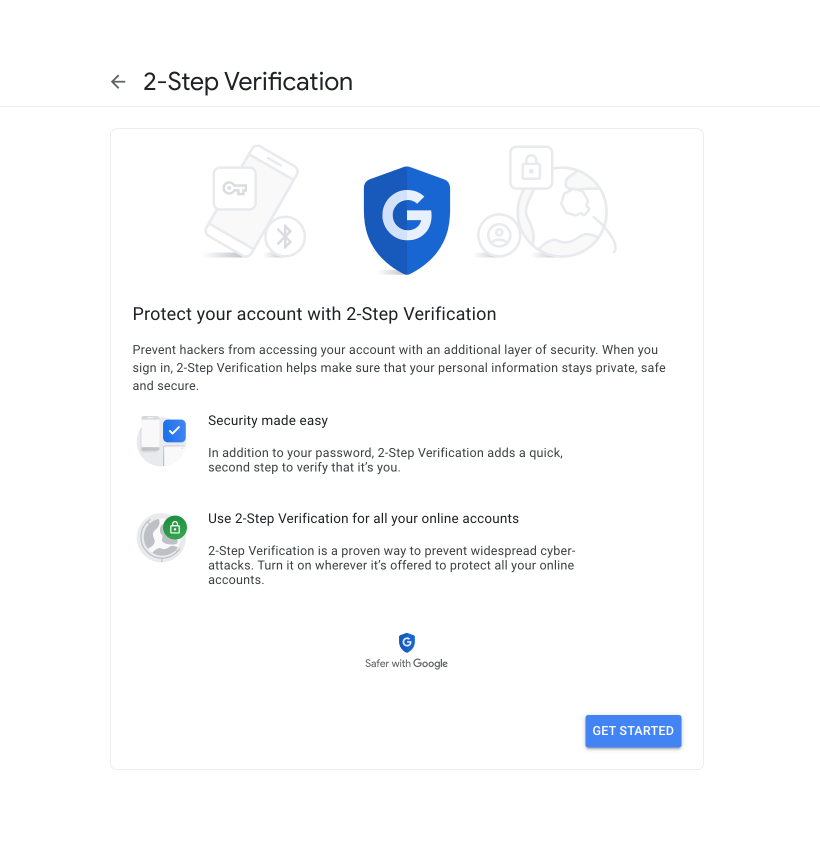
3. Create an App Password
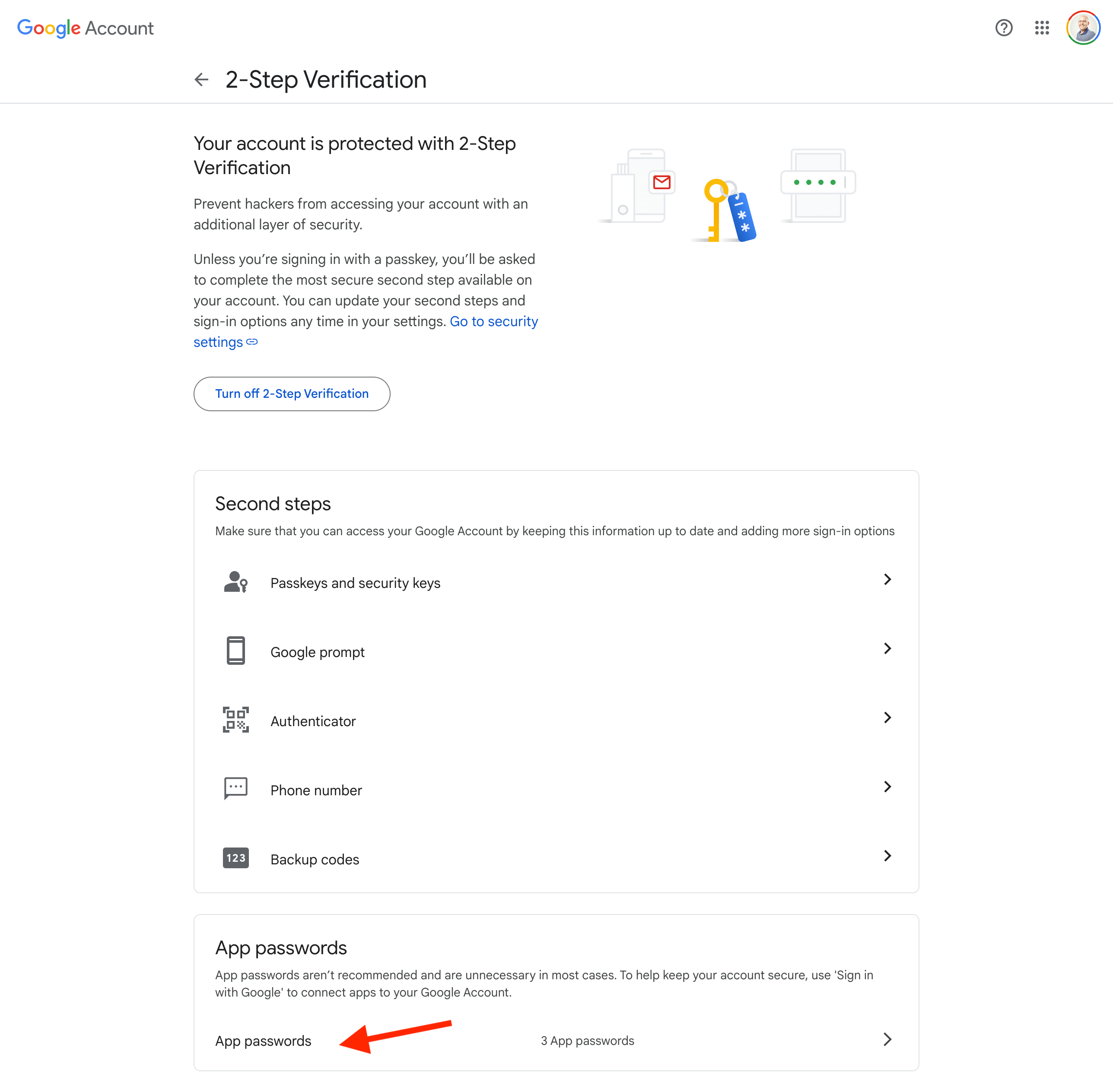
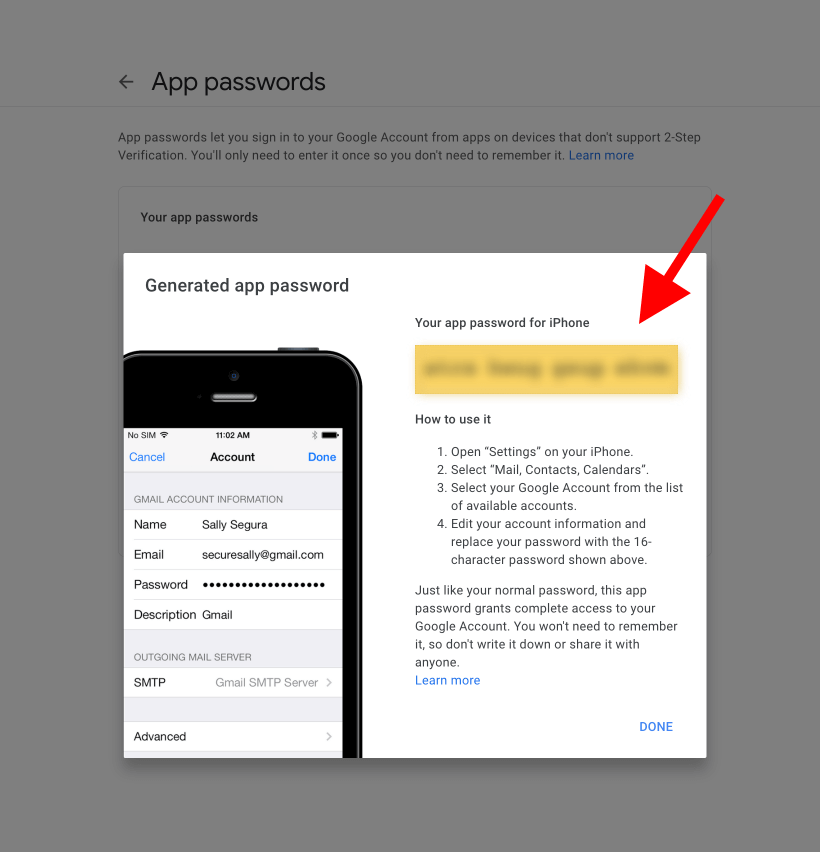
Go to your Google Account App Passwords Screen.
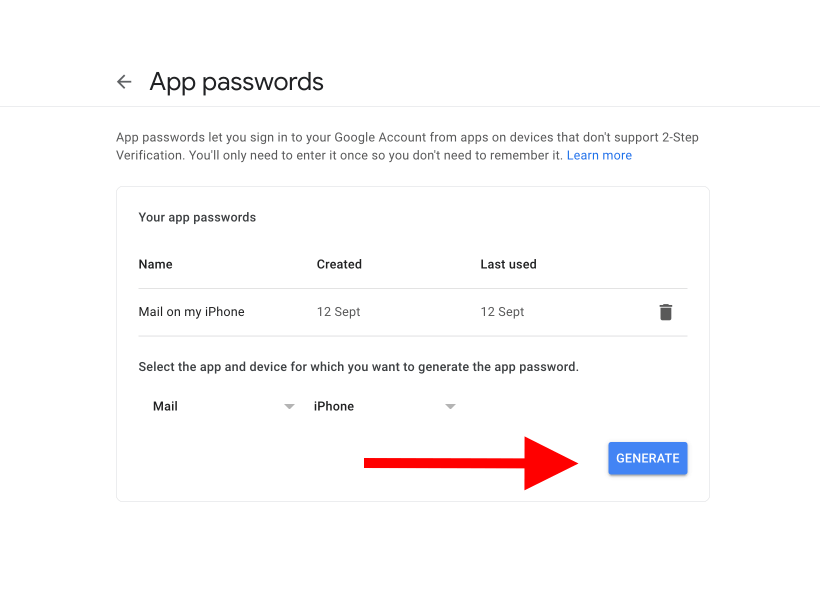
An app password works like an alternate password for your account. It can only be used by the applications you share it with, so it's more secure than sharing your primary password. You can set up an app password in your Google account. If you'd like to use an app password, you'll need to turn on two-factor authentication for your Google account first. After that, you can create an app-specific password for Email ME in the security settings for your Google account. To do so, select Mail as the app on the App passwords screen and select iPhone as a device.
Note: any time you change your main Google account password, it will deactivate your app passwords as well.
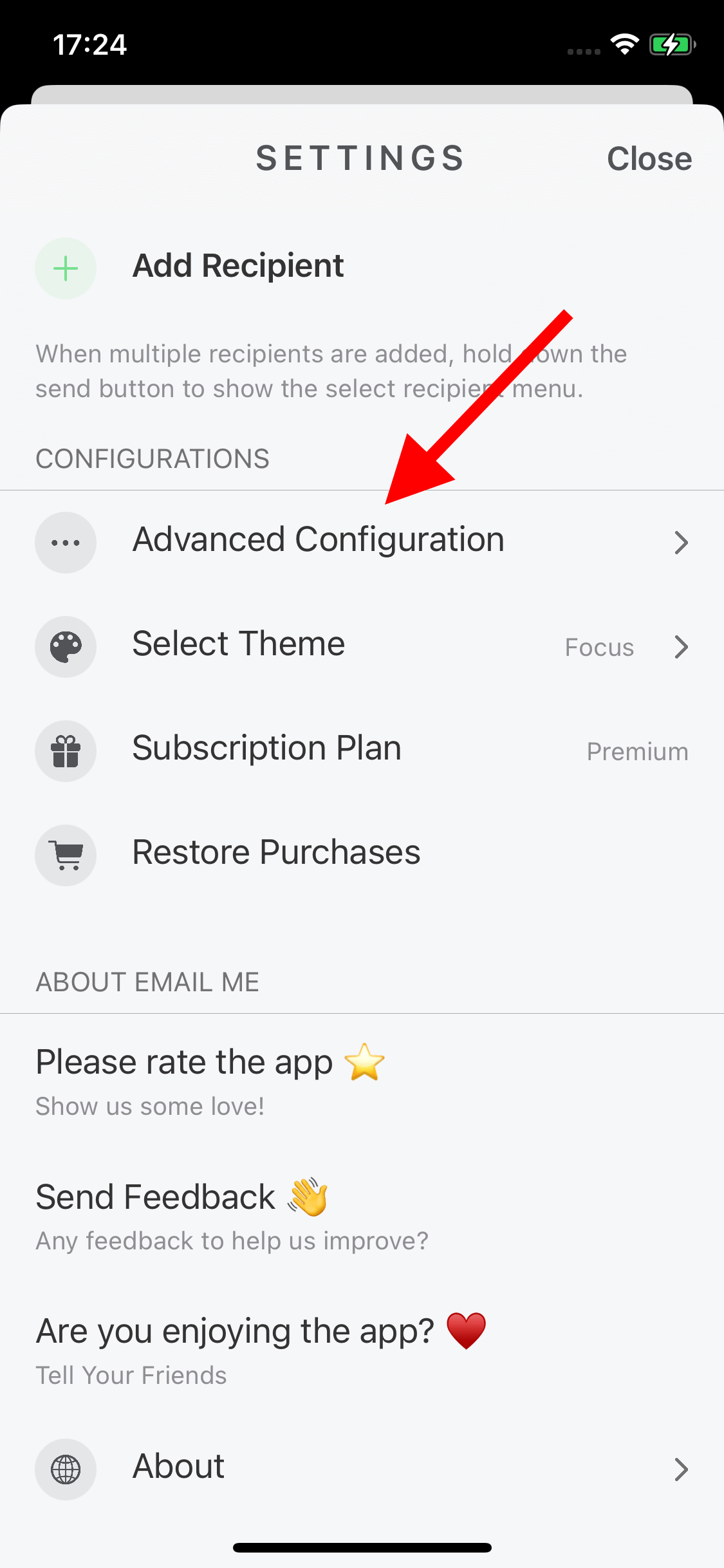
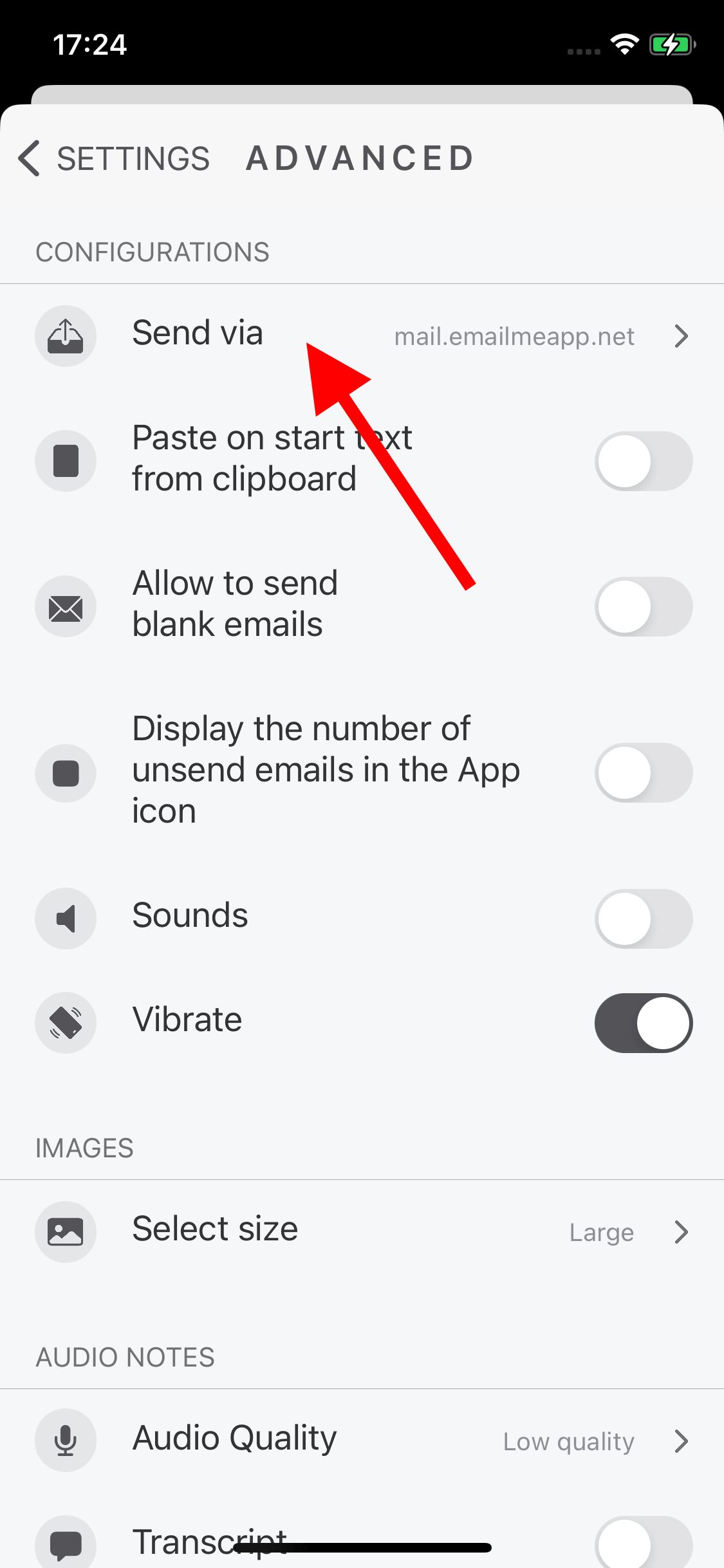
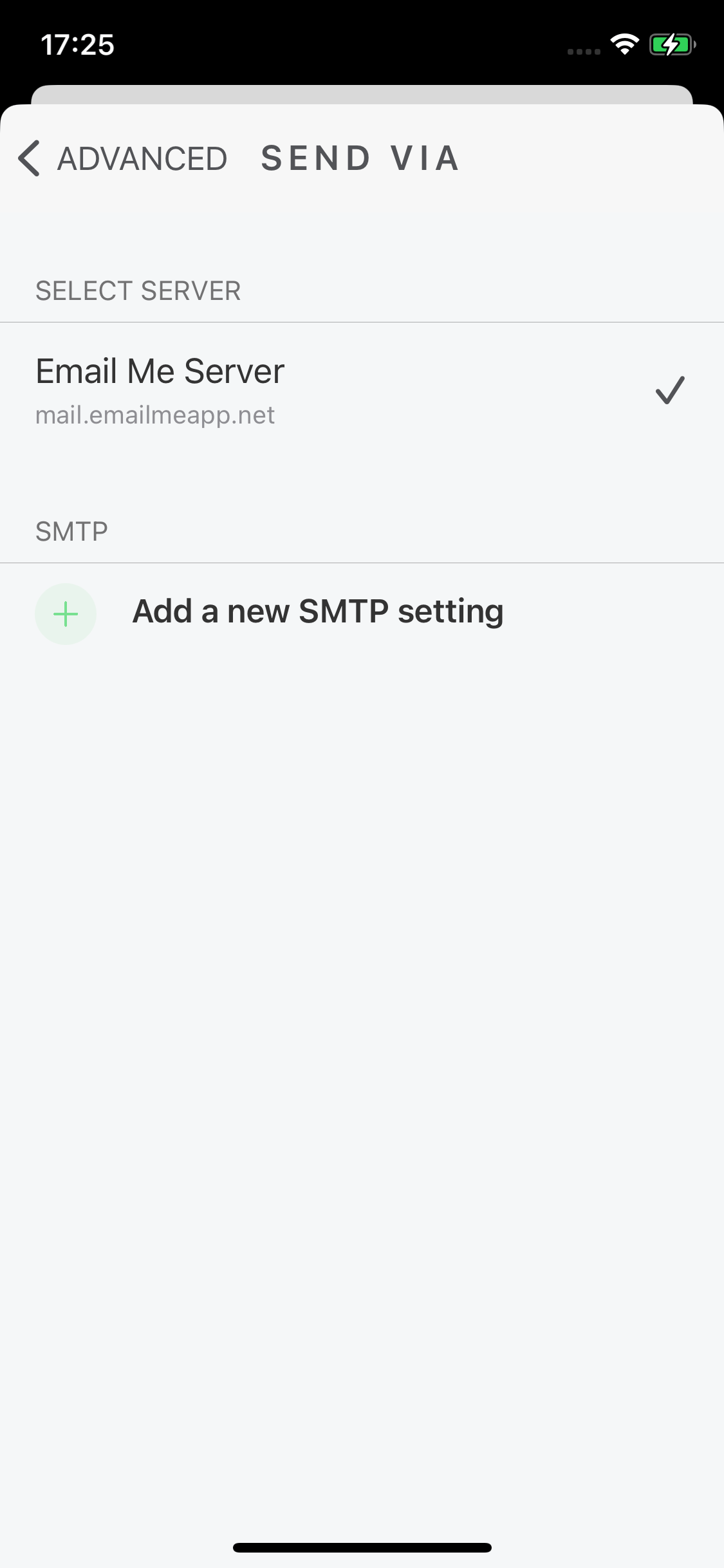
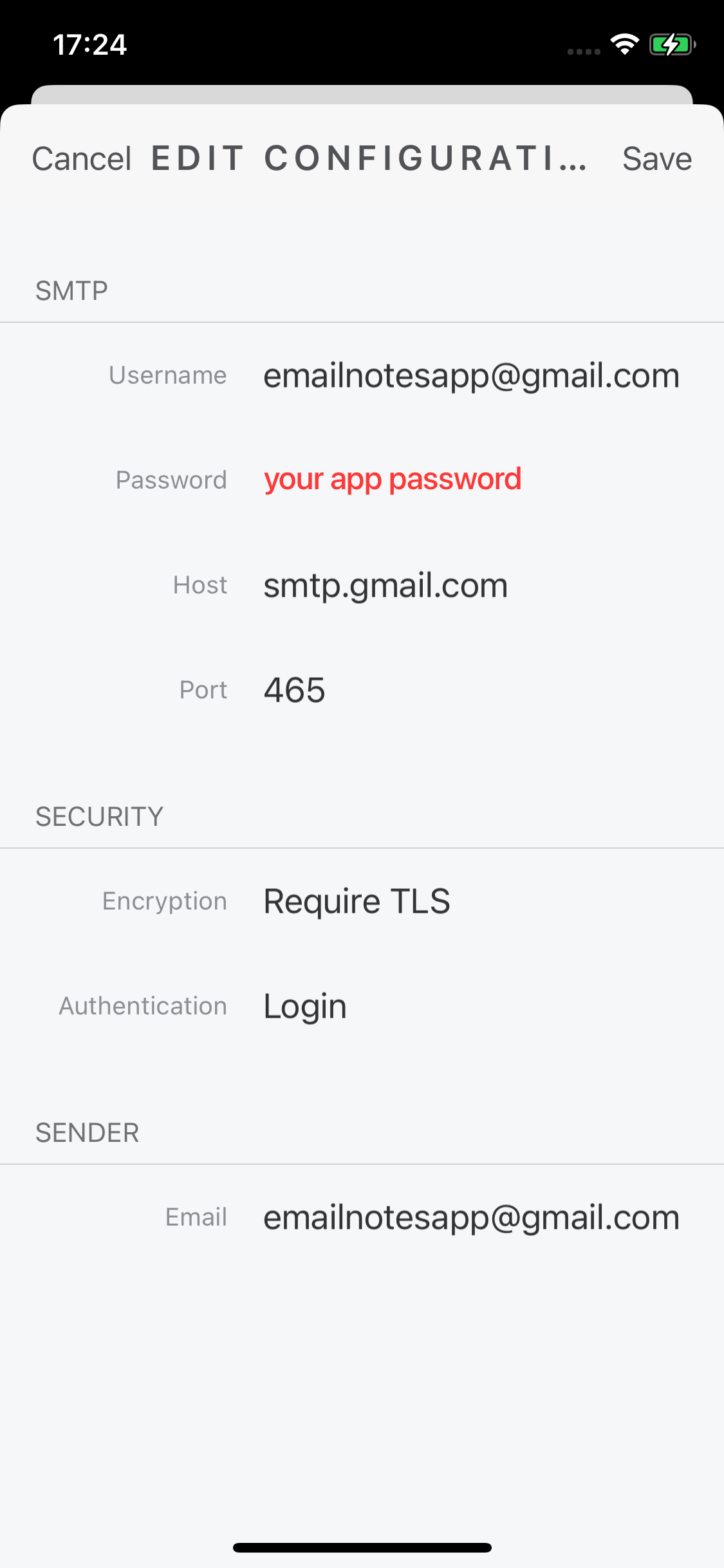
4. Add your Gmail SMTP Settings to Email Me App
Let me know if this helped and feel free to reach out if you have any questions.
Thank you for reading and enjoy sending you notes to your email ❤️
Manuel Escrig
 Share on Facebook
|
Share on Facebook
|
 Share on X