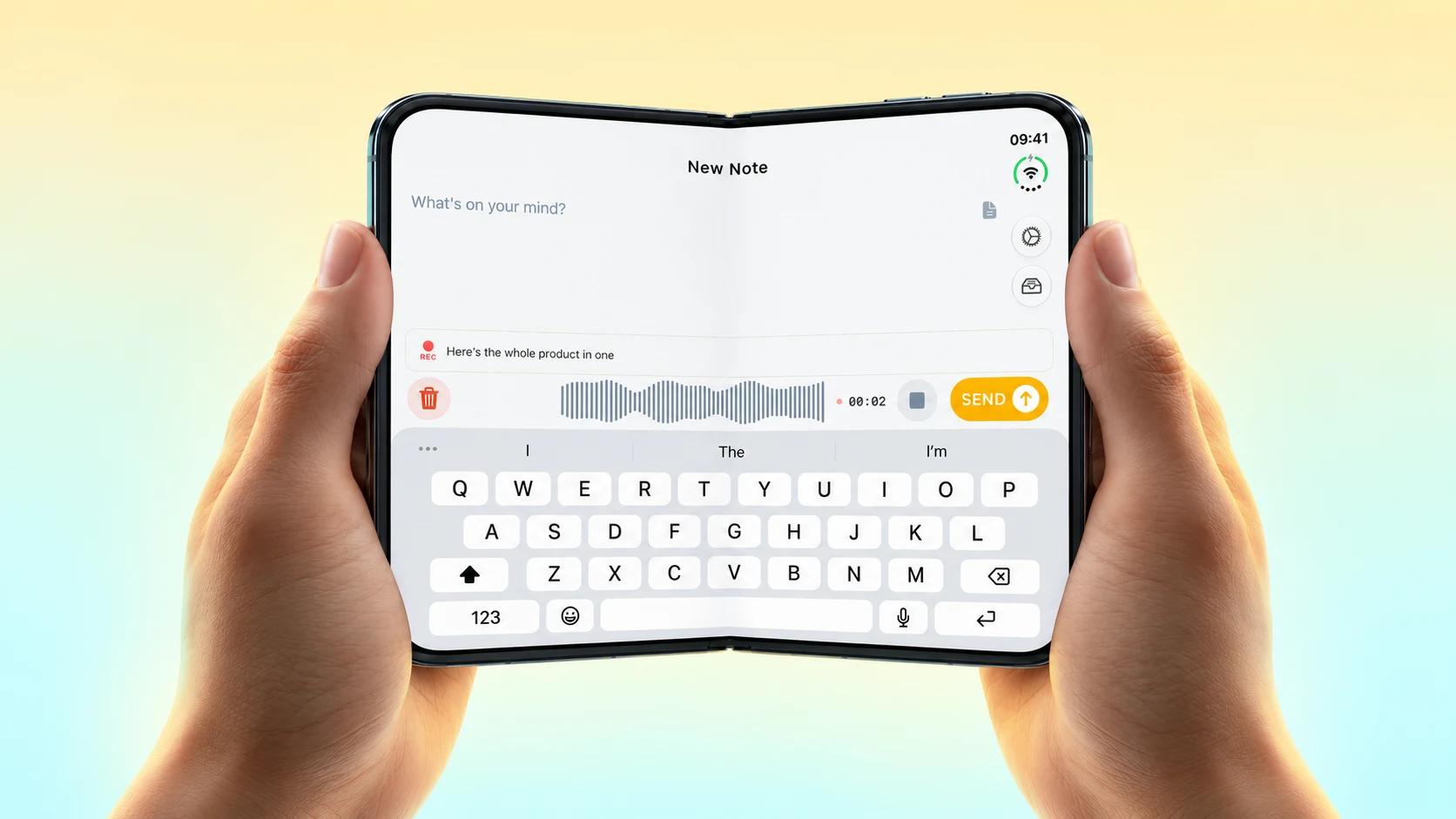
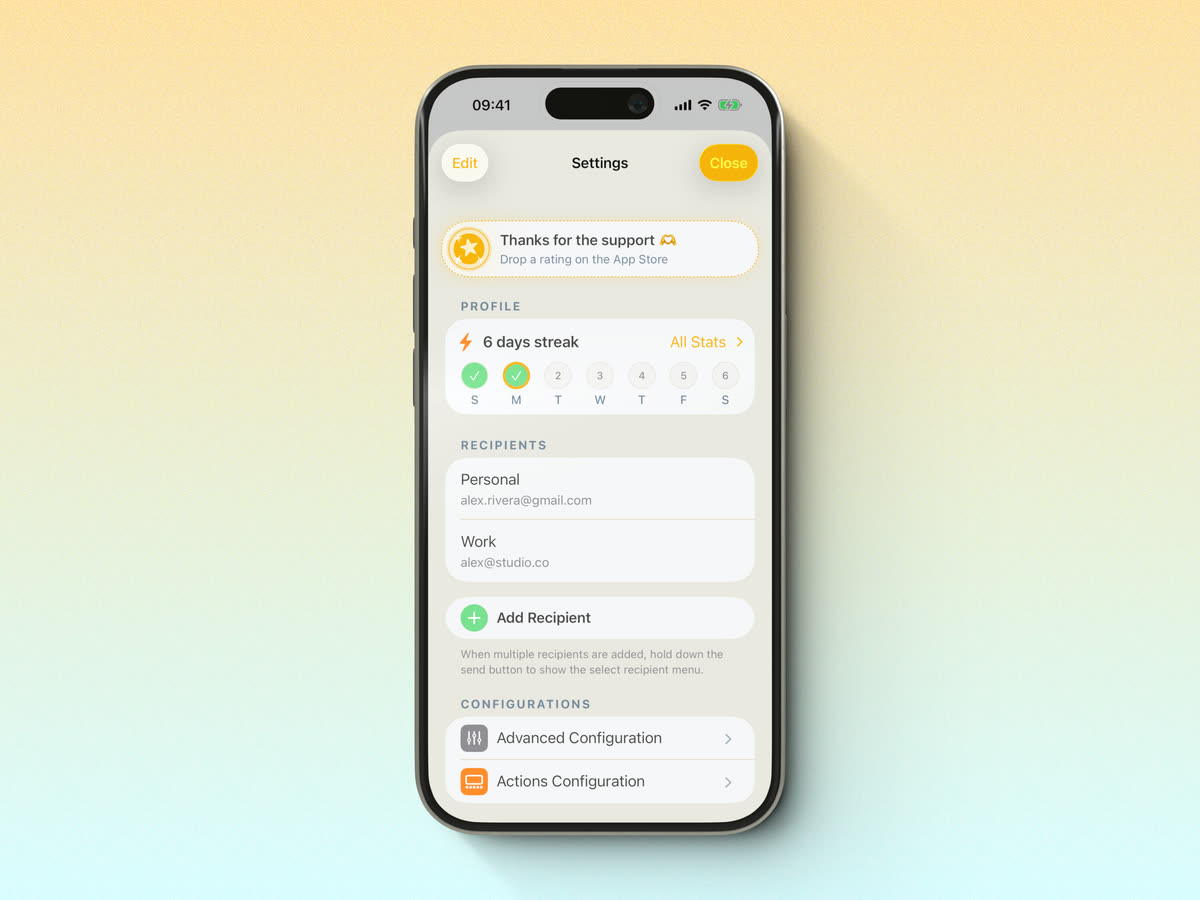
When I introduced Folders in Email Me, one of the reasons was to make sent notes easy to find again. Sending a note is useful, but so is getting back to the same note next week.
The latest changes continue that idea. You can keep useful notes pinned, put them on your Home Screen, and find recent notes from Spotlight.
Start with a pin
Open My Notes, swipe left on a note and tap Pin. Pinned notes stay at the top of the list, which is useful for things you come back to often: a travel checklist, a list of books or a few numbers you need to keep handy.
You can still open the note and send it again. Pinning simply makes it easier to reach.

Give your notes more room
The large Email Me widget now shows six pinned notes. On iOS 27, the new tall extra-large widget on iPhone shows up to ten. On iPad, the extra-large widget uses two columns and shows up to twelve.
To add one, touch and hold your Home Screen, open the widget picker, search for Email Me and choose the size you want. Pin a few notes in the app first so the widget has something useful to show.
Tapping a row opens that particular note. This also fixes an annoying issue where different rows could lead to the same note.

Search without opening the app first
On iOS 27, recent Email Me notes also appear in Spotlight. Swipe down on the Home Screen and type a few words from the note. Tap the result to open it in Email Me.
The app indexes your 500 most recent notes. Deleting a note removes it from Spotlight too. This is a way to find notes saved in the app; it does not search your whole email inbox.
I want Email Me to stay quick both when you send something and when you need it again. If there is a small detail that slows you down, please send me your feedback.
Thank you for reading ❤️
Manuel Escrig