Every September I go through the same routine. I install the new iOS, open Email Me, and ask myself what the system can now do that I used to do by hand. This year the answer was "quite a lot", mostly because of how much Siri changed.
Email Me has always done one thing: get a thought out of your head and into your inbox. On iOS 27 you can do that, and find it again later, without opening the app at all. Here's how it works, with the things I actually use every day.
"Email this to me"
This is the one I was waiting for. On iOS 27 Siri can see what's on your screen and hand it to an app. Email Me now speaks the same language as Apple's own Notes, so Siri knows that "make a note of this in Email Me" means "send it to my inbox".
A few ways I use it:
- I'm reading an article in Safari and don't have time for it. I say "Email this to me" and the link is waiting in my inbox for the evening.
- Someone sends me a photo of a whiteboard. "Send this to Email Me" and the photo arrives as an attachment.
- I'm looking at a recipe on a Sunday morning. "Make a note of this in Email Me and pin it", and the note is pinned in the app by the time I'm at the supermarket.
You can also ask Siri to tag the note as it goes, like "…and tag it Work". It uses the tags you already have in Email Me.
Siri answers with "Sent" and shows you the note it just sent, so you can check it went to the right place. If you're on a plane or in a parking garage, it says the note is queued, and it goes out on its own when you're back online. Pins and tags are kept.
The note goes to your Siri recipient. You can choose it in Settings → Siri. If you never set one, it uses your first email address.
Asking Siri about your notes
Sending was always the easy part. Finding what I sent is where I used to waste time scrolling. Now I ask:
- "Open my Email Me note about the Wi-Fi password." Siri opens the app on that note.
- "Search Email Me for the flight number." The app opens with My Notes already searching for it.
- "What was my last Email Me note?" Siri shows it as a card, without opening the app.
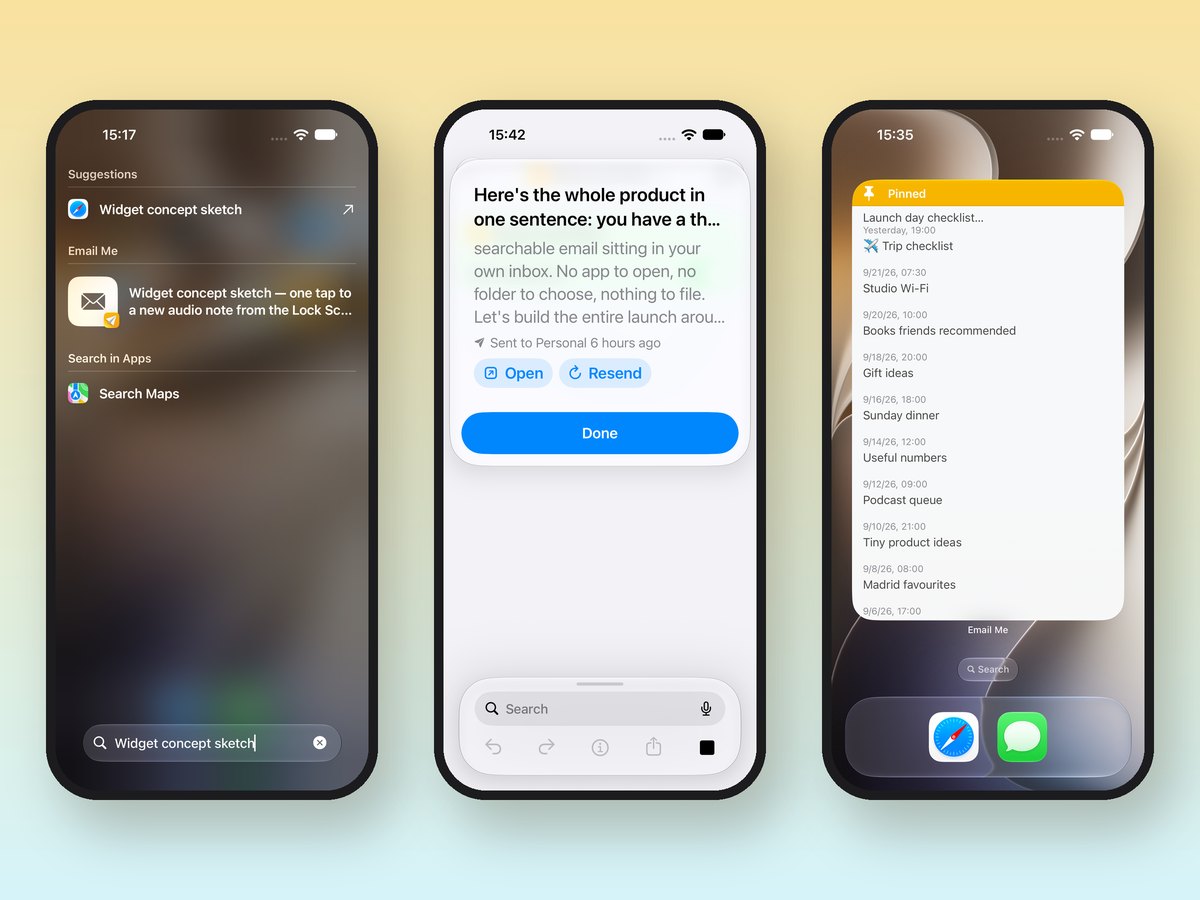
That card is my favourite small thing in this release. It shows the note, who it went to and when, with two buttons: Open and Resend.
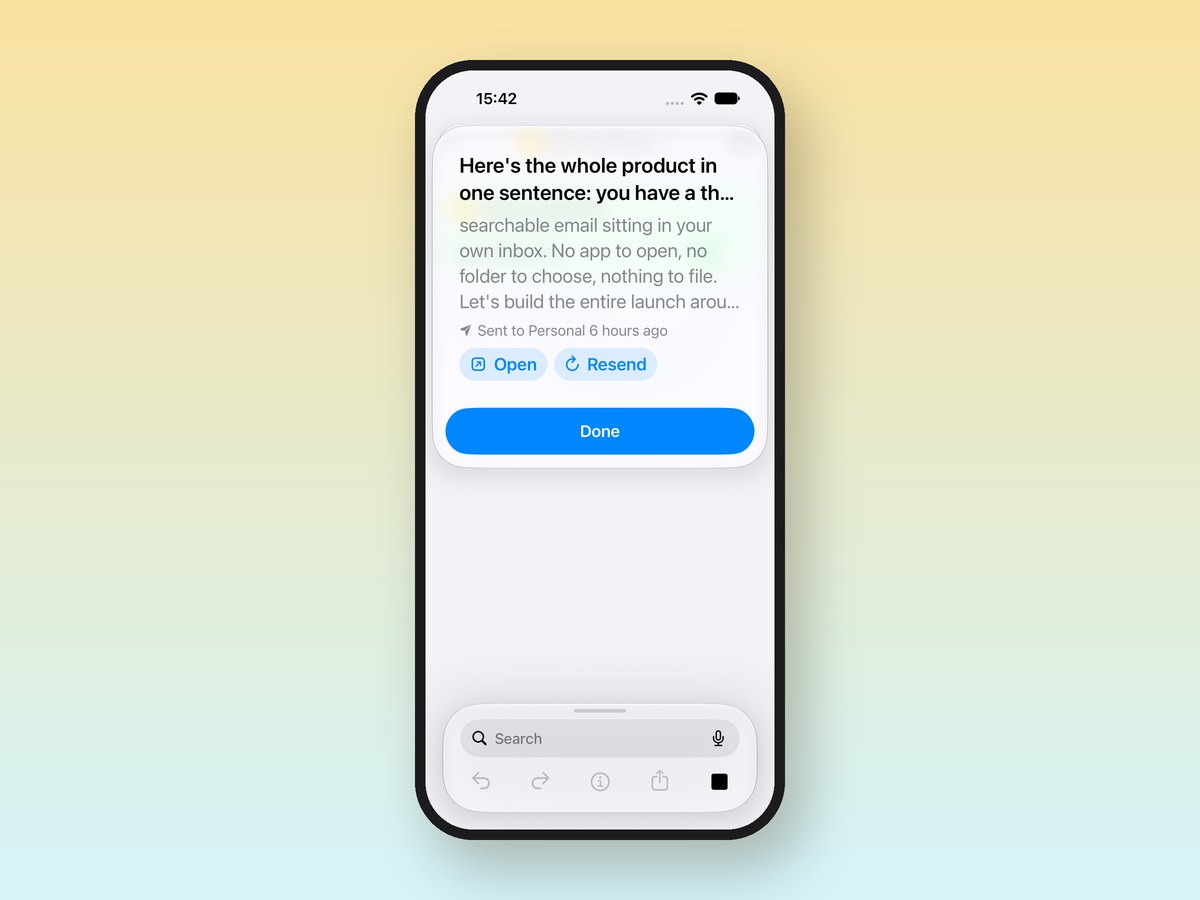
Resend is there for a reason. Half the time I want something in my inbox again, because the first email is buried under a week of newsletters. Resend sends a fresh copy to the same address and leaves the original note as it was.
If you're looking at a note in the app, you can also ask Siri about it directly, like "summarise this" or "what's the date in this note?", the same way you would with any other note on screen.
Your notes in Spotlight
Your notes are now in Spotlight, too. Swipe down on the Home Screen, type a few words you remember, and the note is right there with the other results. Tap it and Email Me opens on that note.
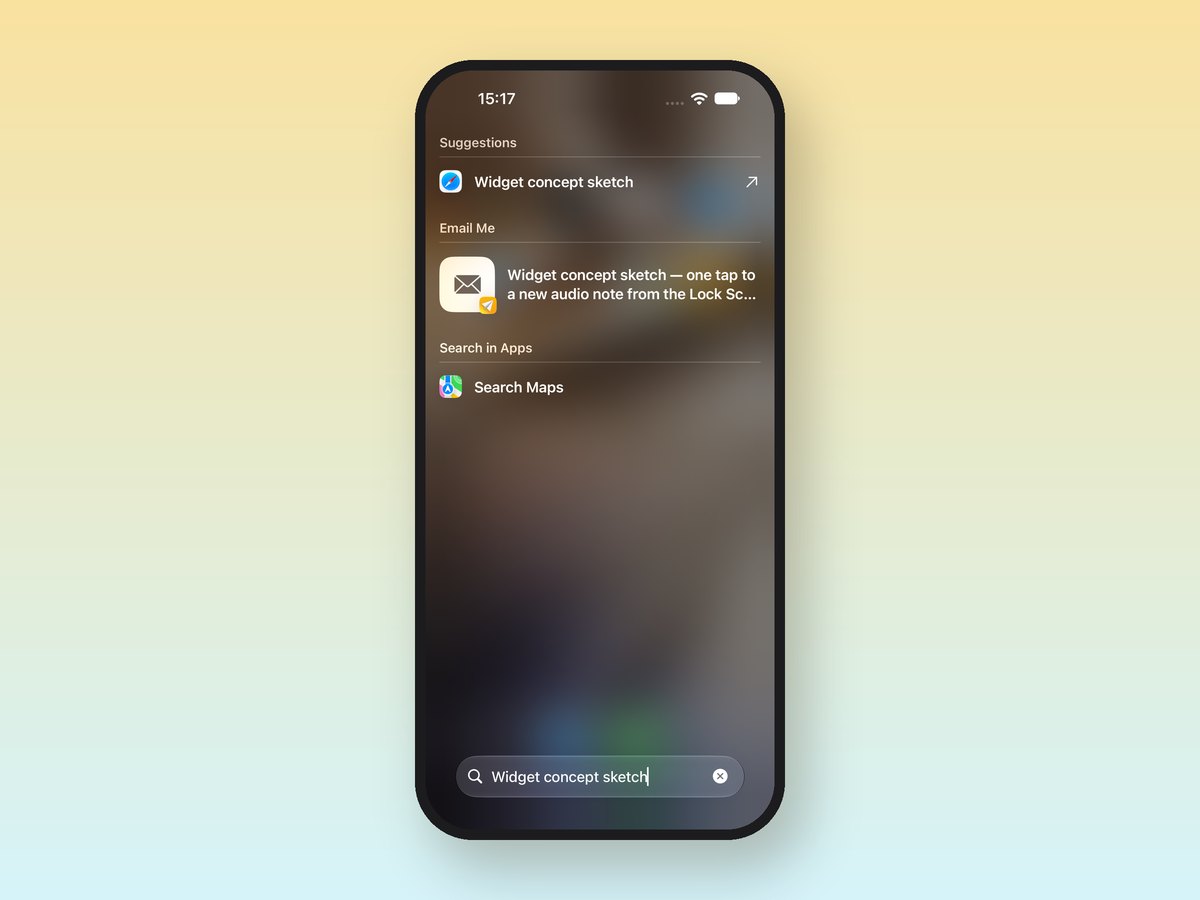
This is the feature I didn't think I needed. Most of my notes are boring things like a gate code, a parcel number or the name of a wine someone recommended. Before, I would open my email and hope for a good search. Now I type "gate" in Spotlight and that's it.
Email Me keeps your 500 most recent notes in Spotlight and updates them in the background. When you delete a note, it's removed from Spotlight too.
Bigger widgets for pinned notes
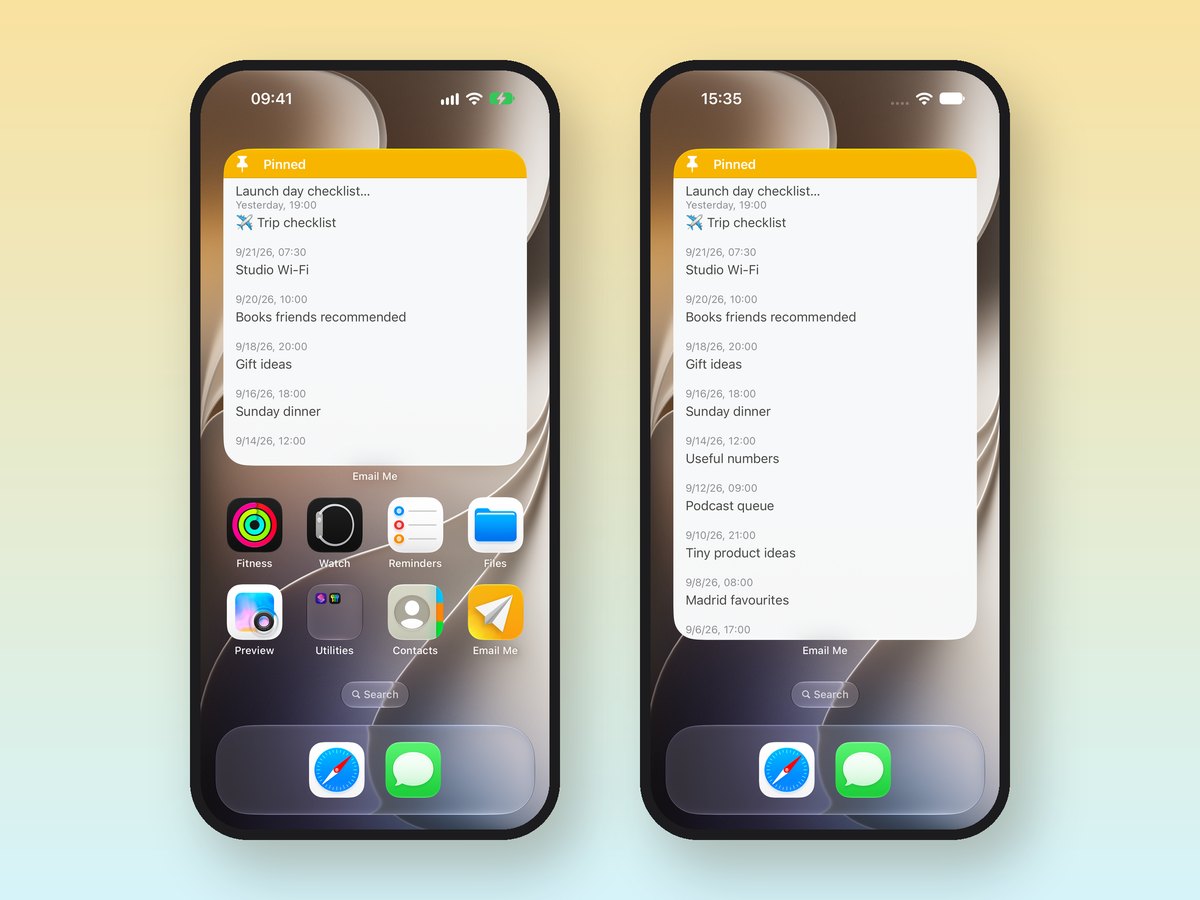
Pinned notes are the ones I keep coming back to: the trip checklist, the podcast queue, the list of books friends recommended. iOS 27 adds an extra-large widget size for iPhone, and Email Me uses it to show ten of your pinned notes from top to bottom. The large widget got better too: it was only filling half its space with three notes, and now shows six.
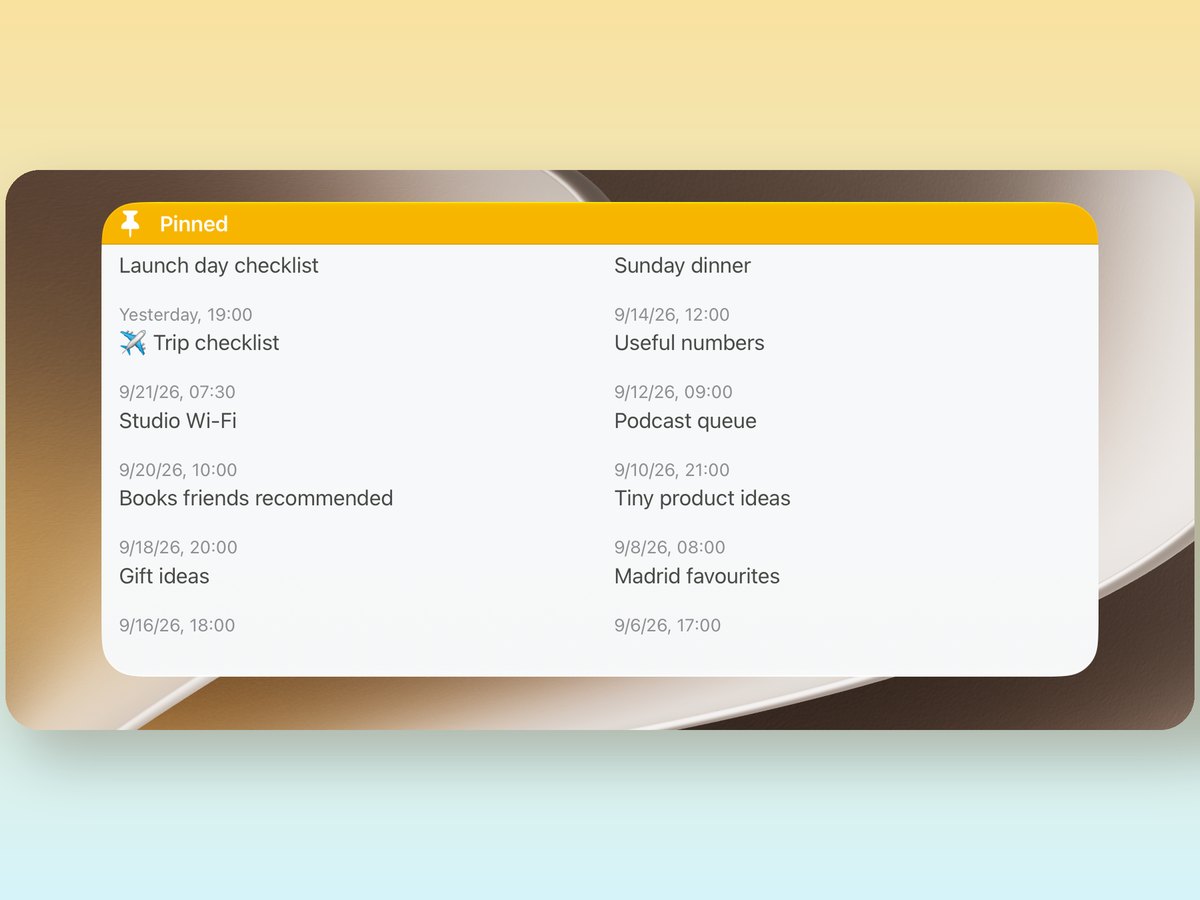
On iPad, the extra-large widget used to stretch one column across the whole width. Now it uses two, with up to twelve notes.
One fix I'm happy about: tapping a note in a widget now opens that note. Before, every row opened the same one, which was as annoying as it sounds.
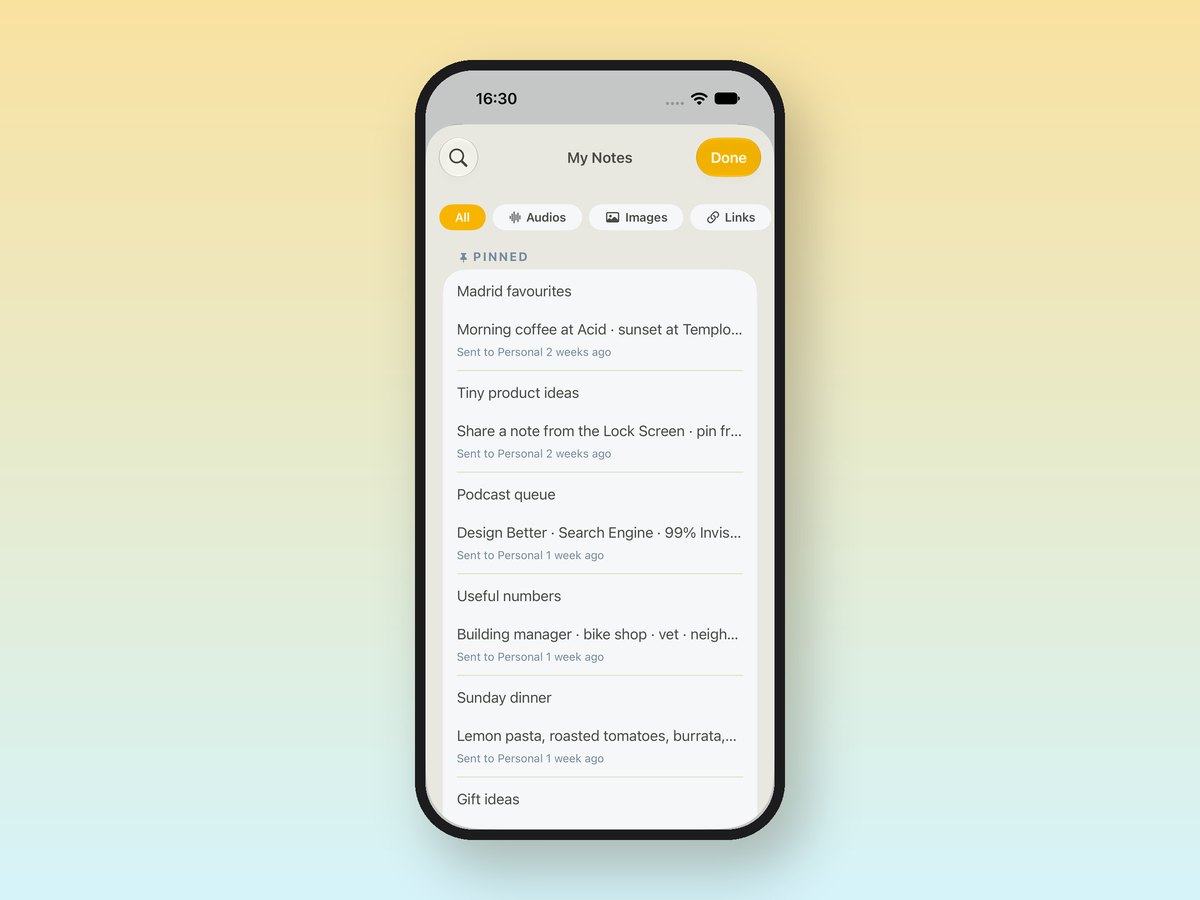
If you haven't used pins yet, swipe left on a note in My Notes and tap Pin, or just say "pin it" when you send it with Siri. Pinned notes also stay at the top of My Notes.
And in Shortcuts
All of this also works in the Shortcuts app. Search for Email Me and you'll find Email Me Note, Email Me Attachment, Email Me Last Image, Show Last Note and Send Note Again, ready to use in your own automations.
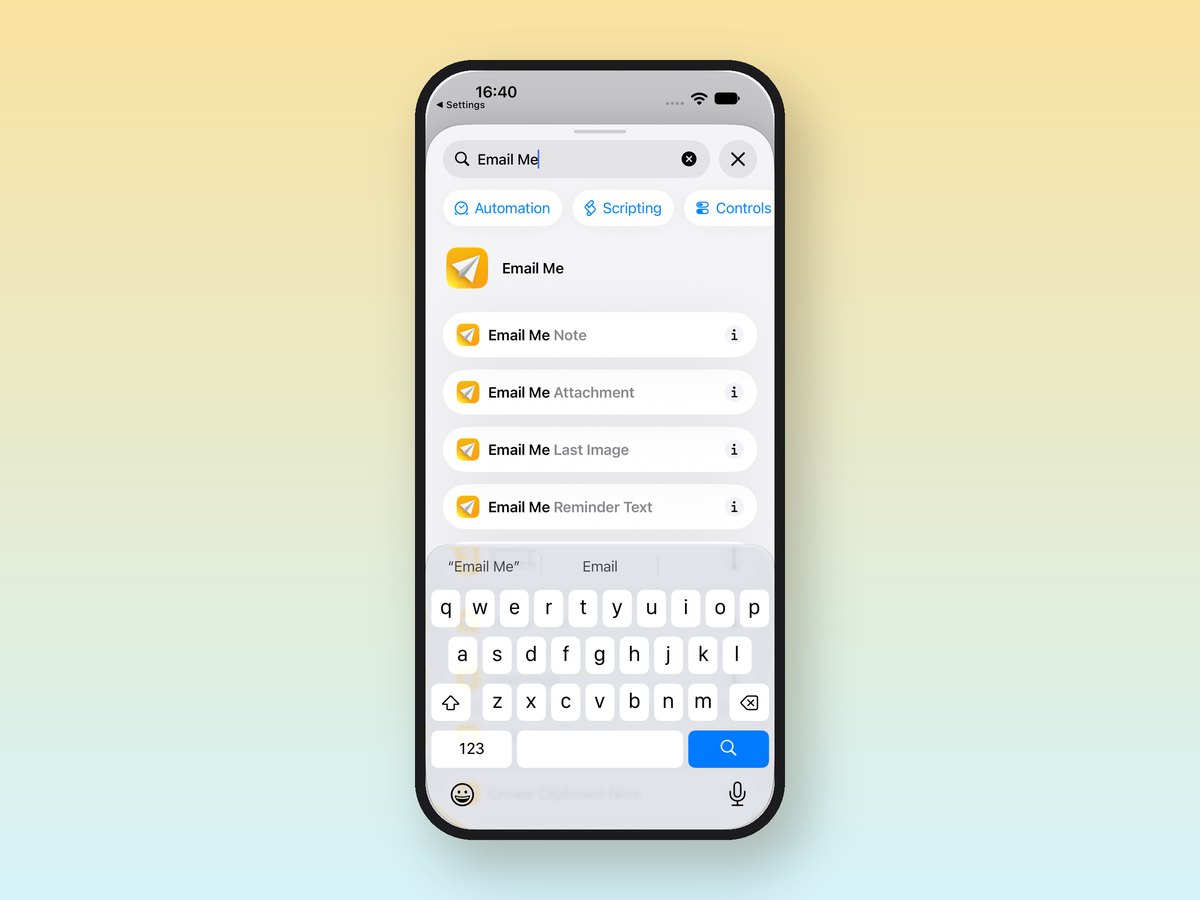
My favourite is a two-step shortcut on my Action button: Take Screenshot, then Email Me Attachment. One press, and whatever is on my screen is in my inbox.
A couple of practical notes
- The Siri features that understand what's on your screen need iOS 27 on a device with Apple Intelligence turned on. Everything else (Spotlight, widgets, Shortcuts) works on any device that runs iOS 27.
- If you're still on an older iOS, nothing changes for you. Email Me keeps working just like before.
- Everything is in the current version on the App Store. Update and it works, there's nothing to set up.
As always, it's just me behind the app. If you try any of this and Siri doesn't understand you, or you find a phrase that works better than mine, please write to me at [email protected]. I read every message, and many of the features above started as an email from someone like you.
Thanks for using Email Me ❤️
Manuel