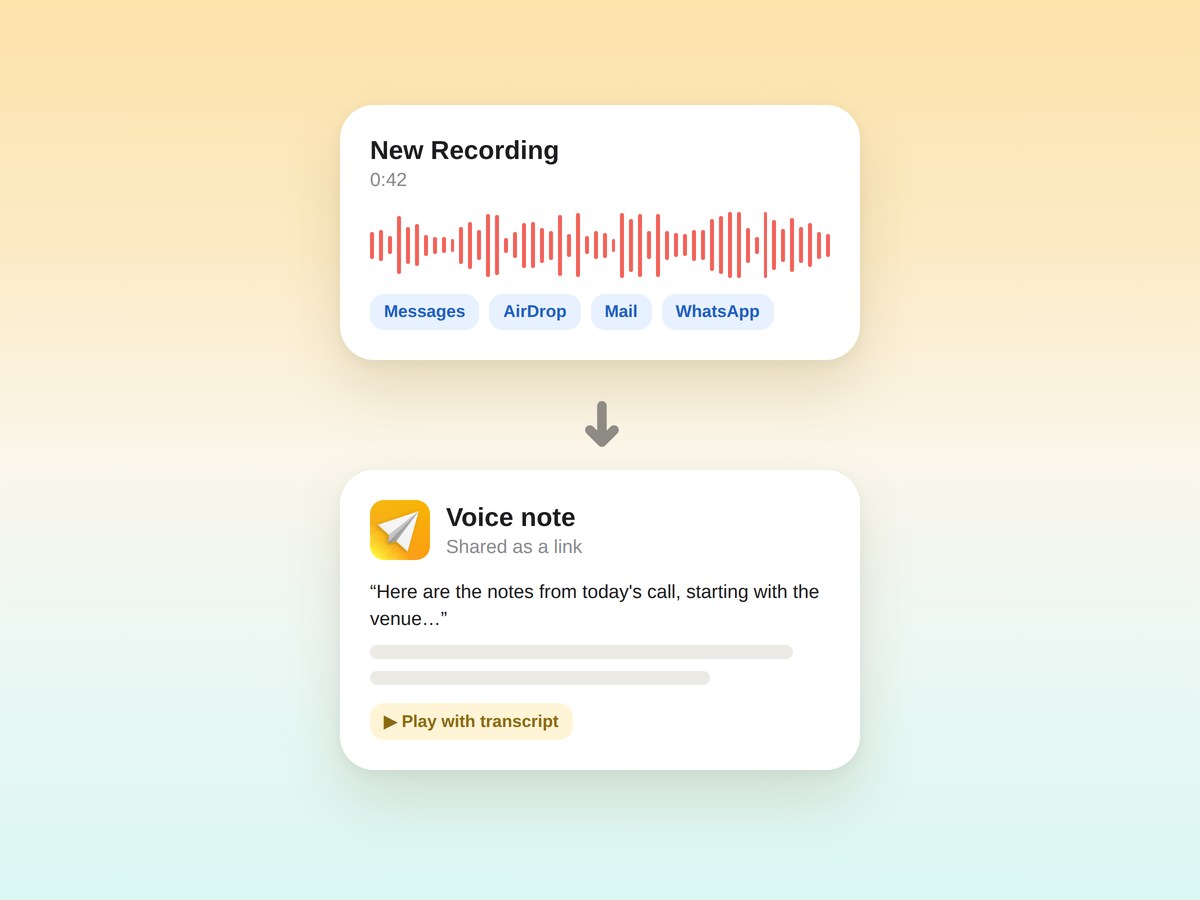
How to send a voice memo on iPhone: open Voice Memos, tap the recording, tap the More button (three dots), then tap Share. Pick Messages, Mail, AirDrop, WhatsApp or another app, choose the person and tap Send.
That covers most cases. Below are the steps for each way, what to do when a recording is too big, how to send one to someone with an Android phone, and a way to send a voice note as a link with its transcript.
- Messages: quickest for a friend with an iPhone.
- AirDrop: best for a long recording to a nearby iPhone, iPad or Mac.
- Mail: works with anyone; Mail Drop handles big files.
- WhatsApp and other apps: right from the same Share menu.
- A link with Email Me: plays in any browser, with a written transcript. Get Email Me on the App Store.
Still need to make the recording? See how to record voice notes on iPhone first.
The basic steps (every way starts here)
- Open Voice Memos. It is preinstalled, in the Utilities folder; you can also search for it.
- Tap the recording you want to send.
- Tap the More button (three dots), then Share.
- Optional: tap Options at the top of the Share menu. Rendered (one .m4a file) plays everywhere; Editable keeps layers and effects but needs a recent Apple device to open. For sending to people, use Rendered.
- Pick how to send it, choose the person and tap Send or Done.
To send several recordings at once, tap Select above the list, select them, then tap the Share button.
Way 1: Send a voice memo in Messages
- In the Share menu, tap Messages.
- Type the name or number in To (or tap a recent conversation at the top of the Share menu).
- Tap Send.
To someone with an iPhone, iPad or Mac, the memo arrives as an audio file they can play right in the conversation. To an Android phone it goes as RCS or MMS, and a long recording may be too big for the carrier; if it fails, use Mail, WhatsApp or a link instead.
Way 2: AirDrop it to a nearby iPhone, iPad or Mac
- In the Share menu, tap AirDrop.
- Tap the person or device. On their side, they tap Accept.
AirDrop sends the file directly over Wi-Fi and Bluetooth, so it is the fastest way to move a long recording to your own Mac or to someone in the same room.
Way 3: Email a voice memo
- In the Share menu, tap Mail.
- Enter the address, add a subject and tap Send.
The memo goes as an .m4a audio file that plays on iPhone, Android, Windows and Mac. If the file is too big for a normal attachment, Mail offers Mail Drop: the recording is uploaded to iCloud (up to 5 GB) and the email carries a download link that works for 30 days.
Sending the memo to yourself rather than to someone else? The voice notes guide shows how to record and email a note to your own inbox in one step.
Way 4: Send it with WhatsApp, Gmail or another app
The Share menu lists the apps you have installed: WhatsApp, Telegram, Signal, Gmail, Outlook, Slack, Google Drive, Dropbox and more.
- In the Share menu, swipe along the row of apps. If you don't see yours, tap More at the end of the row.
- Pick the app and choose the chat or person.
- Send it as you would anything else in that app.
For a very long recording, a cloud drive is a good option: upload it, then share the link instead of the file.
Way 5: Send a voice note as a link, with its transcript (Email Me)
A file is fine for a quick message. For a longer recording, people often prefer to read first and listen second. Email Me turns a voice note into a page that opens in any browser, with the recording, a written transcript and an optional password:
- Record the note in Email Me (tap the microphone, talk, tap Send). Or send an existing memo to it: in Voice Memos tap More, Share, then Email Me, and tap Send Note once the transcript appears.
- Open the note from your notes list and tap the Share button.
- Choose Anyone with link or Password protected.
- Tap Copy, or More sharing options to send the link by Messages, Mail or WhatsApp.
The person taps the link and gets a player and the transcript. Each line of the transcript shows when it was said, so they can tap a line to jump to that moment, and a Skip silences switch makes long pauses disappear. It works on Android and Windows, with no app or account. Recordings that are too large for a link are left out, and the app tells you when that happens.
Email Me records up to 60 minutes on iPhone, and every voice note also lands in your own inbox as an email with the audio attached. If you send notes to the same colleague every day, add their address as a recipient and press and hold Send to pick them.
Email Me is a free download with in-app purchases, and Premium features unlock with a subscription or a one-time lifetime purchase. It doesn't record phone calls.
Download Email Me on the App Store
Which way should you use?
| Messages | AirDrop | Other apps | Email Me link | ||
|---|---|---|---|---|---|
| Works with Android | Short memos | No | Yes | Yes | Yes |
| Long recordings | May fail to Android | Yes | Yes, with Mail Drop | Depends on the app | Yes, within the link's size limit |
| Transcript included | No | No | No | No | Yes |
| Needs the person nearby | No | Yes | No | No | No |
Recording an audio message instead
If you just want to say something to one person right now, you don't need Voice Memos at all. In Messages, open the conversation, tap the plus button, tap Audio, speak, then tap Send. In supported languages, Messages adds a transcript of what you said.
The catch: audio messages are deleted from your iPhone 2 minutes after you send or listen to them, unless you tap Keep. To keep them all, go to Settings, Apps, Messages, Expire (under Audio Messages) and choose Never. To save one in Voice Memos, touch and hold it, then tap Save to Voice Memos.
If a voice memo won't send
- "File too large" or it never arrives: use AirDrop, Mail Drop, a cloud drive link or an Email Me link.
- The person can't play it: share again with Options set to Rendered, which makes a standard .m4a file.
- Your app isn't in the Share menu: swipe to the end of the app row and tap More to see every app you can share to.
- You want the words, not the audio: see how to transcribe a voice memo on iPhone.
Thanks for reading! I hope your next voice memo gets where it's going on the first try. 🎙️
Manuel
Related guides
- How to record voice notes on iPhone
- How to transcribe a voice memo on iPhone
- How to share notes on iPhone
- Add Email Me to the share sheet
- Use Siri with Email Me
Frequently Asked Questions
How do I send a voice memo from my iPhone?
Open Voice Memos, tap the recording, tap the More button (three dots), then tap Share. Pick Messages, Mail, AirDrop or another app, choose the person and tap Send.
How do I send a voice memo by text message?
In Voice Memos, tap the recording, tap More, Share, then Messages. Choose the contact and tap Send. To someone with an iPhone it plays right in the conversation; to an Android phone a long recording can be too big, so email it or send a link instead.
How do I send a long voice memo that is too big?
Email it with Mail Drop, which handles files up to 5 GB and gives the person a download link for 30 days. You can also AirDrop it to a nearby Apple device, upload it to a cloud drive and share the link, or share it as a web link with Email Me.
Can I send a voice memo to an Android phone?
Yes. Email works best: Voice Memos sends an m4a audio file that plays on Android, Windows and Mac. WhatsApp and other messaging apps work too, and a web link opens in any browser.
What is the difference between a voice memo and an audio message?
A voice memo is a recording saved in the Voice Memos app that you can keep, edit and send anywhere. An audio message is recorded inside a Messages conversation and is deleted from your iPhone 2 minutes after you send it, unless you tap Keep.
How do I send several voice memos at once?
In Voice Memos, tap Select above the list, select the recordings, tap the Share button and choose how to send them.